How-To
How to Change Location on Facebook Marketplace
The setting that moves your Marketplace search, the separate one for each listing, what Meta reads about where you are, and the one case where a VPN matters.

The short answer
Facebook Marketplace shows listings around a browse location that you set yourself: open Marketplace, select your current location, then type a city, neighborhood or ZIP code or pick a spot on the map and set a radius. As of October 2026, Meta says this location can differ from the one on your profile but stays inside your country, so you cannot browse another country's listings. A VPN does not move Marketplace; it only replaces the IP address Meta reads. It helps when Facebook itself is blocked where you are.
- Open Marketplace: the Marketplace tab in the app, or Marketplace in the left menu on a computer.
- Select your current location (on a computer it sits on the right-hand side; in the app tap it or the profile icon at the top right, then Location).
- Type a city, neighborhood or ZIP code, or choose a point on the map, and set how far around it to search.
- For an item you are selling, choose the location in the listing itself when you set it up.
vpnrank.io is reader-supported: we may earn a commission if you buy through links on this page. This never affects our picks.
Change the Marketplace location from Marketplace itself, not from your profile
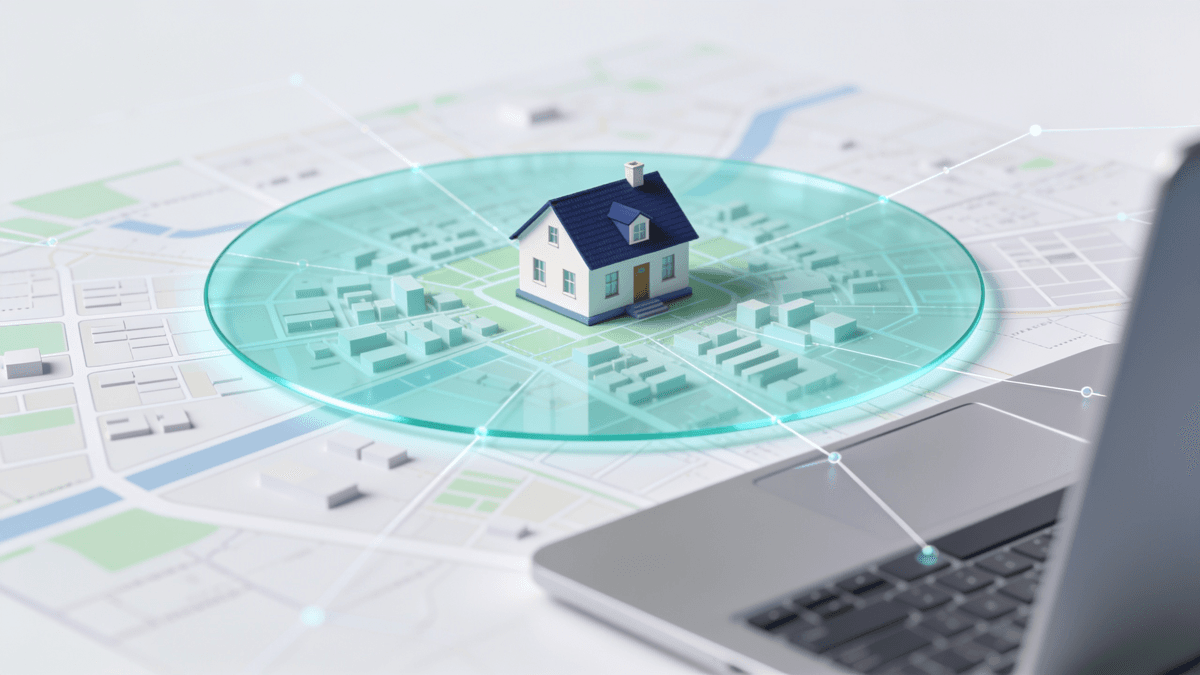
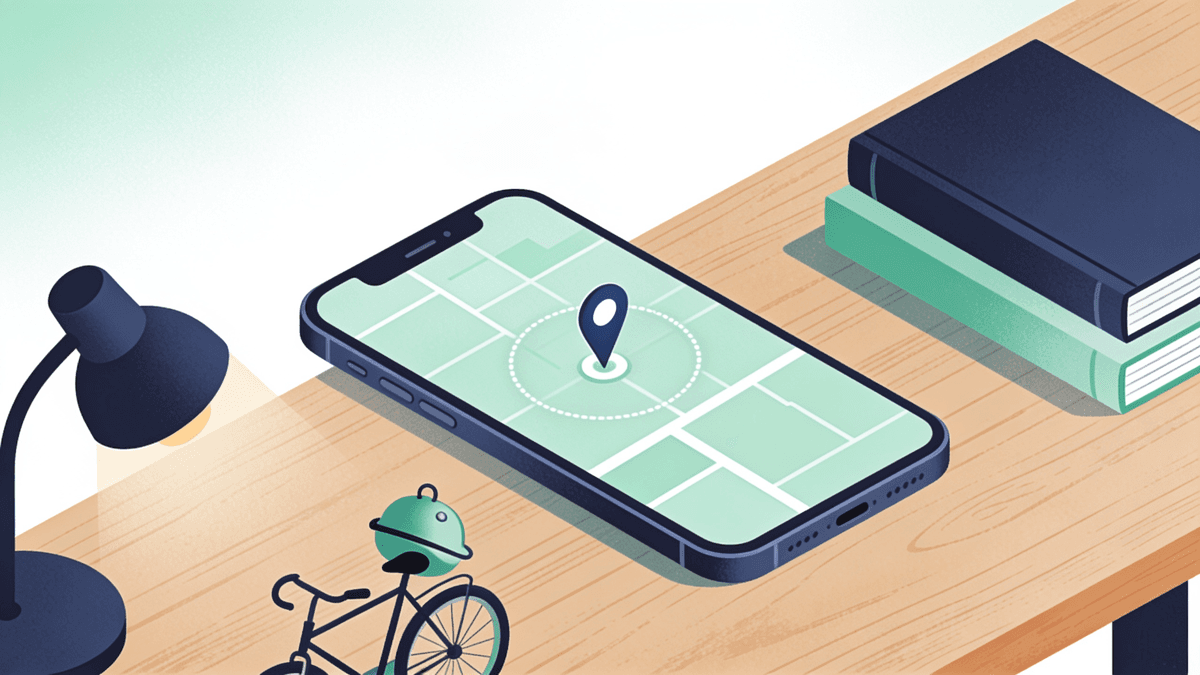
Facebook Marketplace keeps its own location setting, separate from the city on your profile. Meta's Transparency Center says you can set the location or radius of where you search for local listings, and that this location “can be different from the one on your Facebook profile”. Editing your profile therefore does not move Marketplace, and moving Marketplace does not change your profile.
The steps below come from Meta's help article “Change the location of your Facebook Marketplace listings”, read on 3 October 2026. The menu wording differs slightly between the computer and the app versions, so both are listed.
On a computer (facebook.com in a browser)
- 1Open Marketplace. From your Feed, click Marketplace in the left menu. If you don't see it, click See more.
- 2Click your location on the right-hand side. It shows the area Marketplace is currently searching.
- 3Enter the new area. Type a city, neighborhood or ZIP code, or select a location on the map, then set how far around it to search and confirm.
On iPhone, iPad or Android (Facebook app)
- 1Open the Marketplace tab in the Facebook app.
- 2Tap the icon at the top right of Marketplace, then tap Location. Meta's support assistant describes the icon as the You (profile) icon or your current location; tap whichever your version shows.
- 3Enter the new area. Type a city, neighborhood or ZIP code, or select your location on a map, set the radius and confirm.
The listings refresh around the new point straight away. Two related controls sit next to it. Search results can be sorted by distance from your location or by when the listing was created (Sort by, then Distance or Date listed, on the results page), which is often a quicker fix than shrinking the radius. And an item you sell has its own location, chosen when you set up the listing, so moving your browse location does not move anything you already have for sale.
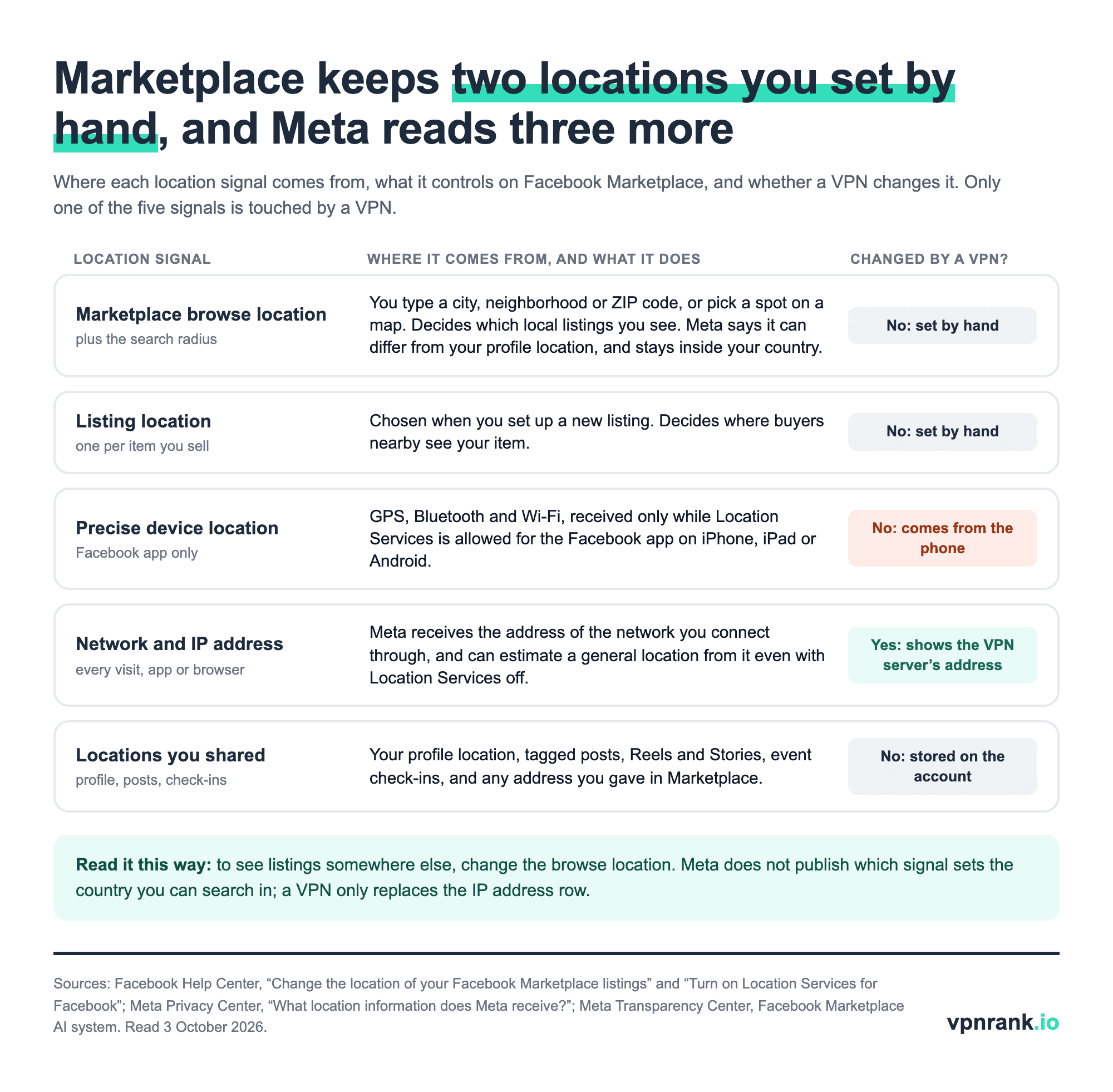
Meta reads five location signals, and only one of them comes from your connection
Marketplace decides what to show from more than the location you type in. Meta's Privacy Center lists the location information it receives: your network and IP address on every visit, your precise position when Location Services is allowed, and places you have shared yourself. Knowing which signal is which explains most “wrong location” problems, and why a VPN changes so little here.
| Signal | Where it comes from | What it does on Marketplace | Changed by a VPN? | What this doesn't tell you |
|---|---|---|---|---|
| Browse location and radius | You type a city, neighborhood or ZIP code, or pick a spot on a map | Sets which local listings you see; Meta says it stays inside your country | No | Meta publishes no list of the radius options |
| Listing location | Chosen when you set up a new listing | Sets where buyers see the item you sell | No | Whether buyers outside the area see it also depends on shipping |
| Precise device location | GPS, Bluetooth and Wi-Fi, only while Location Services is allowed for the Facebook app | Gives Meta your exact position; Meta lists showing nearby events and businesses among its uses of location | No | Meta does not say whether Marketplace re-reads it after you set a location by hand |
| Network and IP address | The network you connect through, on every visit, app or browser | Meta can estimate a general location from it even with Location Services off | Yes: Meta sees the VPN server's address | Meta does not say how much weight Marketplace gives it |
| Locations you shared | Profile location, tagged posts, Reels and Stories, event check-ins, an address given in Marketplace | Stored on the account | No | Editing your profile city does not move Marketplace |
The location signals behind Facebook Marketplace. Sources: Meta Privacy Center, “What location information does Meta receive?”; Facebook Help Center, “Turn on Location Services for Facebook”; Meta Transparency Center, Facebook Marketplace AI system; Facebook Help Center, “How Facebook's Location Settings work”. Verified October 2026.
Meta's public explainer of the AI that ranks the Marketplace feed (it calls this a system card, published in its Transparency Center) adds detail no help page carries. The ranking system first gathers candidate listings, sends “around 1,000” on to scoring, and weighs signals that “may also include location, category, condition or price of the product or seller”. Among the inputs Meta names for predicting whether you will save a listing are the “Distance of the product to the buyer” and the “Buyer's country location”. Distance and country are both in the formula; your IP address is never mentioned on its own.
The precise-location row matters most on phones. Meta's help centre says Location Services for Facebook exists only in the app for iPhone, iPad and Android, and is controlled from the phone's own settings. On iPhone that is Settings, then Privacy & Security, then Location Services, then Facebook, with the choice While Using the App, Ask Next Time or Never. On Android it is Settings, then Apps, then Facebook, then Permissions, then Location, with Allow only while using app, Ask every time or Don't allow.
Practical rule:Change the browse location for where you want to shop and the listing location for where the item is. Neither depends on your IP address, so a VPN is for reaching Facebook, not for moving Marketplace.
Marketplace searches stay inside your own country, and 123 countries have it
The location setting moves your search anywhere inside one country and no further. Meta's Transparency Center puts it directly: you can set the location or radius of where you want to search “for local listings in your country”. So a buyer in Texas can browse Chicago, or a buyer in Manchester can browse Glasgow, but neither can set Marketplace to search Toronto or Paris.
Marketplace itself is not offered everywhere. Meta's public Marketplace directory, read on 3 October 2026, lists 123 countries and territories, from Algeria to Zambia, with the United States, Canada, Mexico, the United Kingdom, Brazil, India, Indonesia, Germany, France and Thailand among them. Japan, South Korea, Ukraine and Iceland do not appear in the directory. Meta's help article “Who can use Facebook Marketplace” sets the other requirements:
- Age: you must be an adult, for example at least 18 years old in the United States. Adults blocked by mistake can confirm their age in the mobile app.
- Residence: you must live in a country where Marketplace is available.
- Account: Meta may restrict new or inactive accounts, an additional profile used instead of your main one, and anyone not logged in.
- Rules: breaking the Terms of Service or Commerce Policies can limit or remove access.
- Sellers: Marketplace is meant for consumer-to-consumer sales; Meta's Commerce Policies say businesses in the European Economic Area, the Philippines and India may have access suspended or listings removed.
Meta does not publish which signal sets “your country”, and there is no country menu in Marketplace. People who move abroad should therefore update everything they control so it agrees: the browse location in the new country, the profile location, and the Facebook app's location permission on the phone. If Marketplace still shows the old country after that, the remaining route is Meta's own support, not a setting.
A VPN changes the IP address Meta sees, not your Marketplace country
A VPN (virtual private network) sends your traffic through a server run by the VPN provider, so websites see that server's IP address in place of yours. On Facebook that replaces one signal out of five. It leaves the browse location, the listing location, the phone's precise location and everything stored on the account exactly as they were, which is why it cannot open another country's Marketplace.
It can also work against you. Meta says that if it detects “a suspicious attempt to log into your account from a new location”, it checks that it is really you, so a sudden login from a server in another country can trigger an identity check. Presenting an item as located somewhere it is not also misleads buyers, and Meta's Commerce Policies allow it to limit or suspend Marketplace access for breaking the rules. To check which address Facebook receives at any moment, open what is my IP; our IP address lookup shows what location that address points to.
A VPN is useful here in two situations. The first is a public network: arranging a pickup over café or hotel Wi-Fi exposes which sites you use to whoever runs that network, a risk covered in our guide to public Wi-Fi safety. On public Wi-Fi, connect to a server in the country you are in; it keeps your IP address consistent with your browse location and avoids the new-location login check. The second is a country or network that blocks Facebook itself, covered in the next section. A server inside that country sits behind the same block, so connect to one outside it, ideally in your home country, where your account and Marketplace already belong. Our guide to choosing a VPN server location explains the trade-offs, and our guide to changing your IP address compares the other ways to swap the address.
Where Facebook itself is blocked, no Marketplace setting helps until the site loads
In some countries the location setting is the second problem, because facebook.com does not load at all. OONI, the Open Observatory of Network Interference, runs volunteer tests of whether sites can be reached from each country. Our monthly aggregation of those tests for August 2026 shows Facebook confirmed blocked in most Iranian measurements and failing in most Russian ones.
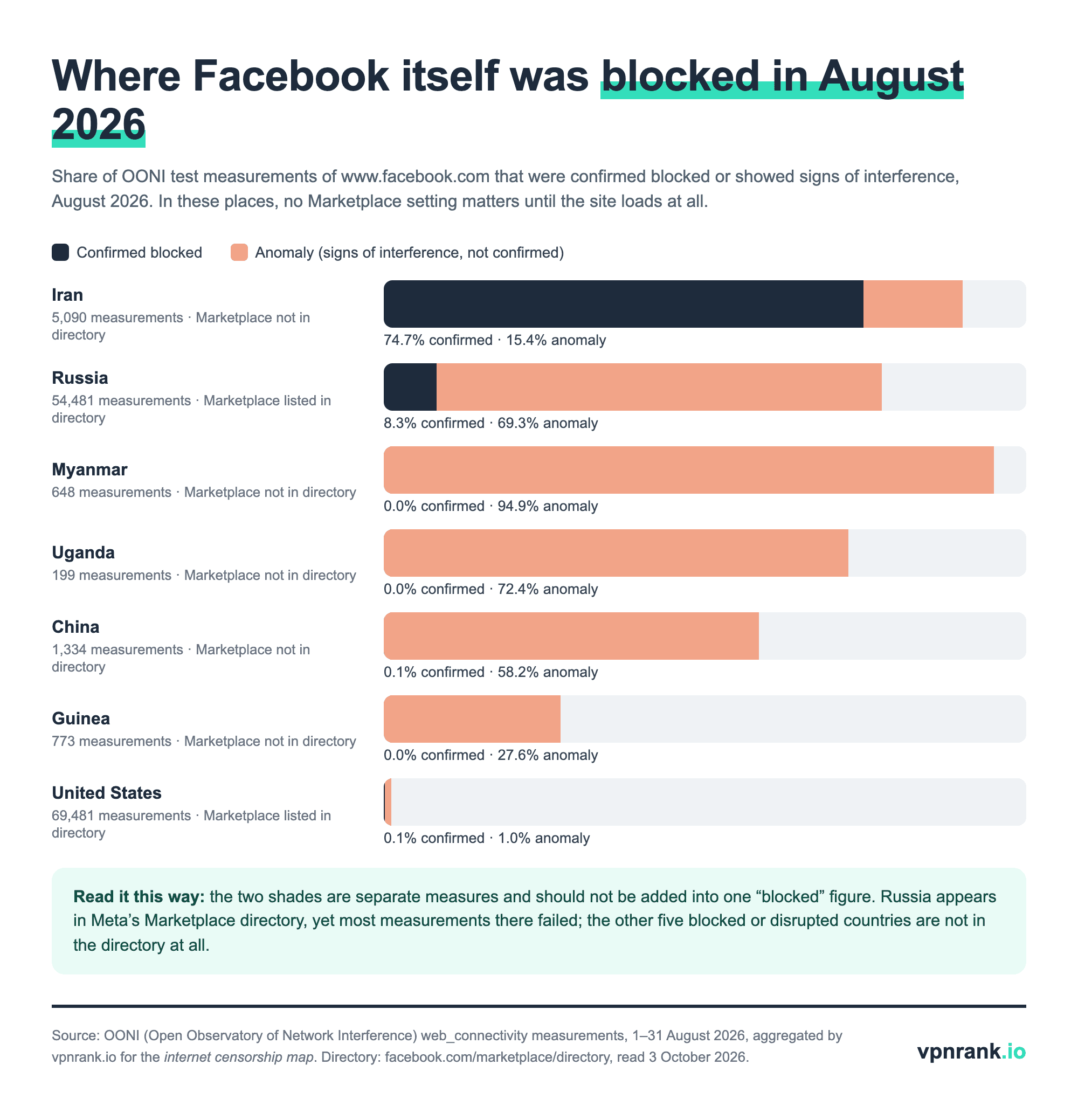
The chart keeps two measures apart. A confirmed block means the test matched a known blocking pattern, such as an official block page; an anomaly means the connection failed in a way consistent with interference but not proven. Iran had 74.7% confirmed across 5,090 measurements. Russia had 8.3% confirmed and 69.3% anomalous across 54,481. Myanmar (94.9%), Uganda (72.4%) and China (58.2%) were mostly anomalies. Guinea's 27.6% points to partial disruption. The United States sat near 1%. The full country view is on our internet censorship map, with a dedicated Iran page.
Russia is the odd case: it appears in Meta's Marketplace directory, yet most tests of facebook.com there failed in August 2026. In networks like these, ordinary VPN connections are often blocked too, which is what obfuscation features are for. They disguise the VPN connection as regular web traffic. Using a VPN can be restricted by law in some of these countries, so read our country pages for Russia, China and travel to Iran before relying on one, and follow the rules of any school or workplace network.
If Marketplace still shows the wrong area, check these six things in order
Most location complaints on Marketplace trace back to one of six causes, from a radius set too wide to an account that has lost Marketplace access. Work down the list with the symptom first. Each fix uses a setting Meta documents, and none of them needs a VPN, a location-spoofing app or a new account.
- 1Listings come from far away. Shrink the radius, or sort the results by Distance. Shipped items are the other cause: Meta's selling page says that when sellers offer shipping, they “reach interested buyers across the country”, so a shipped listing can show up far outside your radius. Meta's system card also notes that boosted listings and ads are placed separately from the regular feed.
- 2The location keeps jumping back to where your phone is. Set the browse location again, then check the Facebook app's location permission in the phone's settings. Meta does not document whether Marketplace re-reads the phone's position, but the permission is the one location input you control directly.
- 3An item you are selling shows the wrong place. The listing has its own location, separate from your browse location, so edit the listing rather than your Marketplace location. On a computer: Marketplace, Selling, Your listings, the Options button on the listing, Edit listing, change the location, then Update. In the app: Marketplace, Profile, Your listings, Options, Edit listing, then Save.
- 4Marketplace is missing or says it isn't available. Check the requirements above: adult age, a country in the directory, an active main profile, being logged in. On a computer, open your profile menu, choose Profile status, then Marketplace under Extra features to see whether access was limited.
- 5Access is limited after a rejected listing. In the same Profile status screen, Meta offers Request review or, for a first breach of some rules, the option to remove the warning. A review is not offered after 180 days, if you already asked for one, or for some rules.
- 6Facebook asks you to confirm your identity after you switched on a VPN. Meta checks logins from a new location. Complete the check, and connect to a server in your own country next time.
Selling with shipping has a location rule of its own. Meta's help page on shipping, read from an Italian connection on 3 October 2026, answered that “selling with shipping on Marketplace isn't available in your location right now” and pointed to selling locally instead. If the shipping option is missing from your listing form, the feature may not be offered where you live, whatever the browse location says.
Travelling, moving and selling for a friend each need a different setting
The right fix depends on what changed: where you are, where you want to shop, or where the item is. The table pairs each common situation with the setting that handles it, and states the limit of each. In every case except a blocked network, the answer is a Marketplace setting rather than a change to your connection.
| Situation | What to change | Does a VPN help? | Limit to know |
|---|---|---|---|
| Shopping in another city in the same country | Browse location and radius | No | Pickup still means travelling there |
| Moving to another city | Browse location, then profile location | No | Existing listings keep their old location until edited |
| Moving to another Marketplace country | Browse location, profile location, phone location permission | No | Meta publishes no country switch; contact Meta support if the old country persists |
| Visiting a country where Facebook is blocked | Install the VPN app before leaving, then connect to a server in your home country | Yes, to reach Facebook | VPN use is restricted by law in some countries |
| Selling an item kept at a friend's address | Listing location for that item | No | Meta's Commerce Policies apply to what you list |
| Using café or hotel Wi-Fi | Nothing on Marketplace | Yes, for privacy on that network | The VPN provider sees what the Wi-Fi owner would have seen |
Which setting fixes which Marketplace location situation. Sources: Facebook Help Center; Meta Transparency Center; Meta Commerce Policies; OONI August 2026 data. Verified October 2026.
One situation is not in the table on purpose: setting a false location to sell to buyers somewhere you are not. Buyers on Marketplace expect to collect locally or receive a shipped item, and an item listed as located somewhere it is not misleads them, which can cost you Marketplace access under the Commerce Policies. For what strangers can and cannot learn from the address your phone or laptop uses on Facebook, see what someone can do with your IP address.
VPNs that fit this job
A VPN does not move Marketplace, and it matters most where Facebook or VPN traffic is blocked, so the picks below are chosen for getting through restrictive networks: one free, one automatic, one with country choice. The wider comparison of ways to change your address is on our change-IP ranking.
| VPN | Best for | 2-year price | Why | Deal |
|---|---|---|---|---|
| Proton VPN | Free option where Facebook is blocked | $2.99/mo30-day refund | Proton VPN says its Stealth protocol, designed to bypass internet blocks by hiding the VPN connection, “is available with all Proton VPN plans, including our Free plan”. Proton lists Stealth on Windows, macOS, Android, iOS and iPadOS, which covers the Facebook app on a phone. | Get dealPrice today |
| Surfshark | Turns on obfuscation by itself | $1.78/mo30-day refund | Surfshark's help centre says that if the app detects restrictions on your network, it automatically enables NoBorders, which shows the servers that perform best under those restrictions. It can also be switched on by hand under Settings, VPN Settings, Advanced Settings. NoBorders needs an active subscription. | Get dealPrice today |
| NordVPN | Obfuscated servers in a country you choose | $3.09/mo30-day refund | NordVPN's help centre says its Obfuscated Servers now run on the NordWhisper protocol, which makes VPN traffic resemble regular web traffic. In the app, Specialty servers, then Obfuscated, connects; the three-dot menu next to it picks the country, so a traveller can choose a server back home, outside the network doing the blocking. | Get dealPrice today |
Prices are the 2-year plan per month in USD from our VPN Price Index, checked daily.
Need a different use case? See the full change-IP ranking
Frequently asked questions
Why is my Facebook Marketplace showing the wrong location?
Usually because the browse location was set once, or estimated, and never updated. Marketplace keeps its own location, separate from your profile, so moving house or travelling does not change it. Open Marketplace, select the location shown at the top, and enter your city or ZIP code. If it keeps drifting back, check the Facebook app's location permission in your phone's settings, since Meta receives the phone's precise position only when that permission is on.
How do I change my location on Facebook?
Facebook has several separate locations. The city on your profile is edited from your profile. The Marketplace browse location is changed inside Marketplace and, according to Meta, can differ from your profile location. Precise location comes from the phone and is turned on or off in the phone's settings under Location Services. Changing one of them does not change the others.
How do I change the country on Facebook Marketplace?
There is no country setting. Meta says the Marketplace search area can be set anywhere for local listings in your country, so the browse location moves within one country only. Meta does not publish which signal decides your country. People who have moved abroad should update the browse location, the profile location and the phone's location permission so they all agree, and contact Meta support if Marketplace still shows the old country.
Why does Facebook Marketplace show items outside my area?
Three reasons. The radius may be wider than you think; shrinking it or sorting results by Distance fixes that. Shipped listings are offered to buyers across the country, so they can appear far outside your radius. And boosted listings and ads are placed separately from the regular feed, which Meta's system card for the Marketplace feed says is not powered by the ranking AI it describes.
Why can't I change my location on Facebook Marketplace?
Either Marketplace is not fully available to the account, or the new location is in another country. Meta limits Marketplace for new or inactive accounts, additional profiles, people under the adult age and accounts that broke its Commerce Policies; Profile status, then Marketplace under Extra features, shows whether access is limited. A location outside your own country cannot be set at all, with or without a VPN.
Does a VPN change my Facebook Marketplace location?
No. A VPN replaces the IP address Meta sees with the VPN server's, but Marketplace listings follow the browse location you set by hand, and the search stays inside your country. A VPN is useful when Facebook is blocked where you are, or on public Wi-Fi. Connecting from a server in another country can also trigger Meta's check for logins from a new location.
Sources we read for this guide
- Change the location of your Facebook Marketplace listings (Facebook Help Center)
- Sort by distance or new listings on Facebook Marketplace (Facebook Help Center)
- Who can use Facebook Marketplace (Facebook Help Center)
- What it means if your Facebook Marketplace access is at risk, limited or suspended (Facebook Help Center)
- What to do if your Facebook Marketplace listing is rejected (Facebook Help Center)
- Turn on Location Services for Facebook (Facebook Help Center)
- How Facebook's Location Settings work (Facebook Help Center)
- Edit your Facebook Marketplace listing (Facebook Help Center)
- About shipping on Facebook Marketplace (Facebook Help Center)
- Offer shipping on Marketplace (Facebook)
- Facebook Marketplace directory (read 3 October 2026)
- What location information does Meta receive? (Meta Privacy Center)
- Facebook Marketplace AI system (Meta Transparency Center)
- Commerce Policies (Meta)
- OONI Explorer: measurements of www.facebook.com (Open Observatory of Network Interference)
- Bypass censorship with a VPN: Stealth on all plans (Proton VPN)
- Change your VPN protocol (Proton VPN Support)
- How to use Surfshark NoBorders (Surfshark Support)
- NordVPN Obfuscated Servers are getting an upgrade (NordVPN Help Center, 2 October 2026)
- How to connect and disconnect from NordVPN's obfuscated servers (NordVPN Help Center)