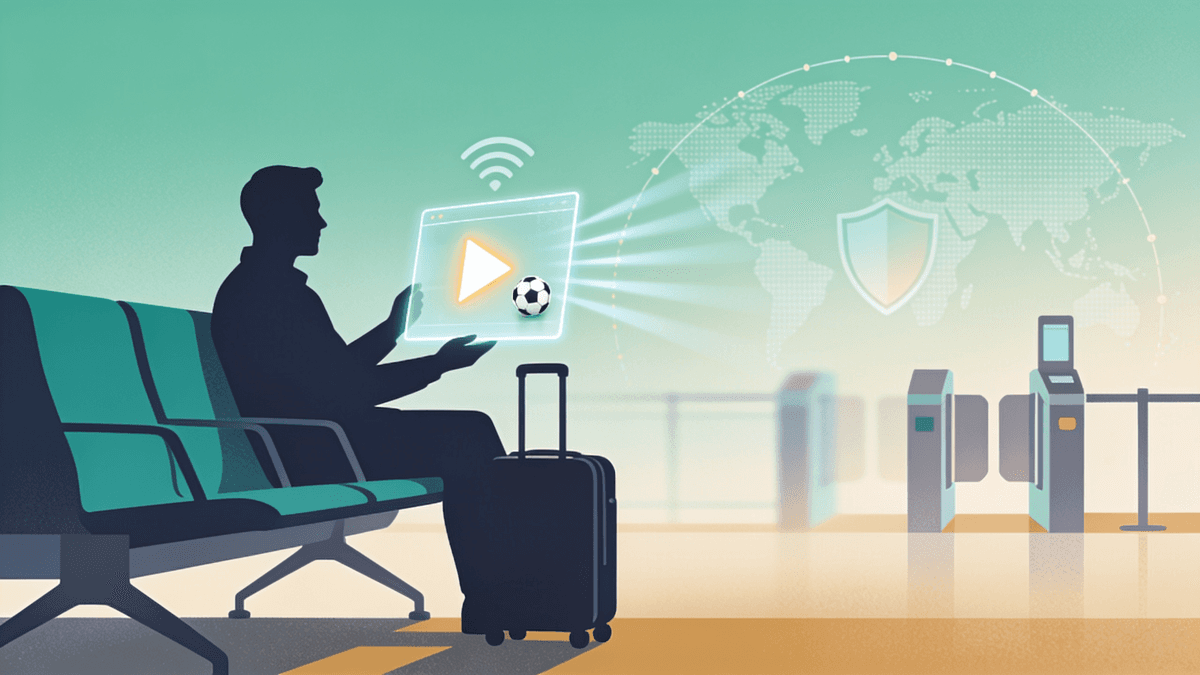
How to Watch YouTube TV From Abroad Without Losing Your Subscription
Why the service is US-only, how its location checks actually work, and the settings that keep your account healthy while you travel.

vpnrank.io is reader-supported: we may earn a commission if you buy through links in this article. This never affects our rankings.
YouTube TV is a United States-only service, so the moment your device connects to the internet from another country the app blocks playback and shows a message that the service is not available in your area. Your subscription keeps billing and your recordings stay safe, but nothing streams. This guide explains why, and what actually keeps access working while you travel.
Why YouTube TV is locked to the United States
YouTube TV licenses live channels, local affiliates and sports rights on a country-by-country basis, and those deals only cover the United States. Google has no right to stream ABC, NBC, ESPN or your regional CBS affiliate to a viewer sitting in Madrid or Manila, so instead of serving a partial catalogue abroad it simply switches everything off at the border.
This is the same licensing logic that fragments almost every big streaming platform. A show can be on one service in the US, a different one in the UK, and unavailable in a third country entirely. Our overview of why streaming services are geo-blocked walks through how these regional windows are sold, and it is worth reading if you are trying to understand why so many apps behave this way when you cross a border.
The practical upshot is blunt: YouTube TV's own help pages state you cannot access any programs while travelling internationally. Domestic travel inside the US is fine and even expected, but the second your connection resolves to a foreign country, playback stops. If you want to check a specific title or channel before a trip, our can I watch tool is a quick way to see where content is available.
Domestic travel versus crossing the border
It helps to separate two very different situations, because YouTube TV treats them almost oppositely. Travelling within the United States is a supported use case that the service actively expects, whereas leaving the country trips a hard block. Knowing which side of that line you are on tells you whether you need any workaround at all.
Inside the US, moving around is smooth. When you travel to another part of the country, YouTube TV serves the national networks you always get, the local channels of the place you are visiting, and all of your cloud recordings from home. You temporarily see the visited market's local affiliates rather than your own, but nothing goes dark, and your account keeps functioning normally.
The moment your connection resolves to another country, the behaviour changes completely. Live channels, on-demand titles and even playback of your own recordings are cut off, and you are shown a not-available message rather than a partial line-up. There is no international tier, no travel pass and no grace period: the block is binary, which is precisely why so many travellers go looking for a way to present a US connection.
How YouTube TV decides where you are
YouTube TV does not rely on a single signal. It runs a layered location system that combines the IP address your device connects from with, on phones and tablets, your GPS coordinates and permitted device location. Understanding these layers matters because they explain both the abroad block and the periodic prompts you see even inside the US.
There are two separate location concepts that people constantly confuse, and keeping them straight is the key to travelling without breaking your account:
- Home area: the ZIP code and region tied to your account at sign-up. It determines which local network affiliates (your CBS, NBC, ABC, Fox stations) you get. You can only change it twice in any 12 months, and only while physically in the new location.
- Current playback area: where you are watching right now. YouTube TV verifies this roughly every 30 days on a given device, and more often if it sees you moving around. This is the check that trips when you go abroad.
On desktop, YouTube TV checks the IP address of your connection. On mobile it can also request precise device location through the operating system. If those signals disagree, or if either one points outside the US, you get a location error. A mismatch is exactly what happens when a VPN sets your IP to a US city but your phone's GPS still reports a foreign country, which is a trap we cover in the troubleshooting section below.
One more detail worth knowing: connecting through a detected VPN or proxy can itself trigger a block, because YouTube TV's terms treat it as unsupported. It does not usually get accounts banned, but it does cause playback errors and repeated location prompts, so the method you use matters. This is also why a cheap or overloaded VPN whose US addresses are already flagged tends to fail where a well-maintained one succeeds.
Keeping your subscription healthy while you travel
The biggest mistake long-term travellers make is neglecting the home-area check-in. YouTube TV requires you to open the app from your home area at least once every three months to keep serving your correct local networks. Miss that window repeatedly and you can lose local channels or have your home area updated to where you last watched, which is far more disruptive than a single blocked stream.
If you are heading abroad for a while, a few habits protect the account:
- 1Before you leave, open YouTube TV once at home so your home-area check-in is fresh and the clock resets.
- 2Note the three-month window. If your trip is longer, plan a genuine home-area connection at some point, or ask a trusted person on your account to open the app from your address.
- 3Keep your billing card valid so the subscription does not lapse and reset your settings while you are away.
- 4Remember MLB and some sports content run a stricter 30-day home-area check, so heavy sports viewers should factor that in.
None of this requires any workaround. It is simply account hygiene, and doing it properly means that whatever method you use to watch abroad, your local channels and recordings are still waiting for you when you return home. The travellers who run into real trouble are almost always the ones who let the three-month window lapse while away, then find their home area quietly reassigned to wherever they last connected.
The VPN method, step by step
Because YouTube TV keys off your connection's location, routing your traffic through a US server is how travellers restore access. A VPN encrypts your connection and gives your device a US IP address, so the service sees a domestic connection instead of a foreign one. Note that YouTube TV's terms treat VPN use as unsupported, so this is about maintaining access to a service you already pay for, on your own account.
The core sequence is short, but the order matters:
- 1Install a reputable VPN app on the device you will watch on, and sign in.
- 2Connect to a US server, ideally one in or near your real home area so the region lines up with your account.
- 3On phones and tablets, disable precise location for the YouTube TV app (or turn off device location) so GPS does not contradict your US IP.
- 4Fully close and reopen YouTube TV so it re-checks your location from scratch.
- 5If prompted, complete the current-playback-area verification while connected.
Not every provider works, because YouTube TV actively filters known VPN address ranges. Reliability comes down to server freshness and speed, and live TV in particular is punishing on a slow connection. If you want to sanity-check a provider before a trip, run our VPN speed test results, and if you are choosing between services, our broader best VPNs for streaming guide compares the ones that hold up against strict platforms.
For live US TV specifically, we lean toward providers with fast, frequently-refreshed US servers so the stream holds without buffering. See our current top pick and setup notes.
See our top-ranked VPNs →A router-level setup is worth considering if you travel with a streaming stick or a smart TV that cannot run a VPN app directly. Installing the VPN on a travel router puts every connected device behind a US IP at once. Our guide to VPNs for routers covers which models make this straightforward, and the same approach helps with an Android TV box that lacks a native client.
Fixing the location error when it appears
When YouTube TV throws a location error even though you are on a US server, the cause is almost always a conflicting signal rather than the VPN failing outright. The service caught either a leaking real IP, a GPS reading, or a DNS request that pointed back to your true country. Working through the causes in order usually clears it fast.
Run through these checks:
- Kill the GPS conflict. On mobile, revoke precise location for the YouTube TV app or disable device location entirely, then reconnect. A US IP paired with foreign GPS is the single most common cause of the error.
- Force a fresh location check. Fully quit the app (not just background it), confirm the VPN is connected to a US server, then reopen. Restarting mid-session rarely re-runs the check.
- Switch to a different US server. If YouTube TV has blacklisted the server's IP range, another city usually gets through.
- Clear the app cache or reinstall. A stale cached location can persist even after you change servers.
- Rule out leaks. If your real location is bleeding through despite the VPN, check for a DNS or WebRTC leak.
Leaks deserve special attention because they silently undermine everything else. If your browser or system is resolving addresses outside the VPN tunnel, YouTube TV can see your true country even with a US IP showing. Our explainers on a DNS leak and a WebRTC leak show how to test for and close both, and a provider with built-in leak protection avoids the problem in the first place. For a wider view of what a VPN does and does not hide, see our notes on VPN privacy.
What to do if a VPN is not an option
Sometimes the cleanest answer is to change what you are trying to watch rather than fight the geo-block. If you only need a specific show, film or match rather than your full US channel line-up, a service that is actually licensed in your destination country will always be more reliable than routing live US TV across the world.
A few practical alternatives:
- Download recordings or on-demand content to your device before you leave the US, where local playback rules are more forgiving than live streaming abroad.
- Check whether the specific programme is available on a service that operates in your destination, which our comparison of the best VPNs and streaming options can help with.
- For live sport, look at the rights holder in the country you are visiting rather than assuming your US package will follow you.
If your main reason for wanting US TV abroad is a specific event rather than everyday viewing, it is worth reading our dedicated coverage. Our sports streaming hub and the World Cup 2026 guide, for example, lay out where major fixtures are broadcast region by region, which often reveals an easier route than forcing YouTube TV to work overseas.
Keep reading
Frequently asked questions
Can I use my existing YouTube TV subscription abroad?
Your subscription stays active and continues billing while you travel, but YouTube TV blocks all playback outside the United States. Recordings and settings are preserved, so nothing is lost. To actually watch, you need a US connection, and to keep your local channels you must open the app from your home area at least once every three months.
How often does YouTube TV check my location?
YouTube TV verifies your current playback area roughly every 30 days on a given device, and more frequently if it detects you moving between locations. Separately, your home area requires a check-in at least once every three months to keep serving the correct local network affiliates. Some sports content, including MLB, uses a stricter 30-day home-area rule.
Why do I get a location error even with a VPN on?
The most common cause is a signal conflict: your VPN sets a US IP, but your phone's GPS still reports your real country, so YouTube TV sees a mismatch. Disable precise location for the app, fully restart it, and reconnect. Remaining errors usually mean the server's IP is blacklisted or a DNS or WebRTC leak is exposing your true location.
Will using a VPN get my YouTube TV account banned?
Account bans are not the usual outcome, but VPN use is treated as unsupported under YouTube TV's terms. The realistic risks are playback errors, repeated location prompts and temporary access blocks when a VPN server is detected. Using a reputable provider with fresh US servers and no leaks minimises those interruptions on your own paid account.
Does the home area need to match my VPN server location?
They do not have to match exactly, but aligning them helps. Connecting to a US server in or near your real home area keeps your region consistent with the account and reduces the chance of a mismatch. Your home area is fixed by your account ZIP code and can only be changed twice in any 12-month period, and only while you are physically there.
Can I set up YouTube TV on a streaming stick or smart TV abroad?
Many streaming sticks and smart TVs cannot run a VPN app directly. The workaround is a travel router with the VPN installed, which routes every connected device through a US IP at once. This lets a streaming stick or an Android TV box that lacks a native VPN client appear to be connecting from inside the United States.
Is watching YouTube TV abroad with a VPN legal?
Using a VPN is legal in most countries, and you are accessing a service you already pay for on your own account. However, it may conflict with YouTube TV's terms of service, which do not officially support VPN or proxy connections. This guide is about maintaining access to your own subscription, not evading payment or licensing.
The best VPNs of 2026, ranked
Now you know how — here are the VPNs we recommend, independently tested and ranked for speed, streaming, privacy and value. Any of them works for everything in this guide.

ExpressVPN Ultra fast & secure. Great for privacy, downloads, and everyday browsing on all your devices. 24/7 live chat support.
ExpressVPN Ultra fast & secure. Great for privacy, downloads, and everyday browsing on all your devices. 24/7 live chat support.

IPVanish Fast speeds with unlimited device connections. Strong no-logs privacy and 24/7 live chat support. Great for families.

IPVanish Fast speeds with unlimited device connections. Strong no-logs privacy and 24/7 live chat support. Great for families.

NordVPN Excellent speeds with one of the largest server networks. Strong security features and easy-to-use apps. 24/7 live chat support.
NordVPN Excellent speeds with one of the largest server networks. Strong security features and easy-to-use apps. 24/7 live chat support.

Proton VPN Swiss-based VPN with strong privacy focus. Audited no-logs policy and open-source apps. Great for privacy-conscious users.
Proton VPN Swiss-based VPN with strong privacy focus. Audited no-logs policy and open-source apps. Great for privacy-conscious users.

CyberGhost Fast speeds and strong privacy tools. Simple apps, automatic WiFi protection, and 24/7 live chat support.
CyberGhost Fast speeds and strong privacy tools. Simple apps, automatic WiFi protection, and 24/7 live chat support.

TotalVPN Affordable VPN with strong privacy and reliable speeds. Easy-to-use apps for all major devices. No-logs policy.
TotalVPN Affordable VPN with strong privacy and reliable speeds. Easy-to-use apps for all major devices. No-logs policy.

Private Internet Access High-speed VPN with a large server network and advanced security settings. Ad blocker included and 24/7 live chat support.
Private Internet Access High-speed VPN with a large server network and advanced security settings. Ad blocker included and 24/7 live chat support.

Surfshark Unlimited device connections at a budget-friendly price. Includes ad blocker and strong privacy tools. Great value for money.
Surfshark Unlimited device connections at a budget-friendly price. Includes ad blocker and strong privacy tools. Great value for money.
Rankings are based on our independent testing methodology. Each guide applies the criteria described on that page, including relevant performance, privacy, product features, and value data. We may earn affiliate commissions from links on this page, which helps fund our testing — this does not influence our rankings.