How to Set Up a VPN on a Chromebook: The Three Routes, Explained
Android app, Chrome extension, or the native ChromeOS client — which one to pick, how to configure each, and how to confirm it actually works.

vpnrank.io is reader-supported: we may earn a commission if you buy through links in this article. This never affects our rankings.

On a Chromebook in October 2026, install your VPN provider's Android app from Google Play: Google says a full-tunnel VPN carries traffic from every Chrome window, Chrome app and Android app. If your Chromebook has no Play Store, which is the case on ChromeOS Flex and on pre-2021 models moved to extended updates, use the built-in client under Settings, Network, Add connection. A Chrome extension protects only the browser.
The Android app covers the whole Chromebook; an extension covers only Chrome
The three routes differ in how much of the Chromebook they protect and in which Chromebooks can use them at all. Google's help page on VPNs says that a full-tunnel VPN carries “all traffic from all Chrome windows, Chrome apps, and Android apps”. A browser extension is a different thing: a proxy inside Chrome, so every other app keeps using your real connection. Picking the wrong route is the most common reason a Chromebook VPN seems not to work.
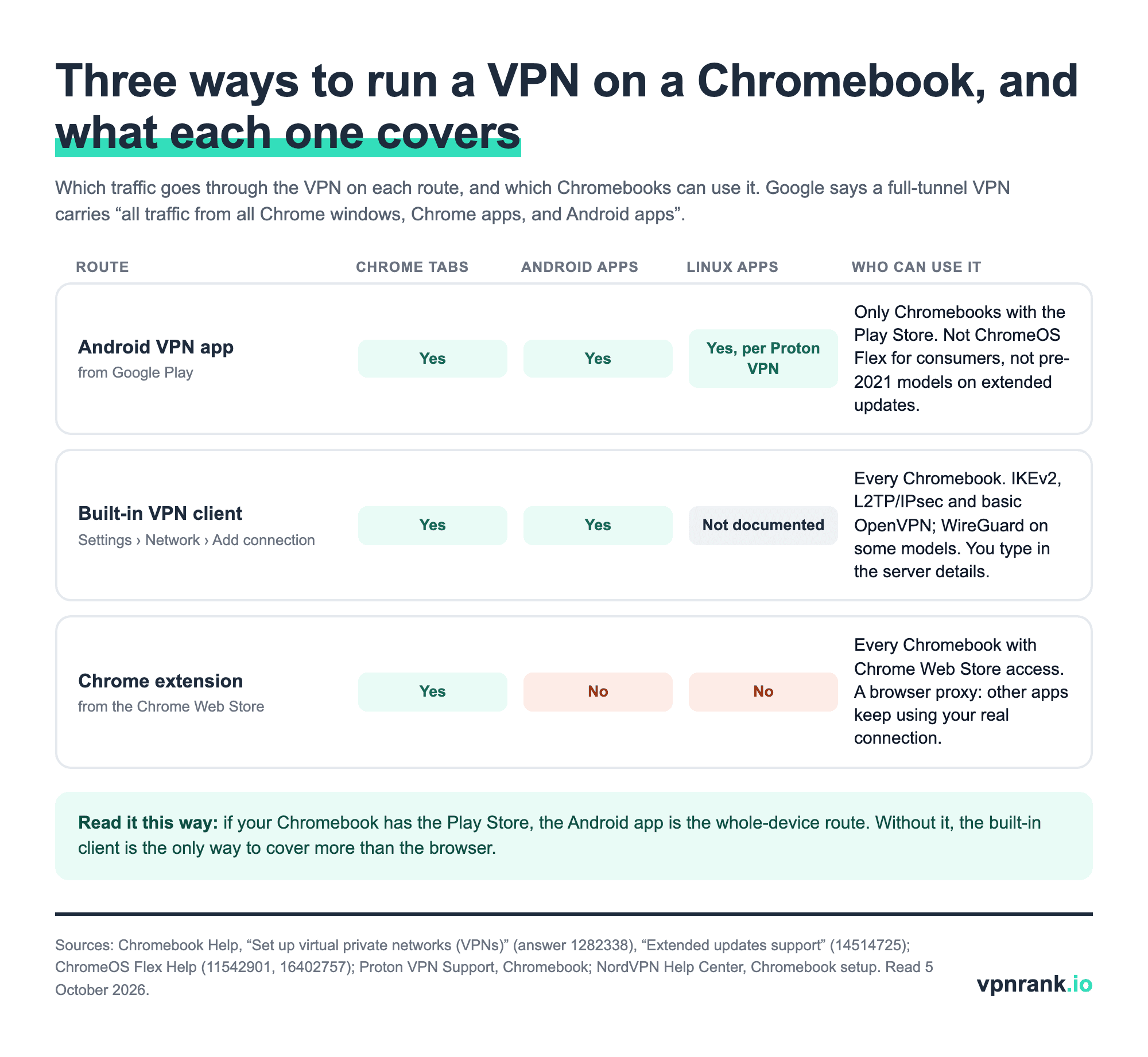
- Android VPN app (Google Play): the provider's own app, with its protocols, server list and settings. Covers the whole device. Needs a Chromebook with the Play Store.
- Built-in VPN client (Settings): ChromeOS's own dialog for IKEv2, L2TP/IPsec, basic OpenVPN and, on some models, WireGuard. Works on every Chromebook, but you enter every server detail yourself.
- Chrome extension (Chrome Web Store): a browser proxy. NordVPN's help centre puts it plainly: the extension “only secures your internet traffic within the Chrome browser”.
Practical rule:If Settings, Apps shows Manage Google Play preferences, install the provider's Android app. If it doesn't, use the built-in client, and treat any extension as browser-only.
Check two things first: whether your Chromebook has Google Play, and who manages it
Two facts decide which routes exist on your Chromebook before you download anything. The first is whether it runs Android apps at all: Google says the Play Store “is available for only some Chromebooks”, and some lose it. The second is whether a school or employer manages it, because administrators can switch off Android apps, lock VPN settings or force their own VPN. Both take under a minute to check.
Does your Chromebook have the Play Store?
- 1Select the time at the bottom right, then the gear to open Settings.
- 2Open Apps and look for Manage Google Play preferences. Google says that if you can't find this option, “your Chromebook doesn't work with Android apps”.
- 3While in Settings, open About ChromeOS and select Check for updates. The current stable release, posted by Google on 24 September 2026, is ChromeOS 16765.51.0.
Two groups of Chromebooks have no Play Store by design. Chromebooks released before 2021 that opt into Google's extended updates lose it: Google says extended updates “do not include support for Android apps or the Google Play Store”, and that opting in “won't be reversible”. And ChromeOS Flex, the version installed on ordinary PCs and Macs, supports Android VPN apps only when an administrator deploys them, from a short list of business VPN clients that includes none of the consumer providers we review. On both, the built-in client is the whole-device route.
Is it a school or work Chromebook?
A managed Chromebook shows that it is managed by an organisation in Settings and on the sign-in screen. Google's Admin console lets the administrator turn off Android apps entirely, limit the Play Store to an allowlist, force-install a VPN app as an Always-on VPN that users cannot disconnect, and switch off the user's ability to add or change VPN connections (the policy is called VpnConfigAllowed). Google's own advice is: “If you use your Chromebook at work or school and have problems with your VPN, contact your administrator for help.” Follow the organisation's rules; this guide does not cover getting around them.
Route 1: install the provider's Android app, then turn on Always-on VPN
On a Chromebook with the Play Store, the provider's Android app is the route that covers the whole device and keeps itself updated. Google's help page gives the steps, and most providers we review publish matching Chromebook instructions: NordVPN, Surfshark, ExpressVPN, Proton VPN and IPVanish all point to the Android app. The extra step most guides skip is Always-on VPN, which stops traffic leaking when the tunnel drops.
- 1Install the app. Open the Launcher, then Play Store, search for the provider and select Install. Check that the developer name matches the provider.
- 2Sign in and connect once. Open the app, sign in, and approve the connection request that ChromeOS shows the first time. A key icon appears in the status area while the VPN is on.
- 3Add it to Network settings (optional). Google's path: Settings, Network, Add connection, then Add next to the app's name, so you can connect from the Chromebook's own network menu.
- 4Turn on Always-on VPN. Settings, Apps, Manage Google Play preferences, Android Settings, Network & internet, VPN, then the gear next to the app, and switch on Always-on VPN.
- 5Block traffic when the VPN drops. On the same screen, Google suggests turning on Block connections without VPN “if your VPN connection stops and you don't want to connect directly to the internet”.
Two provider notes matter here. Proton VPN warns that on a Chromebook “the always-on VPN and VPN kill switch features found in our Android app do not remain enabled after you restart your Chromebook”, so check the setting after every restart. NordVPN's help centre advises against running its Android app and its Chrome extension at the same time. Proton also says its Android app protects connections from Linux apps running in the Chromebook's Linux container, which matters if you use it for development work.
Route 2: a Chrome extension protects browser tabs only, and lookalikes exist
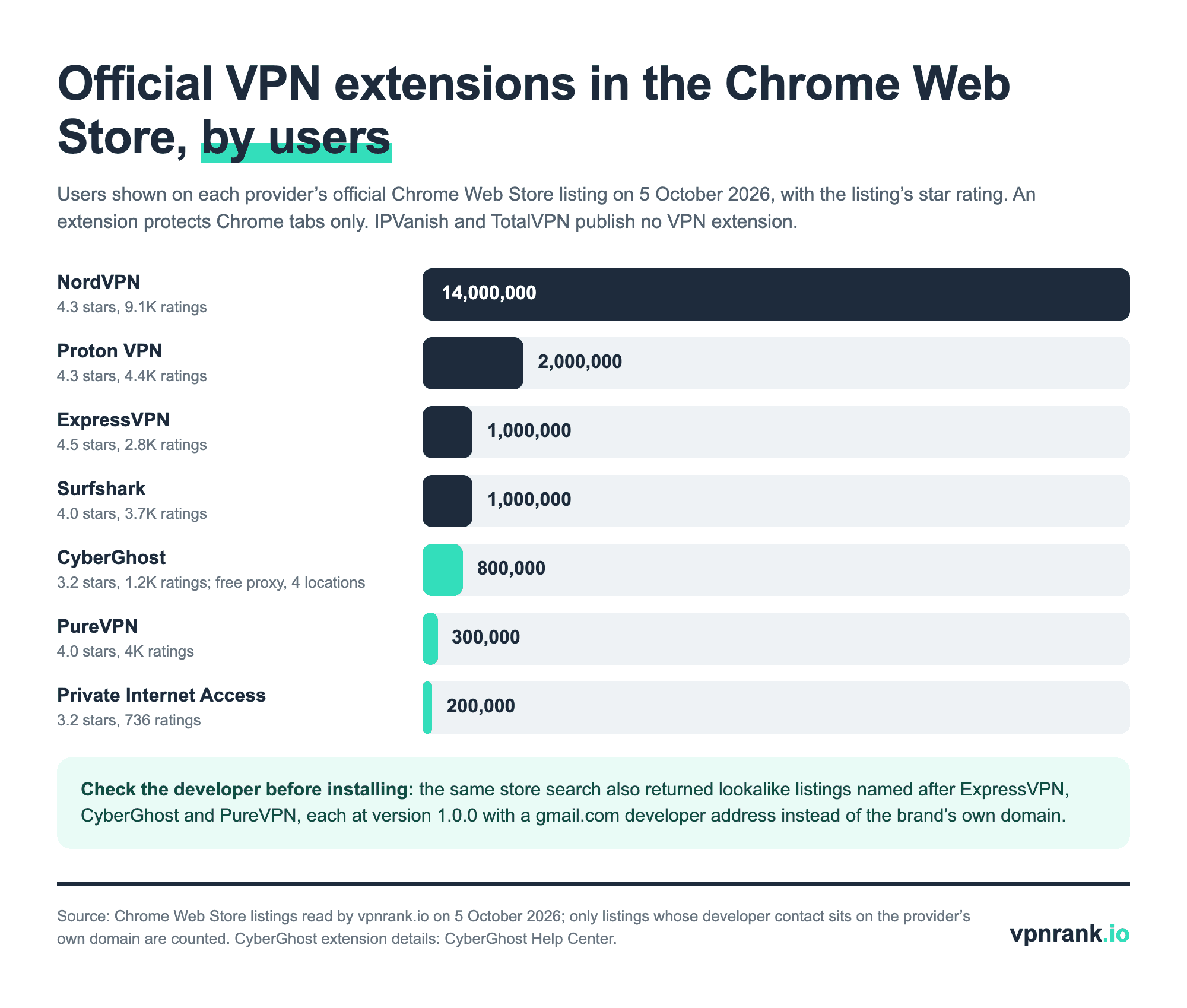
A Chrome extension is the quickest route to switch on and the easiest to overestimate. It routes Chrome tabs only; Android apps, other browsers and system traffic stay on your real connection. That suits changing your location for one website or adding protection to browsing on a Chromebook that has no Play Store. It is not whole-device protection, and the official extensions vary a lot.
- 1Open the Chrome Web Store and search for the provider's name.
- 2Before installing, open the listing's developer details and check that the website or contact email is on the provider's own domain.
- 3Select Add to Chrome, accept the permissions, then pin the extension from the puzzle-piece menu.
- 4Sign in, choose a location and switch it on.
The developer check is not a formality. On 5 October 2026 the same store search that returned the official listings also returned lookalikes named after ExpressVPN, CyberGhost and PureVPN, each at version 1.0.0 with a gmail.com developer address. Coverage differs too: IPVanish and TotalVPN publish no VPN extension, and CyberGhost's help centre describes its extension as a free proxy with “four proxy locations: U.S., Germany, Netherlands, and Romania”. Our best VPN for Chrome page compares the extensions in detail.
Route 3: the built-in client handles four protocols, each with Google's own limits
ChromeOS has its own VPN client, and it is the only whole-device route on a Chromebook without Google Play. It needs no app, but you type in every server detail, so it suits a provider that publishes manual configuration files, a work VPN or your own server. Google documents four protocol types, plus PPTP through the Android settings on Chromebooks that have the Play Store.
| Protocol | How ChromeOS supports it | Sign-in options | Limit to know |
|---|---|---|---|
| IPsec (IKEv2) | Built in | Pre-shared key, user certificate, or username and password | Needs the server's CA certificate when certificates are used |
| L2TP/IPsec | Built in | Pre-shared key or user certificate, plus an L2TP username and password | Older protocol; fill in the optional group name only if your provider gives one |
| OpenVPN | Built in, “basic support” | Username and password, client certificate, or both; one-time password field | Cannot import .ovpn files; Google suggests an Android OpenVPN app for that |
| WireGuard | Built in on “some Chromebooks” | A key pair you generate or paste, plus the peer's public key and endpoint | Not on every model; settings come from the provider's configuration generator |
| PPTP | Only via Android settings on Play Store Chromebooks | Username and password | Not part of the built-in client |
Protocols the ChromeOS VPN client supports. Source: Chromebook Help, “Set up virtual private networks (VPNs)” (answer 1282338). Verified October 2026.
- 1Select the time, then the gear to open Settings.
- 2In Network, select Add connection, then Add next to Add built-in VPN. Google's page also calls this entry OpenVPN / L2TP in places, so look for either label.
- 3Choose the Provider type and enter the server hostname.
- 4Fill in the sign-in details your provider or administrator gave you, then select Connect.
Certificates trip people up. Google's page says to import a server or CA certificate at chrome://settings/certificates under Authorities, and a personal certificate under Your certificates with Import and Bind, and adds that Chromebooks “only support RSA client certificates”, not ECC ones. Among the providers we review, IPVanish publishes step-by-step guides for both the built-in WireGuard and OpenVPN types, and CyberGhost suggests manual OpenVPN for Chromebooks without Android apps. For what each protocol does, see our WireGuard glossary entry.
What each provider publishes for Chromebook differs more than their apps do
Every provider in our database lists an Android app on Google Play, and on 5 October 2026 each listing showed ratings for the Desktop device type, the category Google Play now uses for laptops. The real differences are in what the providers document for Chromebooks: some publish three routes, some one, and two publish nothing specific. The table records what each provider's own site says, with the limit worth knowing.
| Provider | Chromebook route its own site documents | Play rating (installs) | Official Chrome extension | What this doesn't tell you |
|---|---|---|---|---|
| NordVPN | Android app, Chrome extension or a VPN router | 4.6 (100M+) | Yes, 14M users | Says some older Chromebooks can't run its Android app |
| Surfshark | Android app | 4.6 (10M+) | Yes, 1M users | No manual or extension steps in its Chromebook article |
| ExpressVPN | Android app; suggests a router for Chromebooks without Play | 4.6 (100M+) | Yes, 1M users | Uses its own Lightway protocol, not WireGuard |
| Proton VPN | Android app, covering ChromeOS, Android and Linux-container traffic | 4.7 (100M+) | Yes, 2M users | Always-on and kill switch don't survive a restart |
| IPVanish | Android app, built-in WireGuard or built-in OpenVPN | 4.4 (10M+) | No VPN extension | Its WireGuard needs Android 11 or later in the app |
| CyberGhost | Android app; manual OpenVPN if no Android support | 4.3 (10M+) | Yes, 800K users, free proxy | No Chromebook article in its help centre |
| Private Internet Access | Third-party OpenVPN Android client with PIA's files | 4.4 (10M+) | Yes, 200K users | Its supported-systems list doesn't include ChromeOS |
| TotalVPN | None published | 4.0 (100K+) | None | App last updated 27 April 2026 |
What each provider documents for Chromebook, with Google Play and Chrome Web Store figures read on 5 October 2026. Sources: each provider's help centre or setup page; Google Play and Chrome Web Store listings. Verified October 2026.
Read the ratings as store facts, not quality scores: they mix phone, tablet and laptop reviews, and they change daily. The column that matters most for a Chromebook owner is the route. A provider that documents the built-in client, as IPVanish does, still works on a Chromebook that has lost Google Play. If a provider's app is missing from the store, the cause is usually your Google Play country rather than the Chromebook; our guide on changing country on Google Play covers the rules. For the full comparison by device, see our best VPN for Android ranking, and for free options our free VPN for Chrome page.
Want the Android-app route with a provider that documents Chromebook setup? ExpressVPN publishes a Chromebook guide for its Android app and suggests a router for models without Google Play, with a 30-day money-back guarantee.
See our top-ranked VPNs →Two checks confirm the VPN covers the whole Chromebook, not just Chrome
A key icon in the status area shows that a tunnel is up, not that every app uses it. Two quick checks settle it. The first compares your public IP address with and without the VPN; the second looks for leaks that reveal your real address through other paths. Run both in Chrome, then repeat the IP check inside an Android app if you use the extension route.
- 1Check your public IP address. Open what is my IP before connecting and note the address and country. Connect and reload. Both should now show the VPN server's location.
- 2Check for a WebRTC leak. Run our WebRTC leak test. If it shows your real address while the VPN is on, the browser is bypassing the tunnel; see WebRTC leaks and DNS leaks for what each one means.
If the IP check passes in Chrome but an Android app still shows your real location, you are on the extension route, which is working as designed. Switch to the Android app or the built-in client for whole-device coverage, and switch off the extension so the two don't run together.
If the VPN won't connect or doesn't cover everything, work through these six fixes
Most Chromebook VPN problems come from the device rather than the VPN service: a Chromebook without Android support, a management policy, a missing certificate or two VPNs fighting each other. Start with the symptom that matches yours. Each fix uses a setting Google or the provider documents, and none of them requires turning off security features.
- 1There is no Play Store. Your Chromebook doesn't support Android apps, is on extended updates, runs ChromeOS Flex, or is managed. Use the built-in client with your provider's manual settings, or a router.
- 2The built-in VPN refuses to connect. Re-enter the server, pre-shared key and username, which are case-sensitive. If it uses certificates, import the CA certificate first and check that your user certificate is RSA, not ECC.
- 3You can't import an .ovpn file. The built-in OpenVPN client doesn't import them. Enter the settings by hand, or use the provider's Android app instead.
- 4WireGuard is missing from Provider type. Google supports it only on some Chromebooks. Update ChromeOS, then fall back to IKEv2 or the Android app.
- 5The kill switch is off after a restart. On some apps, including Proton VPN's, Always-on VPN doesn't survive a Chromebook restart. Turn it on again under Android Settings, Network & internet, VPN.
- 6VPN settings are greyed out. An administrator has locked them. Ask the organisation's IT team; on a managed device the administrator decides which VPN, if any, runs.
Looking ahead, Google said on 21 September 2026 that its new Googlebook laptops run an Android-based system, and that ChromeOS devices will keep receiving updates through mid-2034. Google has published nothing about VPN setup on Googlebook, so the steps above remain the ones for every Chromebook. For other devices in the same household, our guides to Android, routers and every other device pick up from here.
Frequently asked questions
Does a Chromebook have a built-in VPN?
ChromeOS has a built-in VPN client, not a VPN service: it connects to servers you already have access to. Google documents IKEv2, L2TP/IPsec, basic OpenVPN and, on some Chromebooks, WireGuard, set up under Settings, Network, Add connection. You still need a VPN subscription or server details from your provider or administrator.
Which is best on a Chromebook: the Android app, an extension or the built-in client?
The Android app, if your Chromebook has Google Play, because it covers Chrome, Android apps and, according to Proton VPN, Linux apps too, and it keeps its protocols updated. The built-in client is the whole-device option on Chromebooks without Google Play. An extension covers Chrome tabs only.
Can I use a VPN on ChromeOS Flex?
Yes, through the built-in client or a Chrome extension. Google documents Android VPN apps on ChromeOS Flex only when an administrator deploys them, from a short list of business VPN clients, so the consumer Play Store route is not available. Use your provider's manual IKEv2, OpenVPN or WireGuard settings, or a VPN on your router.
Can I set up a VPN on a school or work Chromebook?
Only if the administrator allows it. Google's Admin console can disable Android apps, restrict the Play Store, force a specific Always-on VPN and stop users adding or changing VPN connections. Google's advice for VPN problems on a work or school Chromebook is to contact your administrator, and that is the route to take.
Why does the VPN work in Chrome but not in my Android apps?
You are probably using a Chrome extension. An extension is a proxy inside the browser, so Android apps, other browsers and system traffic keep using your real connection. Use the provider's Android app or the built-in client for whole-device coverage, and switch the extension off so the two don't run at the same time.
Does a Chromebook VPN have a kill switch?
Android VPN apps can use ChromeOS's Always-on VPN with Block connections without VPN, found under Manage Google Play preferences, Android Settings, Network and internet, VPN. Proton VPN warns that on Chromebooks these settings don't stay on after a restart, so check them after rebooting. Managed Chromebooks can have Always-on VPN enforced by the administrator.
The best VPNs of 2026, ranked
Now you know how — here are the VPNs we recommend, independently tested and ranked for speed, streaming, privacy and value. Any of them works for everything in this guide.

ExpressVPN Ultra fast & secure. Great for privacy, downloads, and everyday browsing on all your devices. 24/7 live chat support.
ExpressVPN Ultra fast & secure. Great for privacy, downloads, and everyday browsing on all your devices. 24/7 live chat support.

IPVanish Fast speeds with unlimited device connections. Strong no-logs privacy and 24/7 live chat support. Great for families.

IPVanish Fast speeds with unlimited device connections. Strong no-logs privacy and 24/7 live chat support. Great for families.

NordVPN Excellent speeds with one of the largest server networks. Strong security features and easy-to-use apps. 24/7 live chat support.
NordVPN Excellent speeds with one of the largest server networks. Strong security features and easy-to-use apps. 24/7 live chat support.
Proton VPN Swiss-based VPN with strong privacy focus. Audited no-logs policy and open-source apps. Great for privacy-conscious users.
Proton VPN Swiss-based VPN with strong privacy focus. Audited no-logs policy and open-source apps. Great for privacy-conscious users.

CyberGhost Fast speeds and strong privacy tools. Simple apps, automatic WiFi protection, and 24/7 live chat support.
CyberGhost Fast speeds and strong privacy tools. Simple apps, automatic WiFi protection, and 24/7 live chat support.

TotalVPN Affordable VPN with strong privacy and reliable speeds. Easy-to-use apps for all major devices. No-logs policy.
TotalVPN Affordable VPN with strong privacy and reliable speeds. Easy-to-use apps for all major devices. No-logs policy.

Private Internet Access High-speed VPN with a large server network and advanced security settings. Ad blocker included and 24/7 live chat support.
Private Internet Access High-speed VPN with a large server network and advanced security settings. Ad blocker included and 24/7 live chat support.
Surfshark Unlimited device connections at a budget-friendly price. Includes ad blocker and strong privacy tools. Great value for money.
Surfshark Unlimited device connections at a budget-friendly price. Includes ad blocker and strong privacy tools. Great value for money.
Rankings are based on our independent testing methodology. Each guide applies the criteria described on that page, including relevant performance, privacy, product features, and value data. We may earn affiliate commissions from links on this page, which helps fund our testing — this does not influence our rankings.