How to Set Up a VPN on Android (Properly): Always-On, Kill Switch and Split Tunneling
From the Play Store install to Android's own kill switch, exact menu paths for Pixel and Samsung, what each provider calls its settings, and what every Android VPN error message actually means.

vpnrank.io is reader-supported: we may earn a commission if you buy through links in this article. This never affects our rankings.
To set up a VPN on Android (October 2026): install your provider's app from Google Play, sign in, tap Connect and tap OK on Android's “Connection request” prompt. A key icon in the status bar confirms it's on.
That part takes about five minutes. The settings that decide whether the VPN actually protects you live somewhere else: in Android's own VPN screen — Settings › Network & internet › VPN on a Pixel, Settings › Connections › More connection settings › VPN on a Samsung Galaxy — where the gear next to your VPN holds Always-on VPN and Block connections without VPN. Getting those right, along with split tunnelling and battery limits, is what separates a VPN that quietly protects you from one that leaks or keeps dropping. If someone has given you server details rather than an app, the same screen's + button builds a manual profile, but on Android 12 and later it only offers IKEv2/IPsec.
Android offers two ways to run a VPN, and only the app route gets WireGuard or OpenVPN
Android has supported VPNs natively for over a decade, and there are genuinely two routes: install your provider's own app, or key the connection into the client built into Settings. Google's Android Help describes both — set-up can start inside an app from Google Play or from your administrator, or with the Add button on the VPN screen. They sound interchangeable but they are not. For nearly everyone the provider app is the right call, and the built-in client is a niche fallback for one protocol family.
The built-in client is deliberately minimal. On Android 12 and later a new profile can only be one of three types — IKEv2/IPSec MSCHAPv2, IKEv2/IPSec PSK or IKEv2/IPSec RSA — and you type the server address, IPSec identifier and pre-shared key or certificate by hand. There is no server picker, no WireGuard and no OpenVPN. Android's developer documentation is candid about why apps exist at all: they let providers offer protocols the built-in client doesn't support, and connect people without complex configuration. Provider apps ship WireGuard, OpenVPN or a protocol of their own, a one-tap server list, an in-app kill switch and auto-connect rules.
- Provider app (recommended): WireGuard, OpenVPN or the provider's own protocol, thousands of servers, an in-app kill switch, split tunnelling and auto-connect on untrusted Wi-Fi.
- Built-in Android client: IKEv2/IPsec only on Android 12 and later, manual server entry, no server list — useful mainly for a corporate VPN or a self-hosted server your admin gave you credentials for.
- Rule of thumb: if your VPN provider has a Play Store app (all nine in our provider table below do), use it. Reach for Settings › VPN › + only when someone hands you a config and no app.
If you are still choosing a provider, our editor-tested rankings in the best VPN guide and the Android-specific best VPN for Android page break down which apps have the cleanest Android builds, the most reliable kill switches and the fastest WireGuard implementations. This post assumes you have picked one and want to configure it properly.
Android 12 stopped offering PPTP and L2TP for new profiles, and Android 15 removed them from the list
Many Android VPN guides still say the built-in client handles PPTP and L2TP. The paper trail says otherwise. The type list in the Add VPN dialog lives in the Android Open Source Project's Settings app, and its release branches show exactly when it changed. Android 10 offered six types, all of the older kind. Android 11 added three IKEv2/IPsec types. From Android 12, a new profile defaults to IKEv2/IPSec MSCHAPv2 and the six older types are hidden unless you are editing a profile that already uses one. From Android 15, the list itself contains only the three IKEv2 types.
| Android version | Types offered for a new profile | What happens to an old PPTP or L2TP profile | What it doesn't automatically prove |
|---|---|---|---|
| 10 and earlier | PPTP, L2TP/IPSec PSK, L2TP/IPSec RSA, IPSec Xauth PSK, IPSec Xauth RSA, IPSec Hybrid RSA | Works as it always did | That these protocols are still a good idea — PPTP has long been considered weak |
| 11 | The six above, plus IKEv2/IPSec MSCHAPv2, IKEv2/IPSec PSK and IKEv2/IPSec RSA | Works as it always did | That your provider supports IKEv2 — check its manual set-up page |
| 12 to 14 | IKEv2/IPSec MSCHAPv2, PSK and RSA only | Still listed and editable, flagged Not secure, with the warning “Not secure. Update to an IKEv2 VPN” | That the profile stops working on upgrade — it is flagged, not deleted |
| 15 and later | IKEv2/IPSec MSCHAPv2, PSK and RSA only | The older types are gone from the code's type list, and Settings carries a “Failed to start unsupported VPN.” message for profiles it can no longer run | That every phone maker follows AOSP exactly — check the Type menu on your own phone |
Type lists read from the AOSP packages/apps/Settings release branches for Android 10 to 16 (res/values/arrays.xml, ConfigDialog.java and strings.xml), October 2026.
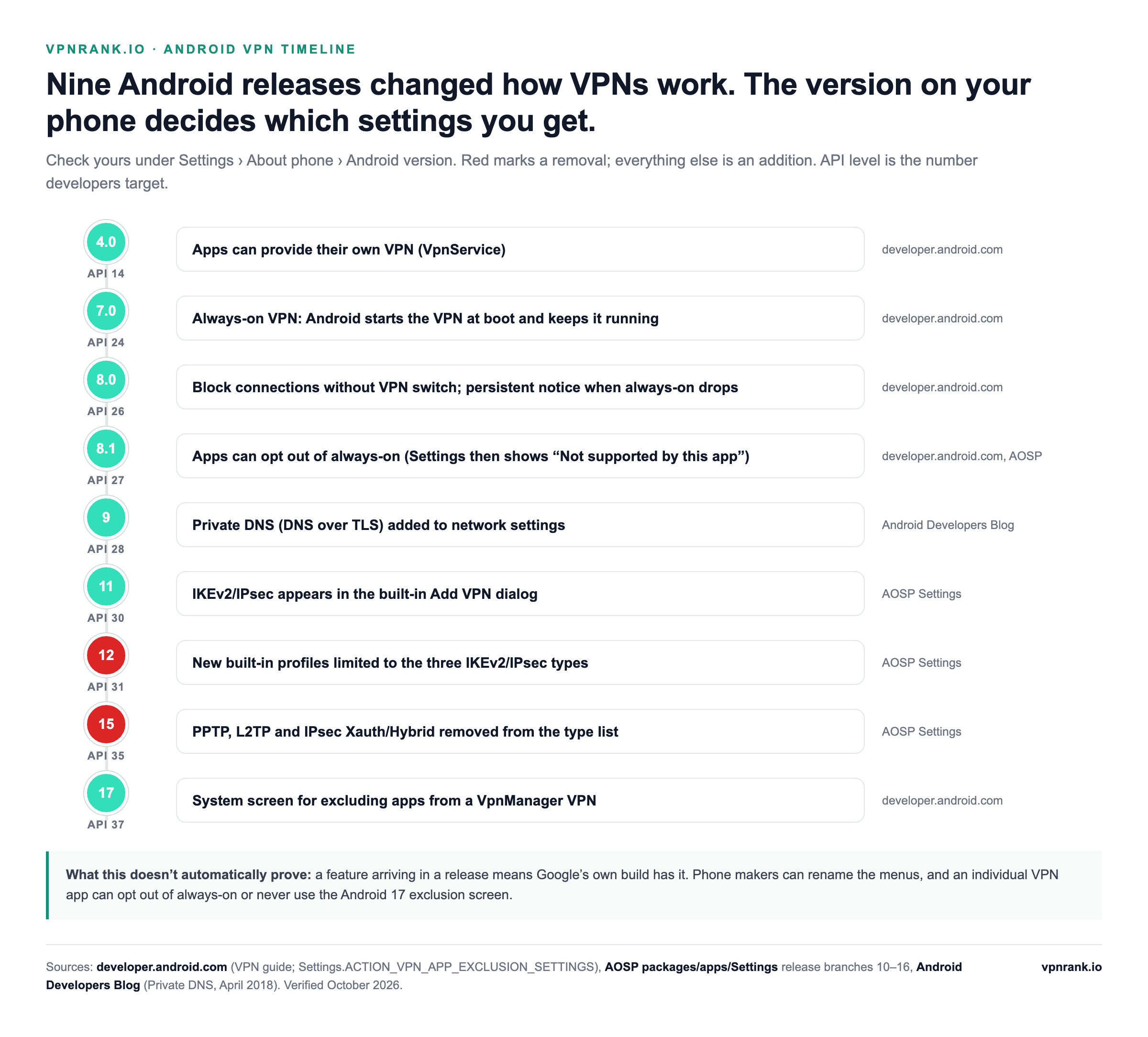
If you do need the built-in client — a work VPN, or a provider's manual IKEv2 instructions — Google's steps are short: open Settings › Network & internet › VPN, tap Add at the top right, enter the details you were given and tap Save. To connect, tap the profile, enter your username and password and tap Connect. Google notes that some of these steps only work on Android 14 and later, and that if the VPN screen isn't where it says, you should search Settings for “VPN”. On a Samsung Galaxy, Samsung's own instructions put the add option behind the three-dot More options menu (Add VPN profile), or a + on some models. Check your version under Settings › About phone before you start.
Installing from Google Play takes four taps, and the fifth is Android's own “Connection request”
Installation is the easy part, but two details trip people up: making sure you download the real app rather than a look-alike, and understanding the connection-request dialog Android shows the first time. Fake VPN apps that harvest data are a persistent Play Store problem, so verify the developer before you tap install.
- 1Open the Google Play Store and search the exact provider name. Check the developer field matches the company and that the app has millions of installs and a long review history — not a brand-new listing. Our Android rankings list the publisher name each of the nine big apps uses on Google Play.
- 2Tap Install, then open the app and sign in with the account you created on the provider's website (most subscriptions are bought on the web, not via in-app purchase).
- 3Tap Connect. The first time, Android shows a system dialog titled Connection request: “[App] wants to set up a VPN connection that allows it to monitor network traffic. Only accept if you trust the source.” This is normal and required — it is Android asking permission to route traffic through the app. Tap OK; ExpressVPN's Android guide warns that the set-up fails if you don't.
- 4A small key icon appears in your status bar. That is Android's universal signal that a VPN is active. If you see it, traffic is tunnelling.
That dialog is mandated by Android, not by the provider. Android's developer documentation says the system shows it before any VPN app can become active for the first time, and that only one app at a time can be the “prepared” VPN service. In practice you see it once per app — and again if you switch to a different VPN app and come back, or after a major Android upgrade, which ExpressVPN tells its users to expect. An app that never shows the prompt is not using Android's VPN service at all. To revoke the grant later, open the VPN screen, tap the gear next to the app and choose Forget VPN.
If the provider's app does not appear in the Play Store at all, remember that the store follows your Google Play country, not where you are standing; our guide on how to change country on Google Play explains Google's 90-day rule and what a change costs you. If cost is the issue rather than access, our free VPN for Android page covers what is and isn't safe. Before trusting a new connection, it is worth confirming it is actually leak-free — a topic we dig into in our guide to VPN privacy and what a VPN really hides.
The key icon, the Quick Settings panel and a permanent notification are Android's three tells
Android's developer documentation lists the system's own VPN indicators: a key icon in the status bar while a connection is active, an information panel in the Quick Settings tray (tap it for details and a link to Settings), and the VPN screen itself, which lists every app whose connection request you accepted. Google also asks VPN apps to keep a notification on screen that can't be swiped away while the service runs. Any time traffic is being routed through a VPN tunnel — from a provider app or the built-in client — Android shows the key. If you enable a VPN and don't see it, the tunnel is not actually up and your traffic is not being protected.
Only one VPN can run at a time, so starting a second app automatically replaces the first
Android allows one active VPN per user or profile. The developer documentation puts it plainly: starting a new VPN service automatically stops the existing one. When you switch VPNs from Settings — turning on always-on for a different app while one is connected, for example — Settings asks Replace existing VPN?, and if the first VPN was set to always-on, it adds that always-on mode will turn off. This is also why a firewall or ad-blocking app that works by creating a local VPN can stop your real VPN connecting: NordVPN's help centre notes that such apps use the same VPN interface, and TotalVPN's says another installed VPN can prevent a connection being established.
Changing VPN without a gap means switching always-on off before you swap apps
- 1If the current VPN has Always-on and Block connections without VPN turned on, switch both off first: VPN screen › gear next to it. Proton VPN's help centre lists another app's always-on setting as a reason its own app can't connect.
- 2Disconnect the old VPN inside its own app.
- 3Open the new app, connect, and tap OK on its Connection request.
- 4Back on the VPN screen, tap the gear next to the new app and turn on Always-on VPN and Block connections without VPN.
- 5Tap Forget VPN on the old one, or uninstall it. ExpressVPN and CyberGhost both tell Android users to delete other VPN profiles when connections misbehave.
A work profile is the one exception to the one-VPN rule. Android's documentation says each user or work profile can run a different VPN app, and Google's Android Help notes you can make a VPN apply only to apps in your work profile. If your employer manages a VPN there, it covers work apps only; your personal apps need their own.
Android's real kill switch is two system toggles, and the second unlocks only after the first
Here is the single most important thing most Android VPN guides bury: Android has a built-in, OS-level kill switch that works no matter which VPN app you use. It lives in system Settings, not in the app, and it is stronger than an in-app kill switch in one specific way — the operating system enforces it, even when the app crashes or you disconnect by hand. Turning it on means no traffic leaves your phone unless the tunnel is up.
There are two linked toggles. Always-on VPN, available since Android 7.0, tells Android to start your chosen VPN when the phone boots and keep it running. Block connections without VPN, offered since Android 8.0, is the kill switch: the system blocks any network traffic that doesn't use the VPN. In Android's own Settings code the second switch is declared as dependent on the first, which is why it stays greyed out until Always-on is on.
Six taps turn both switches on, and one reboot proves they stick
- 1Install your VPN app, sign in and connect once, so the app appears on the VPN screen.
- 2Open Settings › Network & internet › VPN. On a Samsung Galaxy the path is Settings › Connections › More connection settings › VPN (the route NordVPN, PIA, Proton VPN and CyberGhost all give for Samsung). On some phones it sits under an Advanced submenu (PIA's guide gives Advanced › VPN); if you can't find it, search “VPN” in the Settings search bar — Google's own advice when the menu isn't where it expects.
- 3Tap the gear next to your VPN app's name (not the app row itself, which opens the app).
- 4Toggle Always-on VPN on.
- 5Toggle Block connections without VPN on. Android asks Require VPN connection? and warns that you won't have an internet connection until the VPN successfully connects. Tap Turn on.
- 6Reboot once and check the key icon comes back without you opening the app.
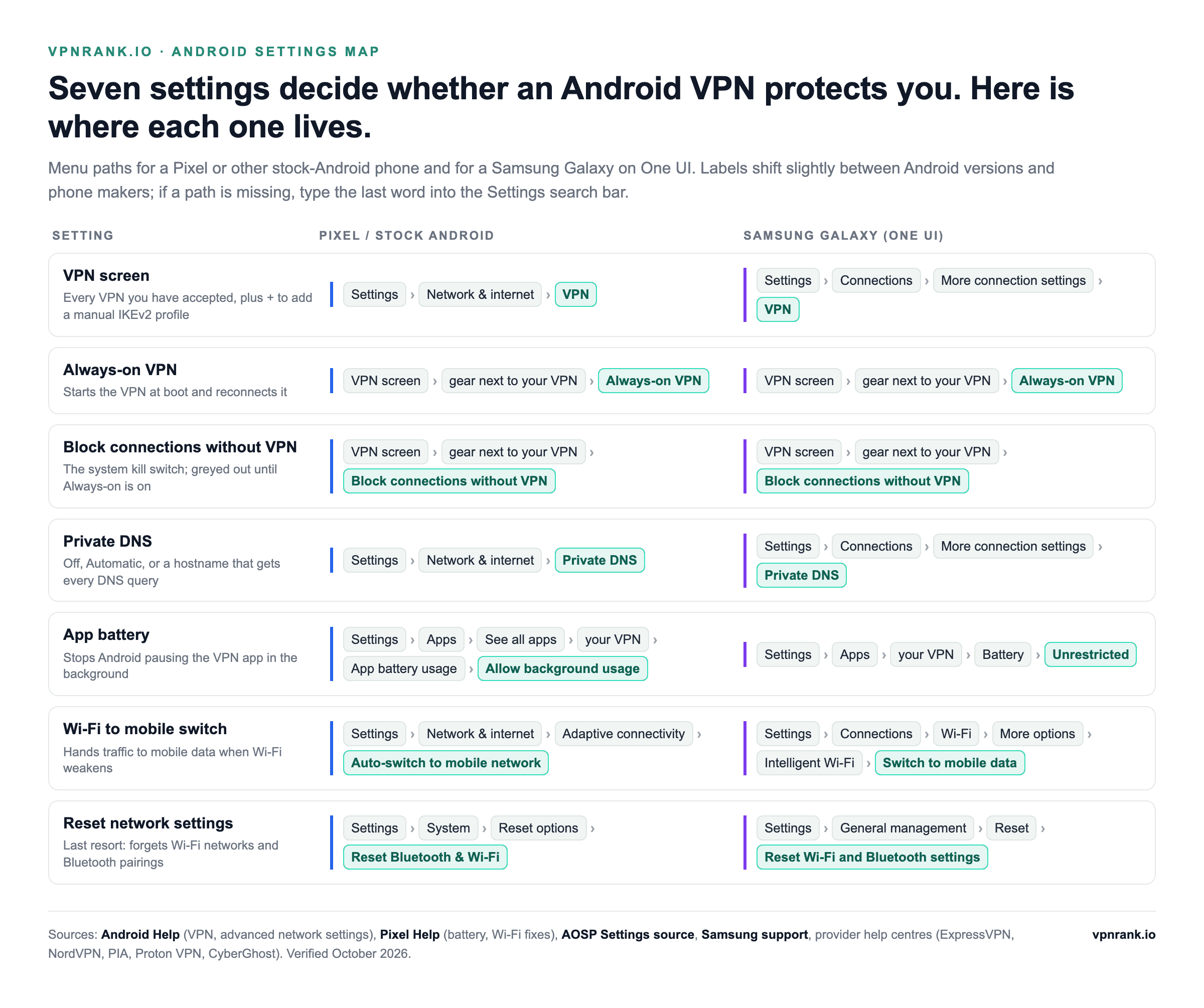
| Setting | Pixel / stock Android | Samsung Galaxy (One UI) | Source |
|---|---|---|---|
| VPN screen | Settings › Network & internet › VPN | Settings › Connections › More connection settings › VPN | Android Help; Samsung support |
| Always-on VPN | VPN screen › gear next to your VPN › Always-on VPN | Same, from the Samsung VPN screen | Android Help; NordVPN, PIA and Proton VPN support |
| Block connections without VPN | Same panel, directly below Always-on | Same panel, directly below Always-on | AOSP Settings; PIA support |
| Private DNS | Settings › Network & internet › Private DNS | Settings › Connections › More connection settings › Private DNS | Android Help; Samsung support |
| App battery use | Settings › Apps › See all apps › your VPN › App battery usage › Allow background usage | Settings › Apps › your VPN › Battery › Unrestricted; also Battery › Background usage limits › Never sleeping apps | Pixel Help; Samsung support |
| Wi-Fi to mobile switching | Settings › Network & internet › Adaptive connectivity › Auto-switch to mobile network | Settings › Connections › Wi-Fi › More options › Intelligent Wi-Fi › Switch to mobile data | Pixel Help; Samsung support; ExpressVPN support |
| Reset network settings | Settings › System › Reset options › Reset Bluetooth & Wi-Fi (older builds: Reset Wi-Fi, mobile & Bluetooth) | Settings › General management › Reset › Reset Wi-Fi and Bluetooth settings, or Reset mobile network settings | Pixel Help; Google Fi Help; Samsung support |
Menu paths verified October 2026. Phone makers and Android versions shift labels; if one is missing, search Settings for the last word in the path.
Practical rule:Turn on Always-on VPN and Block connections without VPN together, and treat a phone with no internet as the kill switch doing its job. If a hotel login page or a dead zone leaves you offline, switch blocking off for that moment only, then straight back on.
If both toggles are greyed out with the summary Not supported by this app, the app has opted out of always-on, which Android has allowed since 8.1; Settings then disables the controls. Google's Android Help warns that for some app-based VPNs you won't have the always-on option at all. In that case use the app's own kill switch and auto-connect, covered in the provider table below. When always-on is set and the tunnel can't connect, Android 8.0 and later keeps a notification on screen until the VPN reconnects or you switch always-on off.
An in-app kill switch and Android's Block connections without VPN are not the same thing
Most apps now have their own kill switch as well, which raises the question of which one to rely on. ExpressVPN's Android documentation draws the clearest line: its in-app Internet Kill Switch (on by default on phones and tablets) blocks traffic when the VPN drops unexpectedly, but still lets local devices and split-tunnelled apps through and does nothing after a manual disconnect. Android's Block connections without VPN blocks every bypass, including after you disconnect on purpose.
| Layer | Where you turn it on | When it blocks | What still gets through | What it doesn't automatically prove |
|---|---|---|---|---|
| Android Always-on VPN | VPN screen › gear › Always-on VPN | Never on its own — it restarts the tunnel | Everything, while the tunnel is down | That you were protected during the gap |
| Android Block connections without VPN | Same panel, second switch | Whenever traffic would leave outside the VPN, including after a manual disconnect | Only what the VPN carries; apps set to bypass it lose their connection | That DNS inside the tunnel is private — run a leak test |
| In-app kill switch (ExpressVPN's, as an example) | Profile › Settings › Internet Kill Switch | When the VPN drops unexpectedly | Local devices and apps you excluded; all traffic after a manual disconnect | That other apps behave the same — check the provider table |
Sources: Android developer documentation (always-on VPN, blocked connections); ExpressVPN, Internet Kill Switch on Android (updated 3 September 2026). Verified October 2026.
The deeper mechanics are in our kill switch explainer and the glossary entry; to check yours actually blocks, use our kill switch test.
With Block connections without VPN on, split-tunnelled apps lose the internet instead of bypassing the tunnel
Split tunnelling lets you route some apps through the VPN while others connect directly to your normal network. It is one of Android's best features because the VPN can operate at the individual-app level. Banking apps that block VPN IPs, local streaming, or a food-delivery app that needs your real location can all bypass the tunnel while everything else stays protected.
Android builds this into the platform: a VPN app hands the system either a list of apps allowed to use the tunnel or a list of apps kept out of it — but, per the developer documentation, not both at once. That is why every app offers split tunnelling one way round or the other, typically under settings as “Split tunneling”, “Bypasser” or “Per App Settings”:
- Exclude selected apps: everything goes through the VPN except the apps you tick. Best default — protect all, poke holes only where needed.
- Only route selected apps: only the apps you pick use the VPN; everything else connects directly. Useful if you only want the VPN for, say, streaming.
Here is the catch most guides get subtly wrong. Turning on Android's Block connections without VPN does not push excluded apps back through the tunnel — it cuts them off. Android's developer documentation warns that when non-VPN traffic is blocked, apps left outside the VPN lose their network connection. The providers say the same: ExpressVPN states its Android split tunnelling doesn't work while that system setting is on, because the system setting takes priority; IPVanish says split-tunnelled apps will be blocked while its Android kill switch is on; and Proton VPN notes split tunnelling isn't compatible with its kill switch on most platforms. So pick one strategy — total lockdown, where an excluded banking app simply won't load, or granular split tunnelling backed by the app's own kill switch. Depending on how an app routes local traffic, lockdown can also cut off devices on your own network, such as printers or a TV.
A standard system screen for app exclusions is arriving, with limits. Android 17 (API level 37) adds a Settings action, ACTION_VPN_APP_EXCLUSION_SETTINGS, that opens an Android-owned screen for choosing apps to exclude, with changes applied immediately if the VPN is running. Read the reference closely, though: it configures exclusions for the calling app's VpnManager VPN — the platform IKEv2 kind — and Google says the screen isn't guaranteed on every device. For the WireGuard and OpenVPN apps most people use, split tunnelling still lives inside the provider app.
One related switch is easy to miss: local devices. Proton VPN's Android app has LAN connections under Settings › Connection › Advanced settings, plus an Allow direct device connections option for gadgets that create their own Wi-Fi — Proton names smart TVs, printers and Android Auto — and advises turning it on only while you are connecting to them.
Split tunnelling is what makes a VPN livable day to day — it is also central to using one for streaming abroad, where you might route Netflix or BBC iPlayer through a foreign server while leaving your local banking and maps apps on the direct connection. Our split tunnelling explainer and glossary entry cover the concept across platforms.
An automatic VPN on Android comes from either Android's Always-on or the provider's own network rules
People searching for an automatic VPN on Android usually want one of two things: the VPN on from the moment the phone starts, or the VPN switching itself on for networks they don't trust. Android's Always-on VPN handles the first for any app that supports it, on any network. The second is a provider feature, and the apps differ more than you might expect:
- ExpressVPN: an Auto-connect widget on the VPN tab, with “When Android starts up” and “When joining networks not listed as trusted”. Off by default; on Android 10 and later it needs precise location set to “Allow all the time”.
- NordVPN: profile icon › Settings › Auto-connect, for all networks, Wi-Fi only or mobile only. NordVPN notes its Wi-Fi exceptions are no longer available on Android 10 or later.
- Surfshark: Settings › VPN settings › Auto-connect, with trusted networks that can include both Wi-Fi and mobile networks.
- Private Internet Access: ☰ › Settings › General for Launch on System Startup and Connect on Launch, and ☰ › Settings › Automation for per-network rules, which need background location access.
- PureVPN: More (≡) › VPN › Auto-Connect, for Wi-Fi, cellular or both, with trusted networks; location must be “Allow all the time”.
- CyberGhost: cog › Wi-Fi › Wi-Fi Protection, where unconfigured Wi-Fi is set to Ask (the default), Protect, Disable protection or Ignore.
- IPVanish: Settings › Connect on Android Startup; IPVanish says the app starts a few minutes after the phone boots.
- Proton VPN and TotalVPN: both rely on Android's Always-on VPN rather than separate phone auto-connect rules. Proton asks you to disconnect before switching Always-on on.
Notice the location requirement: ExpressVPN, PIA and PureVPN all document it for network-based rules, and CyberGhost asks for location during set-up for the same reason. If you'd rather not grant it, Always-on gives you the VPN everywhere, all the time, with no rules to maintain.
The nine major providers put the same three switches in nine different places
Kill switch, auto-connect and split tunnelling are the three settings that matter, but the nine apps name and place them differently, and some leave one out. Only ExpressVPN and Surfshark clearly document their own in-app kill switch toggle on Android. Proton VPN, IPVanish and PureVPN send you to Android's Always-on and Block connections without VPN; PIA's kill switch article does the same, although its settings overview also lists an in-app switch; NordVPN describes its Android kill switch as system-wide on Android 8.0 and later and points to Always-on; TotalVPN offers an Always-On VPN setting; and CyberGhost's list of Android settings has no kill switch entry at all. PureVPN's help centre states outright that its Internet Kill Switch is offered on Windows, Mac and Linux. Everything in the table comes from each provider's own help centre; where a provider doesn't document something for Android, the cell says so.
| Provider | Kill switch on Android | Auto-connect | Split tunnelling | Minimum Android |
|---|---|---|---|---|
| ExpressVPN | Internet Kill Switch, Profile › Settings; on by default on phones | Auto-connect on the VPN tab: at start-up and on untrusted networks; off by default | Split Tunneling, Profile tab: exclude selected apps or allow only selected apps | 7.0 |
| NordVPN | Kill Switch, system-wide on 8.0+; Always-on via Android settings; in-app path not documented | Profile icon › Settings › Auto-connect: all networks, Wi-Fi or mobile | Split tunneling in Settings: excludes selected apps | 9 (APK for 7 and 8) |
| Surfshark | Kill Switch, Settings › VPN settings | Settings › VPN settings › Auto-connect, with trusted networks | Bypasser, Settings › VPN settings: Bypass VPN or Route via VPN, for apps and websites | 7.0 (APK for 6.x) |
| Proton VPN | Kill switch (Settings › Features) opens Android's Always-on and Block connections without VPN; not on 7.x | Android's Always-on VPN | Split Tunneling: Exclude or Inverse mode, apps and IP ranges; paid plans | 8.0 |
| PIA | Android's Always-on and Block connections without VPN; PIA's settings overview also lists an in-app VPN Kill Switch under Privacy | Launch on System Startup, Connect on Launch; Automation rules per network | Per App Settings from the ☰ menu: excludes apps | 7.0 |
| IPVanish | Android OS Kill Switch in Settings opens Android's Always-on and Block connections without VPN; Android 8+ | Connect on Android Startup in Settings | Split Tunneling in Settings: excludes apps and domains | 5.1 (WireGuard needs 11) |
| CyberGhost | Not documented for Android | Wi-Fi Protection, cog › Wi-Fi: Ask, Protect, Disable protection or Ignore | App Split Tunnel, cog › VPN: excludes apps | 7.0 |
| TotalVPN | No in-app switch documented; Always-On VPN setting links to Android's | Android's Always-on VPN only | Split Tunneling, cog › Settings: excludes apps | 5.0 |
| PureVPN | No Android kill switch; More (≡) › VPN › Always-on opens Android's settings | More (≡) › VPN › Auto-Connect: Wi-Fi, cellular or both, with trusted networks | Split Tunneling, More (≡) › VPN › Advanced: allow only or exclude selected apps | Not stated on its help centre |
Feature names and menu paths from each provider's own Android help pages, verified October 2026. Apps update often; if a label has moved, search the app's settings for the feature name.
Two practical consequences follow. If you want leak protection that survives the app crashing, Android's own setting is the one to use whichever provider you choose. And if you rely on split tunnelling, check which kill switch your provider's split tunnel tolerates before you turn both on — IPVanish says split-tunnelled apps are blocked while its kill switch is on, ExpressVPN says its split tunnelling stops working under Android's blocking, and NordVPN says excluded apps lose internet the moment the VPN drops with its kill switch on.
Want a VPN with a rock-solid Android app — WireGuard speeds, an in-app kill switch that's on by default, and per-app split tunnelling both ways round? ExpressVPN is our top-rated pick for Android.
See our top-ranked VPNs →Android tells you what broke: the messages you see and what each one points at
Android has a short, fixed vocabulary for VPN trouble, and the wording comes straight from the Android Open Source Project, the code Pixel phones ship. Read the message before you change a setting: it tells you which layer failed. Other phone makers can reword these strings, so match the meaning rather than the exact characters.
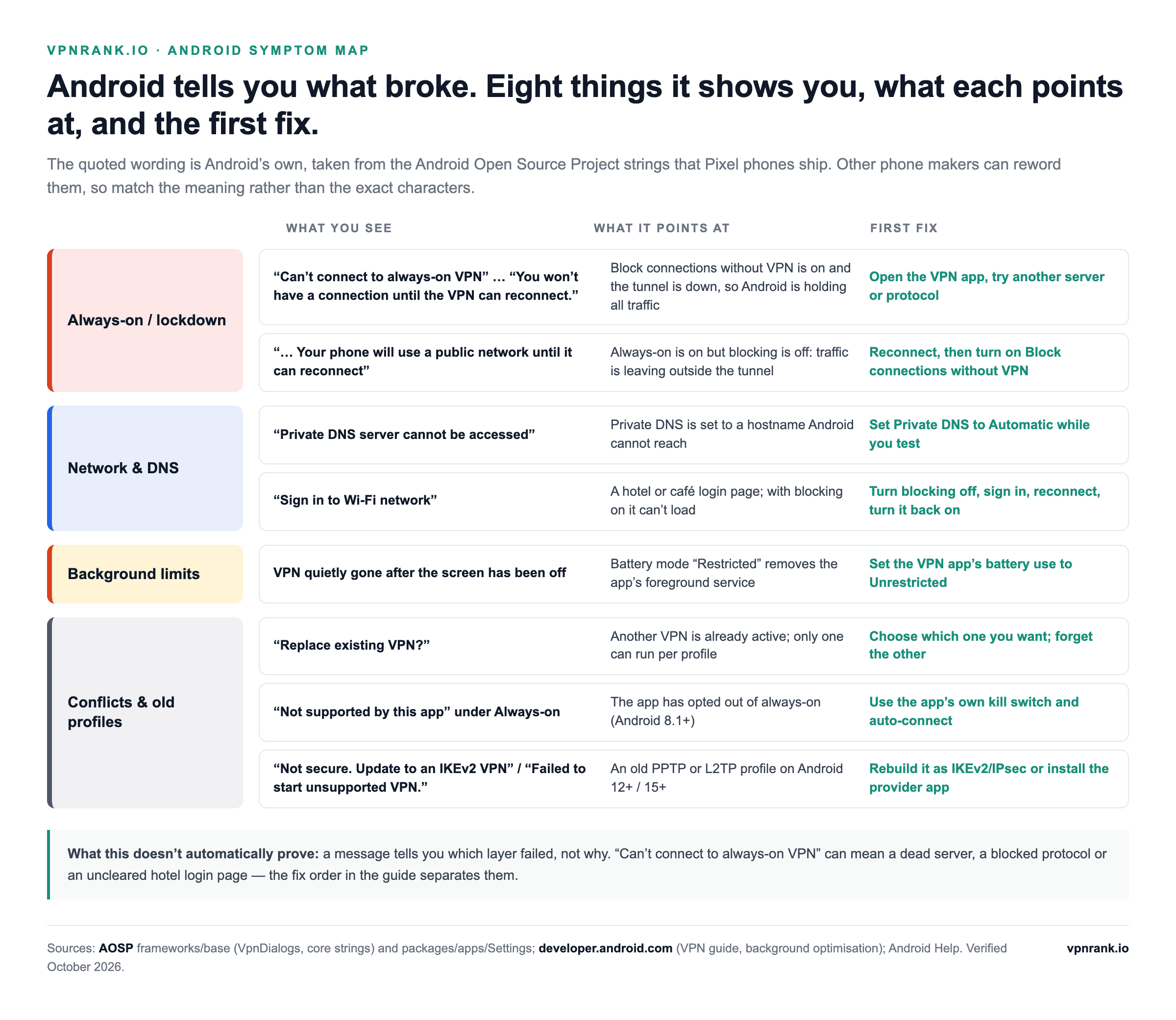
| What you see | What it points at | First fix | Source | What it doesn't automatically prove |
|---|---|---|---|---|
| Notification Disconnected from always-on VPN, with “Change network or VPN settings” underneath | Always-on is set and the tunnel isn't up. Since Android 8.0 the notice can't be dismissed; it clears when the VPN reconnects or always-on is turned off | Tap it: the dialog that opens tells you whether traffic is blocked or going out unprotected (next two rows) | AOSP Vpn.java and core strings; Android developer docs | A fault in the app — moving between networks triggers it too |
| Dialog Can't connect to always-on VPN: “[App] is set up to stay connected all the time, but it can't connect right now. You won't have a connection until the VPN can reconnect.” | Always-on and Block connections without VPN are both on, the tunnel is down, and Android is holding all traffic | Open the VPN app and try another server or protocol; use the dialog's Change VPN settings link only if you need to switch blocking off | AOSP VpnDialogs | That the VPN service is down — a blocked protocol or an uncleared login page looks identical |
| The same dialog ending “Your phone will use a public network until it can reconnect” | Always-on is on but blocking is off, so apps are using your normal connection | Reconnect, then turn on Block connections without VPN if you want no gaps | AOSP VpnDialogs | That anything leaked — only that it could have |
| A no-internet notification whose message reads “Private DNS server cannot be accessed” | Private DNS is set to a hostname Android can't reach; in that mode Android sends every DNS query there or marks the network as having no internet access. CyberGhost adds that Private DNS can stop its app reaching its servers | Settings › Network & internet › Private DNS › Automatic (Google's default) or Off while you test | AOSP core strings; Android Developers Blog; Android Help; CyberGhost support | That the VPN is at fault — the same message appears with the VPN off |
| “Sign in to Wi-Fi network” | A captive portal: the hotel, train or café login page. With Block connections without VPN on, traffic outside the tunnel — the login page included — is blocked | Switch blocking off, sign in (Pixel Help: tap the notification or open a new page), reconnect, switch blocking back on | AOSP core strings; Pixel Help; Android developer docs | That the VPN or the network is broken |
| VPN gone after the screen has been off, or the app restarting itself | Battery mode Restricted: Android's docs say restricted apps can't start foreground services and lose existing ones, and VPN apps run as foreground services | Set the VPN app's battery use to Unrestricted; on Samsung also add it to Never sleeping apps | Android developer docs; ExpressVPN, Proton VPN, Surfshark and CyberGhost support | That battery settings are the cause on every phone — Google says manufacturers set the precise restrictions |
| VPN drops when you move between Wi-Fi and mobile data, while the phone still shows it connected | Proton VPN documents an Android 13 bug that mostly affects IPv6 mobile networks; ExpressVPN and PureVPN point at automatic Wi-Fi-to-mobile switching | Toggle Airplane mode; set the APN protocol to IPv4; turn off Auto-switch to mobile network (Pixel) or Switch to mobile data (Samsung) | Proton VPN; ExpressVPN; PureVPN; Pixel Help | That every Android 13 phone has the bug — Proton says some versions do |
| Prompt Replace existing VPN? | Another VPN is already active; Android runs one per user or profile | Keep one; forget the other on the VPN screen | AOSP Settings; Android developer docs | That either VPN is broken |
| Not supported by this app under Always-on VPN | The app has opted out of always-on (allowed since Android 8.1), so Settings disables both switches | Use the app's own kill switch and auto-connect | AOSP Settings; Android developer docs | That the app has no kill switch of its own |
| Not secure beside a profile, “Not secure. Update to an IKEv2 VPN”, or “Failed to start unsupported VPN.” | A PPTP or L2TP profile carried over from an older phone — flagged on Android 12 to 14, no longer runnable on 15 and later | Rebuild it as IKEv2/IPsec or install the provider's app | AOSP Settings | That the server is gone — only the profile type is |
| Work apps use the VPN but personal apps don't, or the reverse | A VPN set up in the work profile covers work-profile apps only | Set up a VPN in the personal profile too | Android Help; Android developer docs | A leak in the work VPN |
Messages quoted from the AOSP frameworks/base and packages/apps/Settings source, October 2026. Provider apps use their own words on top: NordVPN's Android help quotes “It's taking a bit longer than usual” and “Hold on - we're trying to connect” while a connection stalls, and ExpressVPN's app shows “Unable to Connect”, “Connecting” or “Reconnecting” while its kill switch is blocking traffic. If the message points at the connection itself rather than Android's settings — an endless Connecting, rejected credentials, a protocol the network blocks — our VPN won't connect guide walks through the full diagnostic ladder rather than repeating it here.
When it doesn't work, two symptoms cover most cases, and each has a short fix order
Two problems account for the vast majority of Android VPN complaints: the connection keeps dropping, and “connected but no internet.” Both usually have mundane causes — battery optimisation killing the app, a protocol mismatch, a Private DNS or captive-portal clash — rather than anything wrong with the VPN itself. Work through these in order and one of them almost always fixes it.
A VPN that keeps disconnecting is usually being paused by battery settings
- 1Stop Android from killing the app. This is the number-one cause. On a Pixel, go to Settings › Apps › See all apps › [your VPN] › App battery usage › Allow background usage and choose Unrestricted; on a Samsung Galaxy, Settings › Apps › [your VPN] › Battery › Unrestricted. Android's developer documentation lists the three modes — Unrestricted, Optimized (the default) and Restricted. ExpressVPN, Proton VPN, Surfshark and CyberGhost all document battery savers cutting the VPN, and Proton names Samsung, OnePlus, Huawei and Xiaomi phones. Google's Pixel Help notes the trade-off: an unoptimised app can use more battery.
- 2Enable Always-on VPN (covered above) so Android reconnects automatically instead of leaving you exposed after a drop.
- 3Switch protocols. If you are on WireGuard and it keeps dropping, try OpenVPN or IKEv2 in the app's settings; if you are on OpenVPN, try WireGuard. Flaky mobile networks favour different protocols. Our protocol guide explains the trade-offs.
- 4Check the Wi-Fi-to-mobile handover. If drops happen as you leave home or the office, try turning off Auto-switch to mobile network (Pixel) or Switch to mobile data (Samsung), and on Android 13 try Proton VPN's workarounds: Airplane mode on and off, or the APN protocol set to IPv4.
- 5Update the app via Play Store › profile icon › Manage apps & device, and reboot the phone once.
Connected but no internet usually means a bad server, a half-open tunnel or a DNS clash
- 1Change server. The specific server may be overloaded or down — switch to another location, then back.
- 2Clear the app cache. Settings › Apps › [your VPN] › Storage & cache › Clear cache. This wipes corrupted temporary data without logging you out.
- 3Toggle the OS kill switch off temporarily. If Block connections without VPN is on and the tunnel half-connected, it can leave you with zero internet — turn it off, reconnect cleanly, then turn it back on. This is also why public Wi-Fi login pages sometimes fail to load until you disable it.
- 4Check for conflicts. Another VPN app, a Private DNS hostname, or a mobile antivirus or firewall app can block the tunnel. Set Private DNS to Automatic, disable the others and retest.
- 5Reset network settings as a last resort. On a Pixel, Settings › System › Reset options › Reset Bluetooth & Wi-Fi (some builds and carriers show Reset Wi-Fi, mobile & Bluetooth); on a Samsung Galaxy, Settings › General management › Reset › Reset Wi-Fi and Bluetooth settings, or Reset mobile network settings. This forgets saved Wi-Fi networks and Bluetooth pairings, and Samsung warns there is no confirmation step.
The key icon proves a tunnel exists, not that nothing leaks around it
Proton VPN's Android 13 note is the cautionary tale: the phone can report a connection that has already dropped. Once you have a stable connection, confirm nothing is leaking around the tunnel. Run our VPN check to see the IP address and location websites actually see, the WebRTC leak test in your Android browser, and a check for a DNS leak and a WebRTC leak. If speeds feel off, our VPN speed test helps you tell a slow server from a slow protocol. The full method, step by step, is in our VPN testing guide.
The same setup brings your home streaming apps with you, as long as you connect before you open them
Once the VPN is set up, one of its most practical uses is regaining access to services that are tied to a region. Streaming libraries and live-sport rights are geo-locked, so connecting to a server in your home country while travelling — or to another country entirely — restores the catalogue you expect. On Android this works exactly the same as at home: connect, pick a server, open the app.
For live events this matters most. Major fixtures are split across broadcasters by territory, so a server in the right country is often the difference between watching and staring at a blackout. Our coverage of the 2026 World Cup and broader sports streaming maps which server locations line up with which broadcasters, and the can I watch tool checks a specific title against your region in seconds.
- Connect first, then open the streaming app — apps cache your location, so launching the VPN afterward can leave you flagged.
- If a service still detects the VPN, clear that app's cache or try a different server in the same country.
- On Android TV the same provider apps exist, so your living-room setup mirrors your phone.
Six steps give you an always-on, leak-resistant Android VPN
If you only remember one thing, make it this sequence. Done in order, it gives you an always-on, leak-resistant VPN with sensible exceptions — the configuration that works for most people most of the time, whether you are protecting public Wi-Fi or unblocking content abroad.
- 1Install the provider's official app from the Play Store; verify the developer.
- 2Sign in, connect, and tap OK on the one-time Connection request (look for the key icon).
- 3In Settings › Network & internet › VPN (Samsung: Settings › Connections › More connection settings › VPN), tap the gear and enable Always-on VPN.
- 4Enable Block connections without VPN — OR set up per-app split tunnelling in the app with its own kill switch, but not both.
- 5Set the VPN app's battery usage to Unrestricted so it never gets killed.
- 6Verify with our VPN check and a DNS/WebRTC leak test, then you're done.
For a provider-by-provider look at which Android apps nail all of this out of the box, see our best VPN for Android page or the overall best VPN rankings, and compare live subscription prices in the VPN price index before you commit. Setting up other devices too? The same account covers our guides for iPhone, Chromebook and smart TVs, or start from any device.
Every source behind this guide was re-read in October 2026
- Google Android Help — Connect to a virtual private network (VPN) on Android
- Google Android Help — Manage advanced network settings (Private DNS)
- Google Pixel Help — Adaptive Battery and battery optimisation and Fix Wi-Fi connection problems (sign-in pages, reset, Adaptive connectivity)
- Google Fi Help — Fix mobile data issues (Storage & cache, older reset wording) and Google Play Help — Update apps
- Android Developers — VPN guide (connection request, always-on, blocked connections, per-app VPN, one service per profile)
- Android Developers — Background optimisation (Unrestricted, Optimized, Restricted)
- Android Developers — Settings.ACTION_VPN_APP_EXCLUSION_SETTINGS (API level 37) and Android 17 release notes
- Android Developers Blog — DNS over TLS support in Android P (April 2018)
- AOSP packages/apps/Settings — VPN type list (release branches 10 to 16), Settings strings and VPN app management screen
- AOSP frameworks/base — VpnDialogs strings (Connection request, always-on dialogs) and core framework strings (always-on and Private DNS notifications)
- Samsung — VPN, Private DNS and Intelligent Wi-Fi on Galaxy phones, background usage limits, app battery settings and reset options
- ExpressVPN — Internet Kill Switch and Block connections without VPN on Android, split tunneling on Android, auto-connect, Android connection issues and VPN always disconnecting
- NordVPN — Kill Switch, auto-connect, split tunneling, can't connect on Android, device configuration and supported OS versions
- Surfshark — Kill Switch, auto-connect, Bypasser for Android and Battery Saver
- Proton VPN — kill switch, Always-on VPN, split tunneling, Android 13 connection issues, VPN permission problems, Android closing the app and LAN connections
- PIA — Kill Switch on Android, Android settings, Automation, Per App Settings and supported systems
- IPVanish — Kill Switch, launch at start-up on Android, split tunneling and software compatibility
- CyberGhost — Android settings and features, App Split Tunnel, Wi-Fi Protection and API unreachable (Private DNS, other VPNs, battery)
- TotalVPN — settings guide, split tunneling, connection issues and system requirements
- PureVPN — features (kill switch platforms), Android general settings, auto-connect, split tunneling and Android troubleshooting
Frequently asked questions
Does Android have a built-in VPN?
Yes. Android has a built-in VPN client under Settings › Network & internet › VPN (Samsung: Settings › Connections › More connection settings › VPN). On Android 12 and later it only creates IKEv2/IPsec profiles — IKEv2/IPSec MSCHAPv2, PSK or RSA — and you enter the server details by hand. For WireGuard, OpenVPN and a server list you need a provider's app from Google Play.
How do I create a VPN on Android manually?
Open Settings › Network & internet › VPN, tap Add at the top right, enter the server address, type and credentials your administrator or provider gave you, and tap Save. Then tap the profile, enter your username and password and tap Connect. On Samsung, the add option is under More options › Add VPN profile. Only IKEv2/IPsec types are offered on Android 12 and later.
How do I set up a VPN on my Samsung phone?
Install your provider's app from the Play Store, sign in, tap Connect and accept the Connection request. Then go to Settings › Connections › More connection settings › VPN, tap the gear next to the app and turn on Always-on VPN and Block connections without VPN. Set the app's battery use to Unrestricted under Settings › Apps › your VPN › Battery.
How do I turn on Always-on VPN on Android?
Connect your VPN app once, then open Settings › Network & internet › VPN, tap the gear next to the app and turn on Always-on VPN. Android then starts the VPN when the phone boots and keeps it running. If the switch is greyed out and says Not supported by this app, the app has opted out and you should use its own auto-connect instead.
How do I turn on a kill switch for a VPN on Android?
Use Android's own setting: Settings › Network & internet › VPN, tap the gear next to your VPN, turn on Always-on VPN, then Block connections without VPN. The second switch only unlocks after the first. Android then blocks all traffic that doesn't go through the VPN, even after a manual disconnect. ExpressVPN and Surfshark also have in-app kill switch toggles.
How do I change VPN on Android?
Turn off Always-on VPN and Block connections without VPN for the old VPN, disconnect it, then connect the new app and tap OK on its Connection request. Android runs only one VPN per profile, so starting the second replaces the first. Finally, turn Always-on and blocking on for the new app and tap Forget VPN on the old one.
Can my VPN connect automatically on Android?
Yes, two ways. Android's Always-on VPN starts the VPN at boot and keeps it on everywhere. Most apps also have their own rules: ExpressVPN, NordVPN, Surfshark and PureVPN call it Auto-connect, PIA uses Automation, CyberGhost uses Wi-Fi Protection and IPVanish has Connect on Android Startup. Network-based rules usually need location permission.
Can I choose which apps use the VPN on Android?
Yes, through split tunnelling inside your provider's app — called Split Tunneling, Bypasser (Surfshark), Per App Settings (PIA) or App Split Tunnel (CyberGhost). You either exclude selected apps or route only selected apps. If Android's Block connections without VPN is on, excluded apps lose their connection rather than bypassing the tunnel.
Why does my VPN keep disconnecting on Android?
The most common cause is battery optimisation pausing the app in the background. Set the VPN app to Unrestricted (Pixel: Settings › Apps › See all apps › app › App battery usage; Samsung: Settings › Apps › app › Battery). Also enable Always-on VPN, try another protocol, and if drops happen when leaving Wi-Fi, turn off automatic switching to mobile data.
Why do I have no internet after connecting to a VPN on Android?
Usually the server is overloaded, the connection half-failed under Block connections without VPN, or Private DNS is set to a hostname Android can't reach. Switch server, clear the app's cache under Storage & cache, set Private DNS to Automatic, and temporarily turn off blocking. Resetting network settings is the last resort.
What does the key icon in my Android status bar mean?
It is Android's system indicator that a VPN connection is active, shown whether the tunnel comes from a provider app or the built-in client. If you enable a VPN and don't see the key, the tunnel is not up. The icon doesn't prove nothing leaks, so confirm with an IP and DNS leak check.
Is the built-in Android VPN safe to use with old protocols like PPTP?
You no longer can on current phones. Android 12 stopped offering PPTP and L2TP for new profiles and flags old ones as Not secure; Android 15 removed them from the type list. That is a good thing, since PPTP has long been considered weak. IKEv2/IPsec is modern and mobile-friendly, but a provider app running WireGuard is usually faster and easier.
Is there a free VPN for Android?
Proton VPN has a free plan with no data or time limits, one device and no ads, available on Android. Proton's paid plans add more devices and carry a 30-day money-back guarantee. Our free VPN for Android page explains which free apps to avoid.
The best VPNs of 2026, ranked
Now you know how — here are the VPNs we recommend, independently tested and ranked for speed, streaming, privacy and value. Any of them works for everything in this guide.

ExpressVPN Ultra fast & secure. Great for privacy, downloads, and everyday browsing on all your devices. 24/7 live chat support.
ExpressVPN Ultra fast & secure. Great for privacy, downloads, and everyday browsing on all your devices. 24/7 live chat support.

IPVanish Fast speeds with unlimited device connections. Strong no-logs privacy and 24/7 live chat support. Great for families.

IPVanish Fast speeds with unlimited device connections. Strong no-logs privacy and 24/7 live chat support. Great for families.

NordVPN Excellent speeds with one of the largest server networks. Strong security features and easy-to-use apps. 24/7 live chat support.
NordVPN Excellent speeds with one of the largest server networks. Strong security features and easy-to-use apps. 24/7 live chat support.

Proton VPN Swiss-based VPN with strong privacy focus. Audited no-logs policy and open-source apps. Great for privacy-conscious users.
Proton VPN Swiss-based VPN with strong privacy focus. Audited no-logs policy and open-source apps. Great for privacy-conscious users.

CyberGhost Fast speeds and strong privacy tools. Simple apps, automatic WiFi protection, and 24/7 live chat support.
CyberGhost Fast speeds and strong privacy tools. Simple apps, automatic WiFi protection, and 24/7 live chat support.

TotalVPN Affordable VPN with strong privacy and reliable speeds. Easy-to-use apps for all major devices. No-logs policy.
TotalVPN Affordable VPN with strong privacy and reliable speeds. Easy-to-use apps for all major devices. No-logs policy.

Private Internet Access High-speed VPN with a large server network and advanced security settings. Ad blocker included and 24/7 live chat support.
Private Internet Access High-speed VPN with a large server network and advanced security settings. Ad blocker included and 24/7 live chat support.

Surfshark Unlimited device connections at a budget-friendly price. Includes ad blocker and strong privacy tools. Great value for money.
Surfshark Unlimited device connections at a budget-friendly price. Includes ad blocker and strong privacy tools. Great value for money.
Rankings are based on our independent testing methodology. Each guide applies the criteria described on that page, including relevant performance, privacy, product features, and value data. We may earn affiliate commissions from links on this page, which helps fund our testing — this does not influence our rankings.