
How to Set Up a VPN on Kodi: The Two Routes That Actually Work
Kodi has no VPN of its own. Where the tunnel goes on Fire TV, Android TV, Windows, Mac, Linux, LibreELEC and OSMC, the exact menu paths, why three new Fire TV sticks can't run Kodi, and how to fix the errors Kodi shows once the VPN is on.

vpnrank.io is reader-supported: we may earn a commission if you buy through links in this article. This never affects our rankings.
Kodi has no built-in VPN, so the VPN goes on the device Kodi runs on: on a Fire TV or Android TV box, install the provider's app from the Appstore or Google Play, connect, then open Kodi (checked October 2026).
That one rule covers almost every set-up. Kodi is a media player, not a network tool, so there is no VPN switch in its settings. What changes from box to box is where the tunnel lives: a provider app on Fire TV, Android TV, Windows and macOS; a WireGuard profile on LibreELEC or OSMC; or the router, for a device that can't run a VPN app at all. The tables below give the exact path for each, and every claim is tied to the vendor page it came from.
Kodi has no VPN switch, and Team Kodi says it doesn't need one
Team Kodi's position is written down in the Kodi wiki's VPN policy: the team does not support or recommend VPNs, and Kodi does not need one to work as designed. The same page says problems caused by a VPN aren't supported on the official forum, and that if a problem remains with the VPN off, you should report it. That is a useful diagnostic rule as much as a policy, and it shapes the troubleshooting section further down.
So "a VPN on Kodi" always means one of two things. The common route is a system-wide VPN on the device underneath Kodi: the provider's app on a Fire TV, Android TV box, phone or computer, or a WireGuard profile on a Linux media build. The older route is an in-Kodi VPN add-on that starts an OpenVPN tunnel from inside Kodi. It runs on Windows and Linux builds only, not on Android or Fire OS hardware, and as covered below it has not had a release since 2023.
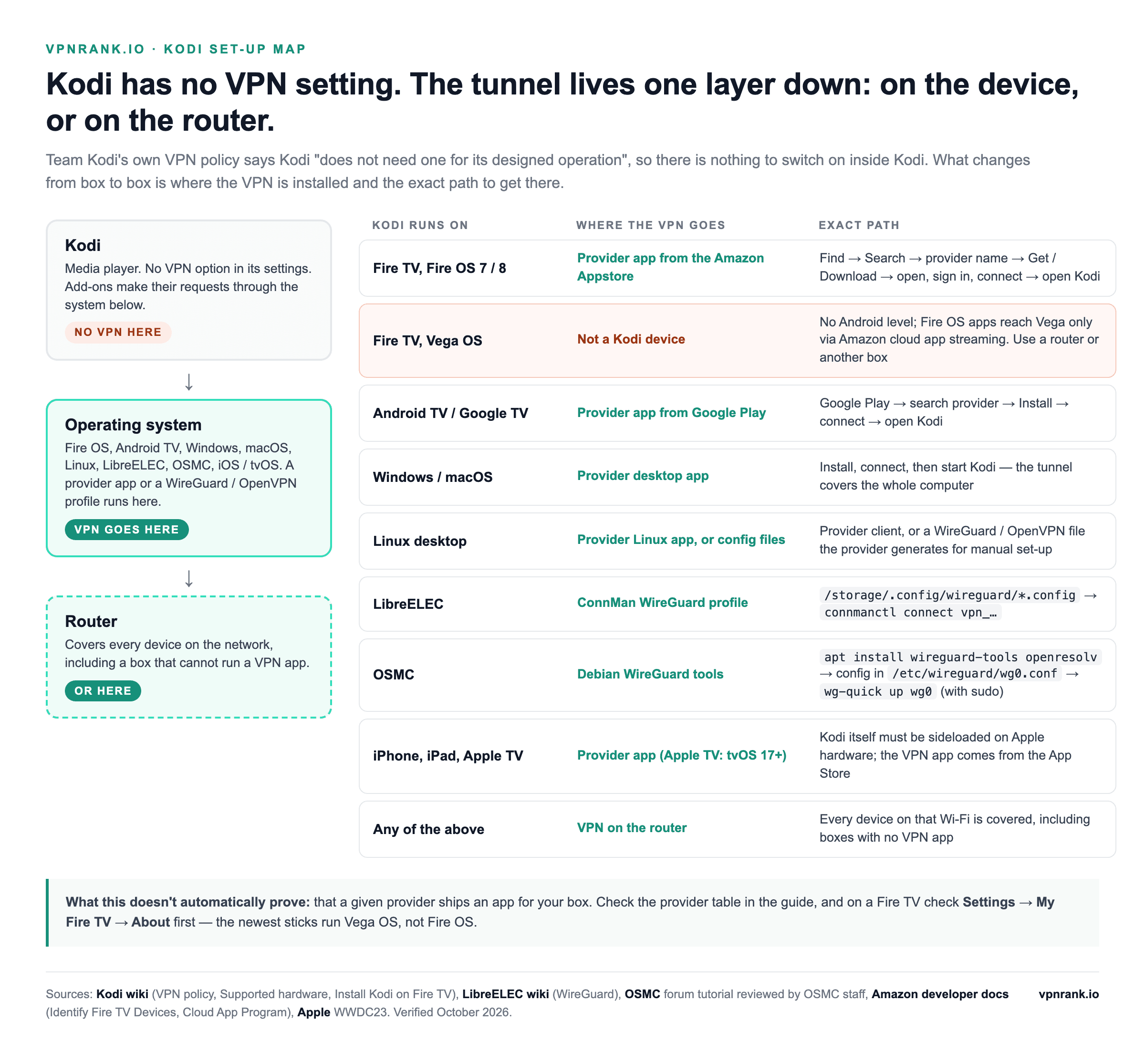
Practical rule:Install the VPN on the device that runs Kodi, not inside Kodi. If that device can't run a VPN app, put the VPN on the router instead.
Every platform Kodi runs on has one documented place to put the VPN
Kodi's current stable release is 21.3 "Omega", published on Team Kodi's GitHub releases page on 31 October 2025; version 22 "Piers" reached release candidate 1 on 27 September 2026. Both run on the same family of platforms. The table lists where the VPN goes on each, the exact path, the source it was checked against, and the limit of what that source proves.
| Kodi runs on | How the VPN is installed | Exact path | Source | What it doesn't automatically prove |
|---|---|---|---|---|
| Fire TV, Fire OS | Provider app from the Amazon Appstore | Home → Find (magnifying glass) → search the provider → Get or Download → Open → sign in → connect → open Kodi | IPVanish, PIA, CyberGhost and Proton VPN help centres | That your stick runs Fire OS (check Settings → My Fire TV → About), or that a Fire OS 5 stick gets VPN apps. Most need Fire OS 6 or later |
| Fire TV, Vega OS (Stick 4K Select 2025, Stick HD 2026, Stick 4K 3rd Gen 2026) | Kodi can't be installed natively, so there is no Kodi to protect | Amazon: Fire OS apps reach Vega only through cloud app streaming; developer sideloading takes .vpkg packages | Amazon developer docs | That a Vega VPN app helps Kodi. It protects the stick's own apps |
| Android TV / Google TV | Provider app from Google Play. Kodi is on Google Play too | Home → Apps or Search → Google Play Store → search the provider → Install → Open | Kodi wiki; PIA, IPVanish, ExpressVPN, PureVPN help centres | That a cheap Android box runs TV apps. IPVanish warns boxes running phone Android may not |
| Windows | Provider desktop app, system-wide | Install the app, connect, then start Kodi | Kodi wiki, Supported hardware (Windows 10 minimum) | That only Kodi uses the tunnel. Split tunnelling is a separate setting |
| macOS | Provider desktop app, system-wide | Install the app, connect, then start Kodi | Kodi wiki, Supported hardware | That the in-Kodi VPN Manager add-on works here. macOS is not on its supported list |
| Linux desktop | Provider Linux app, or a WireGuard / OpenVPN file from the provider | Provider client (for example nordvpn connect, protonvpn connect), or sudo wg-quick up <name> | Provider help centres | That every provider has a Linux app. IPVanish documents manual set-up only; TotalVPN doesn't list Linux |
| LibreELEC (Raspberry Pi and others) | ConnMan WireGuard profile, no add-on needed | /storage/.config/wireguard/<name>.config → connmanctl services → connmanctl connect vpn_<server-ip> | LibreELEC wiki, WireGuard | That a provider's WireGuard file works as-is. ConnMan uses its own format |
| OSMC (Raspberry Pi, Vero) | Debian's WireGuard tools | sudo apt install wireguard-tools openresolv → /etc/wireguard/wg0.conf → sudo wg-quick up wg0 | OSMC forum tutorial reviewed by OSMC staff; osmc.tv | Official OSMC documentation. OSMC's wiki has no VPN page |
| iPhone / iPad | Provider iOS app | App Store → provider app → connect → open Kodi | Kodi wiki, Supported hardware | That Kodi installs from the App Store. The wiki lists sideloading, jailbreak or self-signing |
| Apple TV HD / 4K | Provider tvOS app, tvOS 17 or later | App Store on the Apple TV → provider app → connect | Apple, WWDC23; Kodi wiki (Apple TV 4 and 5 supported by sideloading) | That your provider ships a tvOS app. TotalVPN documents one; check the others |
| Any device | VPN on the router | Router's VPN-client page → upload a provider OpenVPN or WireGuard file | Provider manual-configuration pages | That every router has a VPN client. Many ISP routers don't |
Where the VPN goes for each platform Kodi runs on, verified October 2026 against the Kodi wiki, LibreELEC wiki, OSMC, Amazon, Apple and the providers' own help centres.
Three new Fire TV sticks run Vega OS, and Kodi can't be installed on them
Check your stick before you install anything. Amazon's help page gives the path: Settings → My Fire TV (or Device & Software) → About. Amazon's developer reference lists three sticks on Vega OS, each with "N/A" in the Android level column: the Fire TV Stick 4K Select (2025), the Fire TV Stick HD (2026) and the Fire TV Stick 4K 3rd Gen (2026, Vega OS 2.0). Kodi for Fire TV is the Android build; the Kodi wiki says the Fire TV "uses Kodi for Android". Amazon says Fire OS apps reach Vega devices only through its cloud app streaming programme, and its Vega developer guide sideloads .vpkg packages, not APKs.
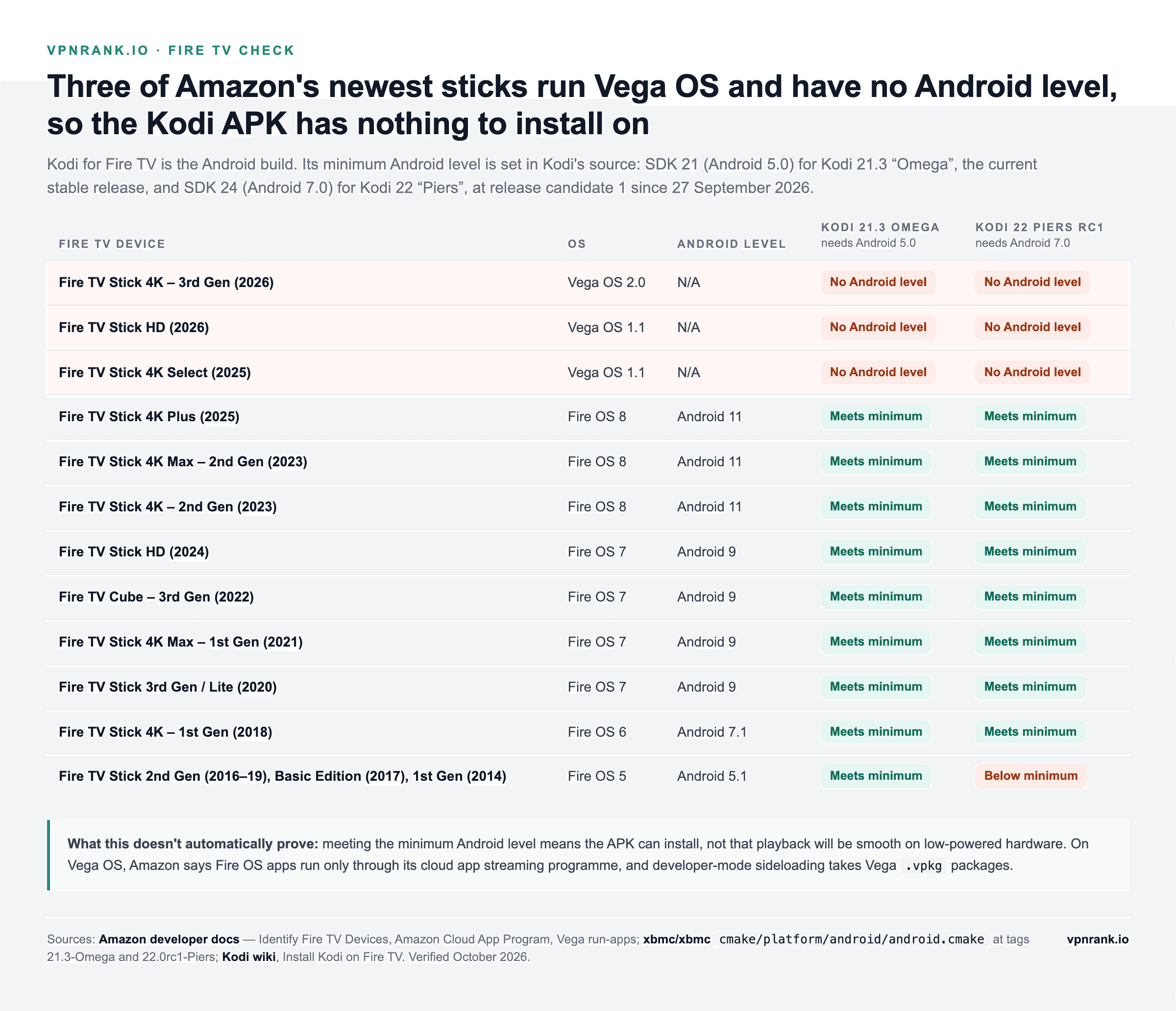
The same table shows a second, slower change. Kodi's Android minimum is set in its source code: SDK 21 (Android 5.0) in Kodi 21.3 Omega and SDK 24 (Android 7.0) in the Kodi 22 Piers release candidate. The Fire OS 5 sticks run Android 5.1: the 2014 first generation, the 2016 to 2019 second generation and the 2017 Basic Edition. They meet the first minimum and miss the second, so when Piers ships as stable they stay on Omega. They are also the sticks VPN providers drop first. NordVPN's Fire TV guide excludes the first and second generation and the Basic stick, and IPVanish and PureVPN both exclude the first generation.
This corrects an earlier version of this guide, which treated Vega OS mainly as a shortage of VPN apps. VPN apps for Vega now exist: ExpressVPN, NordVPN, Surfshark, Proton VPN and IPVanish each document one, while PIA's help centre says its app "is not currently compatible" with Vega OS. But a Vega VPN app protects the stick's own apps, and Kodi is not one of them. For Kodi on that TV, use a Fire OS or Android TV device. To cover the Vega stick anyway, use the provider's Vega app or a VPN on your router.
On a Fire OS stick, the VPN app installs from the Appstore in five steps
This is the route most Kodi users need, and the steps follow the paths the providers document. IPVanish's guide starts from Home → Find (the magnifying glass), PIA's from the Find tab, and Proton VPN's from Find → Appstore. Do it before you open Kodi, so add-on requests use the tunnel from the first stream.
- 1Press Home, select Find (the magnifying glass), then search for your provider's name.
- 2Select the provider's official app and choose Get or Download. Minimums differ: PIA and CyberGhost need Fire OS 6 or later, and Proton VPN's Fire OS app needs Fire OS 7 or later.
- 3Open the app and sign in. Most apps avoid typing with the remote: CyberGhost pairs the stick with a PIN entered in its web dashboard, Proton VPN uses an 8-digit code at protonvpn.com/firetv, and NordVPN, IPVanish and PureVPN offer a QR code.
- 4Approve Fire OS's connection request (IPVanish's guide: click OK to let the app re-route your traffic), and turn on the kill switch if the app has one, so streaming stops instead of leaking if the tunnel drops.
- 5Connect to a server, then open Kodi. Kodi needs no change of its own.
The Kodi wiki's Fire TV guide installs Kodi itself by sideloading rather than from the Appstore. It starts with Settings → System (Device on newer builds) → Developer Options, then enabling ADB Debugging and Apps from Unknown Sources (Install unknown apps on newer Fire OS). If your VPN isn't in your region's Appstore, PIA documents the same Downloader route for its own installer. Only ever sideload a VPN from the provider's own website. Our Fire TV Stick VPN guide covers sideloading in full, and the videos VPN on a Fire TV Stick in 5 taps and install a VPN on a Firestick show the Appstore route on screen.
On Android TV and Google TV, Kodi and the VPN both come from Google Play
Android TV boxes work like a Fire TV, with one difference: Kodi itself is on Google Play (package org.xbmc.kodi, per the Kodi wiki), so nothing has to be sideloaded. Install the VPN first, connect, then launch Kodi.
- 1On the TV home screen, open Apps or Search and go to the Google Play Store. PIA's path is Home → Apps → Google Play Store; IPVanish's uses the Search option at the top of the home screen.
- 2Search for the provider, choose Install, then Open. ExpressVPN, Surfshark and CyberGhost state Android 7.0 or later for their TV apps; Proton VPN's needs Android 8 or later.
- 3Sign in (Proton VPN's TV app uses a QR code or an 8-digit code at protonvpn.com/tv) and connect.
- 4Open Kodi. On Android TV 11 or later, also give Kodi file access or local files won't show: Settings → Apps → Kodi → Permissions → Files and Media → Allow all the time.
Two Android rules matter here. Android's developer documentation says only one VPN service can be active per user or profile, and starting a new one stops the existing one, so don't run two providers side by side. And if a box has no Play Store, sideload only the provider's official APK from its own website, never a mirror. A tampered APK on a device that handles your streaming and passwords is exactly the risk a VPN is supposed to reduce. CyberGhost and ExpressVPN document the official-APK route for TVs without Play. Our Android VPN guide covers phones and tablets, and the best VPNs for Android TV ranks the TV apps.
On Windows, macOS and Linux, the provider's app covers Kodi automatically
On a computer the simplest route is unchanged: install the provider's app, connect, then start Kodi. The tunnel is system-wide, so Kodi, the browser and everything else use it. If you want only Kodi in the tunnel, or Kodi kept out of it so it can reach a NAS, use the app's split-tunnelling setting, covered below. Kodi's own minimum on Windows is Windows 10, per the Kodi wiki. Step-by-step set-ups are in our Windows 11 and Mac guides.
Linux differs by provider. ExpressVPN, NordVPN, Proton VPN, PIA and PureVPN each document a desktop app plus a command-line client (expressvpnctl, nordvpn, protonvpn, piactl, purevpn-cli). Surfshark's current Linux app is graphical only, and CyberGhost ships a command-line client only (sudo cyberghostvpn). IPVanish documents manual set-up instead: sudo openvpn --config with its .ovpn files, or sudo wg-quick up with a WireGuard file generated in its account area. TotalVPN doesn't list Linux. Our Linux VPN guide covers both routes.
LibreELEC runs WireGuard through ConnMan, from a file you copy over by hand
LibreELEC, the Kodi-only Linux build common on Raspberry Pi, can act as a WireGuard client without any add-on. Its wiki documents the set-up. ConnMan's VPN plugin (connman-vpn.service) watches /storage/.config/wireguard/*.config and turns each valid file into a connection. The catch is the format. The LibreELEC wiki says you cannot import the files that WireGuard tools and VPN services export; you copy each value into ConnMan's own layout.
| In your provider's WireGuard file | Goes into the LibreELEC .config as | Watch out for |
|---|---|---|
| [Interface] PrivateKey | WireGuard.PrivateKey | Your device's private key. Keep it out of screenshots |
| [Interface] Address | WireGuard.Address | The tunnel address, such as 10.2.0.2/24 in the wiki's example |
| [Interface] DNS | WireGuard.DNS | Optional; comma-separated |
| [Peer] PublicKey | WireGuard.PublicKey | The server's public key, not yours |
| [Peer] PresharedKey | WireGuard.PresharedKey | If your file has none, delete the line. A blank value makes the connection fail |
| [Peer] Endpoint, the address part | Host | Must be an IP address, not a hostname |
| [Peer] Endpoint, the port after the colon | WireGuard.EndpointPort | 51820 in the wiki's example; copy whatever your file says |
| [Peer] AllowedIPs | WireGuard.AllowedIPs | ConnMan routes all traffic through wg0 whatever this says |
| [Peer] PersistentKeepalive | WireGuard.PersistentKeepalive | Optional, in seconds |
The mapping is our reading of the LibreELEC wiki's sample config against the field names in WireGuard's wg and wg-quick manuals. ConnMan also needs a [provider_wireguard] header, Type = WireGuard and a Name line. Verified October 2026.
- 1Generate a WireGuard file in your provider's account area. NordVPN: Nord Account → NordVPN → Advanced Settings → Set up NordVPN manually. Proton VPN: Downloads → WireGuard configuration. Surfshark: VPN → Manual setup → Router → WireGuard. IPVanish: the WireGuard tab → Choose a location → Generate. PureVPN: the Manual Configuration tab.
- 2Over SSH, create
/storage/.config/wireguard/<name>.configand copy each value across using the table above. - 3Run
connmanctl services. ConnMan names the connection after the server IP, so the wiki's example becomesvpn_185_210_30_121. - 4Test it with
connmanctl connect vpn_<server-ip>.ifconfigshould now show a wg0 interface, androuteshould show the default route on wg0. - 5To connect at boot, save the wiki's sample unit as
/storage/.config/system.d/wireguard.service(it starts after the network and before kodi.service). Replacevpn_service_name_goes_herewith your service name, then runsystemctl enable /storage/.config/system.d/wireguard.serviceandsystemctl start wireguard.service. You can also manage connections from the Connections tab of the LibreELEC settings add-on.
Two details in that wiki page answer common LibreELEC questions. In its example routing table, the local subnet (192.168.10.0) stays on the Ethernet interface while the default route moves to wg0, so with that set-up Kodi still reaches a NAS on the same subnet. And because Host takes only a fixed IP, the wiki says a server whose address changes needs a script that updates the .config and restarts the connection. Not every provider supplies WireGuard files for manual use: PIA's help centre says it does not support manual WireGuard configuration on routers and offers OpenVPN files only, and CyberGhost and ExpressVPN document manual set-up through OpenVPN only. CyberGhost's Kodi help page points LibreELEC users to OpenVPN guides instead.
OSMC has no VPN page of its own; the working route is Debian's WireGuard tools
OSMC's documentation has no VPN page (checked October 2026). OSMC is built on Debian, and its about page says the full Debian repositories are at your disposal. The WireGuard method its forum points to uses the standard packages. An OSMC staff member reviewed this community tutorial as looking good, with one addition:
- 1Run
sudo apt install wireguard-tools, thensudo apt install openresolv. You need openresolv if your file has a DNS line. - 2Paste your provider's WireGuard file into
/etc/wireguard/wg0.conf. OSMC uses the standard format, so nothing needs copying field by field. - 3Bring the tunnel up with
sudo wg-quick up wg0and check it withsudo wg. - 4To connect at boot:
sudo wg-quick down wg0, thensudo systemctl enable [email protected], thensudo systemctl start [email protected]. The staff reply addssudo systemctl daemon-reloadafter you edit the unit file.
wg-quick has one property that matters for Kodi libraries. WireGuard's routing documentation says its rule-based routing lets packets use the main routing table when they match a route more specific than the default, such as local routes. So a NAS on your own subnet stays reachable with the tunnel up. The in-Kodi VPN Manager add-on below also lists OSMC as a supported Linux install.
The in-Kodi VPN add-on runs only on Windows and Linux builds, and its last release was April 2023
VPN Manager for OpenVPN, by the developer Zomboided, is the add-on most Kodi VPN guides describe. Its GitHub releases show 7.0.3 as the latest full release (6 April 2023) and 7.0.4 as a pre-release from 31 May 2023, which is also the date of the last commit on its main branch. Its wiki lists the supported platforms: LibreELEC 7 and later, OpenELEC 5 and later, other Linux installs such as OSMC, and Windows (Windows 7 tested). It says in bold that Android is not supported.
Two points in earlier versions of this guide need correcting. First, macOS is not on the add-on's supported list, so the add-on route is for Windows and Linux builds, not Mac. Second, it does not protect only Kodi. The add-on starts OpenVPN, and the OpenVPN 2.6 manual says its redirect-gateway option makes all outgoing IP traffic go over the VPN. That is why the add-on's wiki says Kodi must run as administrator on Windows: it has to rewrite the routing table. What the add-on adds is control over when the tunnel is up and which profile it uses, switching or disconnecting automatically based on the add-on or Kodi window in use.
Two providers now steer users away from it. NordVPN's Kodi page says VPN add-ons do not currently work on Kodi and tells you to use its app or a manual OpenVPN or IKEv2 connection. ExpressVPN's Kodi page recommends its app over a Kodi VPN manager add-on. If you still want the add-on, the set-up is:
- 1Turn on Settings → System → Add-ons → Unknown sources. Kodi warns that add-ons will be given access to personal data stored on the device, so accept only if you trust the source.
- 2Download the repository zip (repository.zomboided.plugins) from Zomboided's GitHub and save it where Kodi can reach it. A USB stick or network share works.
- 3In Kodi, open Settings → Add-ons → Install from zip file and pick the repository zip.
- 4Choose Install from repository → Zomboided Add-on repository → VPN Manager for OpenVPN → Install. Installing from the repository lets it update itself.
- 5On Windows only, install OpenVPN from openvpn.net (the add-on expects it in
c:\Program Files\OpenVPN\bin\) and set Kodi's executable to always run as administrator. LibreELEC already includes OpenVPN; other Linux installs needopenvpnandpsmiscfrom the package manager. - 6Open the add-on's settings and pick your provider from its built-in list. It names about 30, including ExpressVPN, NordVPN, Private Internet Access, IPVanish, CyberGhost and TotalVPN. For a provider it doesn't list, use the User Defined option with your own .ovpn files. Then enter your manual VPN credentials.
- 7Choose a first connection and let the add-on validate it. Optionally, set it to connect when Kodi starts; on LibreELEC it can connect before Kodi starts.
Manual credentials are often not your website login. Proton VPN issues a separate OpenVPN username under Account → OpenVPN username, NordVPN's service credentials are "different from your Nord Account email and password", and Surfshark, CyberGhost and PureVPN also generate separate ones. PIA uses your normal login, and IPVanish's manual guides ask for your usual IPVanish credentials. The add-on's wiki also carries a warning worth acting on: a VPN tunnel can bypass your router's firewall. After connecting, try to SSH to the VPN IP the add-on shows you, and open that IP in a browser. If either works, the box is exposed, which matters more on LibreELEC with its default SSH login. Team Kodi's policy is that VPN add-ons are not banned, but the official forum won't support them.
Which route fits comes down to three questions about your box
If you are torn between routes, three questions settle it without any trial and error in Kodi's settings.
- Which device runs Kodi? That alone rules routes in or out: the add-on can't run on Android or Fire OS, and Kodi can't run on a Vega OS stick.
- Do you want the whole box protected, or only some apps? A provider app or WireGuard profile covers the device; split tunnelling narrows it.
- How much set-up will you put up with? The app route is a few clicks. LibreELEC and OSMC need SSH and a config file. The add-on needs config files and a manager that is no longer updated.
For most people on a Fire TV or Android TV box, the answer is the provider's app. For a LibreELEC or OSMC tinkerer, a WireGuard profile is now cleaner than the add-on, because the OS maintains it and it starts before Kodi. The add-on still does one thing the others don't: it switches VPN profile automatically for each add-on.
Want a VPN with native apps for both Fire OS and Vega OS sticks, Android TV and Linux, plus OpenVPN files for manual set-ups? See why ExpressVPN is a strong pick for Kodi across devices.
See our top-ranked VPNs →A VPN changes which address Kodi's add-ons come from, not what they are allowed to play
Kodi's official repositories are curated, but many users install add-ons from elsewhere that talk to servers with no accountability. A VPN changes two things about those connections. Your ISP sees one encrypted tunnel to the VPN server instead of each server Kodi talks to, though it can still see that you use a VPN and roughly how much data you move. And the add-on's source servers see the VPN's address instead of your home connection. Kodi's VPN policy adds two caveats: a VPN is only as trustworthy as the people running it, and no VPN is entirely private and secure.
| What changes | Without a VPN | With a VPN | What it doesn't automatically prove |
|---|---|---|---|
| What your ISP sees | Each server Kodi and its add-ons connect to | One encrypted connection to the VPN server, and how much data moves | That you are anonymous. The VPN provider now sees what your ISP used to |
| What an add-on's source sees | Your home IP address | The VPN server's address | That the source can't identify you some other way, such as an account login |
| Geo-restricted official add-ons | The catalogue for your country | The catalogue for the VPN server's country, where the service allows it | That the service permits it. Its terms decide, and Team Kodi doesn't support geo-unblocking on its forum |
| Content-based ISP throttling | Applies where the ISP identifies the stream | Hidden from payload-based identification (Wehe study, 2019) | That buffering stops. Line speed and Wi-Fi are unchanged |
| Whether a stream is lawful | Set by copyright law and the service's licence | Unchanged | Anything. A VPN is a privacy tool, not a licence |
Sources: Kodi wiki VPN policy and Official add-on repository; Li et al., A Large-Scale Analysis of Deployed Traffic Differentiation Practices, SIGCOMM 2019. Verified October 2026.
The strongest public evidence on throttling is the Wehe study from Northeastern University and UMass Amherst, presented at SIGCOMM 2019. Using 1,045,413 measurements from 126,249 users, it found content-based throttling at 30 ISPs in 7 countries, on both cellular and Wi-Fi networks. The ISPs identified traffic by plaintext such as the server name in the TLS handshake. In the authors' controlled tests on four US mobile carriers, an encrypted VPN tunnel evaded that throttling. That is the one case where a VPN can speed Kodi up. If buffering comes from a slow add-on source, weak Wi-Fi or your line speed, encryption cannot add bandwidth, and a distant server makes it worse. Check our VPN speed test data before you pick a location.
Kodi has two official repositories enabled by default, Kodi.tv Add-ons and Kodi.tv PVR Add-ons, both maintained by Team Kodi, according to the Kodi wiki. Its banned add-ons page says anything in the official repo has already been checked against the forum rules. Add-ons that play a broadcaster's own streams inherit that broadcaster's rights rules, because the stream request leaves from your connection. Whether you may use a VPN with such a service is set by the service's terms, not by Kodi.
Kodi's stance on legality is explicit. Its piracy policy closes forum discussions of add-ons that access content in breach of US copyright law. The banned add-ons page offers a rule of thumb: if an add-on offers for free something you would normally pay for, it's most likely using pirate feeds. Team Kodi doesn't police what you install, but it offers no support for installs that include such add-ons, and its VPN policy says using a VPN to hide access to illegal sources breaks the piracy policy. A VPN doesn't change whether a stream is lawful. This is not legal advice; the rules depend on where you live. Our VPN privacy explainer and the DNS leak glossary entry cover what encryption does and doesn't hide.
Kodi's error messages are generic, so the first test is always the VPN off
Kodi tells you that something failed, rarely why. When a Python add-on fails, the notification is the add-on's name plus "error", then "Check the log for more information." Those are strings #2102 and #2104 in Kodi's English string file. The table below matches the messages and documented failures you're most likely to meet after adding a VPN with what each one points to.
Practical rule:Reproduce the problem with the VPN off before blaming Kodi, and with Kodi closed before blaming the VPN. Team Kodi only supports problems that remain without a VPN.

| What you see | Where it comes from | Documented fix | Source | What it doesn't automatically prove |
|---|---|---|---|---|
| “Add-on name error” and “Check the log for more information.” | Kodi strings #2102 and #2104, a Python add-on error | Disconnect the VPN and retry. If it still fails, the add-on is at fault. Read kodi.log | Kodi strings.po; Kodi VPN policy | That the VPN caused it. The message is the same for any add-on failure |
| “One or more items failed to play. Check the log for more information about this message.” | Kodi string #16027, the playlist player | Try another VPN server, then no VPN; enable debug logging to see which URL failed | Kodi strings.po; Kodi wiki, Log file | That the source blocks VPNs. The stream may simply be dead |
| “Couldn't connect to network server” | Kodi string #15301, opening a network source | Turn on the app's LAN setting, or exclude Kodi with split tunnelling (provider table below) | Kodi strings.po; provider help centres | That the NAS is down. Check it by IP address from another device |
| “Couldn't retrieve directory information. This could be due to the network not being connected.” | Kodi string #1025, adding a source | The same LAN fix; then check the share path and its username and password | Kodi strings.po | That it is the VPN. Kodi shows it for any unreachable path |
| Local files invisible on Android TV 11 or later | Kodi wiki, Install Kodi for Android | Settings → Apps → Kodi → Permissions → Files and Media → Allow all the time | Kodi wiki | A VPN fault at all |
| LibreELEC WireGuard connection fails | LibreELEC wiki, WireGuard | Put the server IP in Host; delete an unused PresharedKey line | LibreELEC wiki | That the provider's server is down |
| VPN Manager can't connect on Windows | Zomboided VPN Manager wiki | Run Kodi as administrator; install OpenVPN in c:\Program Files\OpenVPN\bin\ | Zomboided wiki | That the add-on supports macOS. It doesn't list it |
| AUTH FAILED on a manual OpenVPN connection | Proton VPN support | Use the separate OpenVPN credentials from your account, not your Proton login | Proton VPN support | That every provider separates them. PIA uses the normal login |
| Starting a second VPN app disconnects the first | Android developers, VPN guide | Keep one VPN app per device profile | Android developers | That either app is faulty |
| Kodi won't install on a brand-new Fire TV stick | Amazon developer docs | Check Settings → My Fire TV → About. On Vega OS, use a Fire OS or Android TV device | Amazon developer docs | That a Vega VPN app would fix it |
Kodi messages are quoted from Kodi's English string file (Omega branch); platform failures from the source named in each row. Verified October 2026.
To read the log, turn on Settings → System → Logging → Enable debug logging (or press Ctrl+Shift+D on a keyboard). Restart Kodi from its power menu, reproduce the problem, then open kodi.log. The Kodi wiki lists where it lives:
- Windows:
%APPDATA%\Kodi\kodi.log - macOS:
/Users/<username>/Library/Logs/kodi.log - Linux:
$HOME/.kodi/temp/kodi.log - LibreELEC:
/storage/.kodi/temp/kodi.log - OSMC:
/home/osmc/.kodi/temp/kodi.log - Android, Fire TV included:
/sdcard/Android/data/org.xbmc.kodi/files/.kodi/temp/kodi.log(the folder varies by device) - iOS and tvOS:
/private/var/mobile/Library/Preferences/kodi.log
Kodi keeps only two logs: kodi.log for the current session, and kodi.old.log for the previous one. Copy the log before you restart again. If the tunnel itself won't come up, our VPN won't connect guide works through the connection checkpoints in order.
Kodi loses your NAS because the VPN takes the whole connection, and one setting gives it back
If add-ons play but your SMB or NFS library vanishes the moment the VPN connects, the VPN is doing what it was built to do. A full tunnel routes everything, including traffic for a NAS three metres away, and a kill switch blocks whatever tries to go around it. Whether that happens depends on the client. OpenVPN's manual documents a block-local flag that deliberately routes the local LAN into the tunnel. wg-quick keeps more specific local routes on the main table. On Android, the provider app decides: apps you exclude "use system networking as if the VPN wasn't running", in the words of Android's developer documentation, and Android's block-connections-without-VPN mode blocks any traffic that doesn't use the VPN.
| Provider | Let Kodi reach the LAN | Exclude Kodi from the tunnel | Documented on |
|---|---|---|---|
| Private Internet Access | Allow LAN Traffic: Fire TV, Gear → General Settings → Networks | Per App Settings: Fire TV, Gear → Per App Settings; Android TV, cog → Per App | Fire TV and Android TV |
| Proton VPN | Android TV: Settings → LAN → Allow LAN connections (allowed automatically on paid plans) | Split Tunneling: Android TV, Settings → Split Tunneling → Mode → Exclude (paid plans) | Android TV |
| NordVPN | Local network discovery, in the app's Settings | Split tunneling: Fire TV and Android TV, cog icon → Split tunneling | Fire TV (Fire OS) and Android TV |
| IPVanish | LAN access, in the Fire TV app's Settings | Split Tunneling: Settings → below the Connection section (disconnect first) | Fire TV (Fire OS); not on its Vega OS app |
| Surfshark | Discover on LAN (Android; not documented for Android TV) | Bypasser, in the features tab | Fire TV (Fire OS) and Android TV; not on its Vega OS app |
| CyberGhost | Not documented | App Split Tunnel: Fire TV, gear → VPN Settings; Android TV, cog → VPN tab | Fire TV and Android TV |
| PureVPN | Not documented | Split Tunneling: ≡ → Settings → Advanced settings → Do not allow selected apps to use VPN | Fire TV and Android TV |
| ExpressVPN | No named setting in current docs; its LAN page says the Android kill switch doesn't block local devices | Split Tunneling: Android TV, Options → Settings → Split Tunneling | Android TV (not documented for the Fire TV app) |
| TotalVPN | Not documented | Split Tunneling in the Android phone app (Cog → Split Tunneling); no TV app | Android phones only |
Setting names and menu paths checked against each provider's own help pages, October 2026. Where a provider doesn't document a setting, the cell says so rather than guessing.
Exclude Kodi itself if you only use it for a local library. If you want add-on traffic protected and the NAS reachable, exclude nothing and turn on LAN access. Keep LAN access off on hotel and café Wi-Fi, where the "local network" is every stranger on the same hotspot. Our split tunnelling glossary entry and the split tunnelling explainer go deeper.
Eight of the nine providers ship apps for both Fire TV and Android TV
What follows is what each provider documents on its own site, not what review sites claim. Eight of the nine have an app for Fire OS sticks and Android TV. TotalVPN's help centre covers Windows, macOS, Android phones, iOS and Apple TV only. Five document a separate Vega OS app, which matters for the stick, not for Kodi.
| Provider | Fire TV app | Android TV app | Linux app | Manual config files | Kodi help page |
|---|---|---|---|---|---|
| ExpressVPN | Yes, Fire OS 6+; separate Vega OS app | Yes, Android 7.0+ | Desktop app and expressvpnctl | OpenVPN only (Advanced setup → Manual configuration) | Yes: connect the app, then open Kodi |
| NordVPN | Yes; not on 1st- or 2nd-gen or Basic sticks; Vega app with fewer features | Yes | Desktop app and nordvpn | OpenVPN and WireGuard; separate service credentials | Yes: says VPN add-ons don't currently work on Kodi |
| Surfshark | Yes, Fire OS 6.0+ (setup guide); Vega app with core features | Yes, Android 7.0+ | Desktop app; command-line client only in its legacy guide | OpenVPN and WireGuard; separate credentials | Yes, including a LibreELEC guide |
| Proton VPN | Yes, Fire OS 7+; separate Vega OS app | Yes, Android 8+ | Desktop app and protonvpn | OpenVPN and WireGuard; separate OpenVPN username | No dedicated page |
| Private Internet Access | Yes, Fire OS 6+; not compatible with Vega OS | Yes | Desktop app and piactl | OpenVPN only; account login | No help-centre page; a blog post |
| IPVanish | Yes; not on the 1st-gen stick; separate Vega OS app | Yes | None; manual OpenVPN and WireGuard | OpenVPN and WireGuard; account login | Yes, several, including Kodi on Android |
| CyberGhost | Yes, Fire OS 6+; Vega OS not documented | Yes, Android 7.0+ | Command-line only: sudo cyberghostvpn | OpenVPN only; generated credentials | Yes: OpenVPN on LibreELEC, Windows and Linux |
| PureVPN | Yes; not on the 1st-gen stick; Vega OS not documented | Yes | Desktop app and purevpn-cli | OpenVPN and WireGuard; system-generated password | Yes: per-OS steps |
| TotalVPN | Not documented | Not documented (phone app only) | Not listed | Not documented | No |
What each provider documents on its own help centre or download pages, verified October 2026. "Not documented" means we could not find it on the provider's site, not that it is impossible.
Two conflicts are worth knowing about. Surfshark's download page says Fire OS 5 while its setup guide says Fire OS 6.0, and CyberGhost's help centre says Fire OS 6 while a marketing page says 4.6. Go by the help-centre figure. For a ranked shortlist rather than a feature matrix, see our best VPN for Kodi and best VPN for Fire TV Stick pages.
A free VPN on Kodi means a one-device plan without streaming features
If you want to try a VPN with Kodi without paying, the free option among the nine is Proton VPN's free plan. Its free VPN page lists 1 device, no ads, no logs and no data or speed limits, and its apps run on Android TV and Fire TV. The same page puts "works with streaming platforms", up to 10 devices and 140+ countries in the paid tier, and split tunnelling is paid-only in its help centre. Treat the free plan as a privacy test on one Kodi box, not a streaming plan. Proton VPN's paid plans carry a 30-day money-back guarantee, which is the safer way to test streaming on your own hardware.
Prove the tunnel is up from the Kodi box itself
A misconfigured tunnel can look connected while your real IP still leaks, so check from the device that runs Kodi rather than trusting the status icon. Two checks catch almost every problem: an IP check to confirm your visible location changed, and a leak test to make sure DNS requests stay inside the tunnel.
- 1Note your real IP before connecting, using our what is my IP tool in a browser on the same device or network.
- 2Connect the VPN, reload the page and confirm the IP and country have changed. Our VPN check runs the IP and leak tests in one go.
- 3Run a DNS leak test to confirm your provider's DNS servers are in use, not your ISP's.
- 4On the add-on route, the VPN Manager screen shows the location of the externally visible IP once connected. On LibreELEC,
ifconfigshould list wg0 androuteshould show the default route on wg0. On OSMC,sudo wgshows the latest handshake.
If the IP changed but a leak test still shows your ISP, you probably have a DNS or WebRTC leak; our DNS leak explainer walks through the fixes, and the full testing guide covers the rest. Re-run the checks whenever you change servers or update Kodi or the VPN app, because an update can quietly reset a setting such as the kill switch or your chosen DNS. Thirty seconds of checking beats assuming a tunnel is up when it isn't.
Every source behind this guide was re-read in October 2026
- Kodi wiki — VPN policy
- Kodi wiki — forum rules and piracy policy and banned add-ons
- Kodi wiki — official add-on repository
- Kodi wiki — supported hardware, install Kodi on Fire TV and install Kodi for Android
- Kodi wiki — log file (easy method) and log locations
- Team Kodi — xbmc/xbmc releases, android.cmake at 21.3-Omega, android.cmake at 22.0rc1-Piers and English strings.po
- LibreELEC wiki — WireGuard
- OSMC — about and OSMC forum — WireGuard tutorial with staff review
- Zomboided — VPN Manager for OpenVPN wiki and releases
- OpenVPN 2.6 manual — redirect-gateway and block-local
- WireGuard — routing and network namespace integration and wg-quick manual
- Amazon — Identify Fire TV devices, Amazon Cloud App Program, Vega run-apps guide and update the software on your Fire TV
- Android developers — VPN
- Apple WWDC23 — VPNs newly supported in tvOS 17
- Li et al. — A Large-Scale Analysis of Deployed Traffic Differentiation Practices (SIGCOMM 2019)
- ExpressVPN — Fire TV set-up, Android TV set-up, Linux CLI and Kodi VPN
- NordVPN — Amazon Fire devices, configuration files, split tunneling and Kodi
- Surfshark — Fire TV Stick, Vega OS, Android TV and Kodi
- Proton VPN — Fire OS, Vega OS, Android TV, split tunneling, LAN connections, WireGuard configurations, AUTH FAILED and free plan
- PIA — Fire Stick and Fire TV, Android TV, OpenVPN files and WireGuard
- IPVanish — Fire TV, Android TV, WireGuard on Linux and Kodi for Android
- CyberGhost — Fire TV, Android TV, Fire TV settings and Kodi
- PureVPN — Fire TV, Android TV, Fire TV split tunneling and supported devices
- TotalVPN — system requirements and split tunneling
Frequently asked questions
Can you install a VPN directly on Kodi?
No. Kodi has no built-in VPN, and Team Kodi's VPN policy says Kodi doesn't need one to work as designed. Install the VPN on the device Kodi runs on instead: the provider's app on a Fire TV, Android TV box or computer, a WireGuard profile on LibreELEC or OSMC, or a VPN on your router.
Do I need a VPN app or a Kodi add-on?
Use the provider's app on a Firestick, Fire TV, Android TV box, phone, tablet or computer, because it protects the whole device, Kodi included. The in-Kodi VPN Manager add-on runs only on Windows and Linux builds such as LibreELEC and OSMC, and its last release was April 2023, so the app or a WireGuard profile is the simpler choice.
How do I add a VPN to Kodi on a Fire Stick?
On a Fire OS stick, press Home, select Find, search for your VPN provider, choose Get or Download, sign in, connect, then open Kodi. First check Settings → My Fire TV → About: the Fire TV Stick 4K Select (2025), Stick HD (2026) and Stick 4K 3rd Gen (2026) run Vega OS, which has no Android level, so Kodi can't be installed on them.
Does the VPN Manager for OpenVPN add-on work on Firestick?
No. Its wiki says Android is not supported, and Fire OS is Android-based. It supports LibreELEC, OpenELEC, other Linux installs such as OSMC, and Windows. On a Firestick or Android TV box, install the VPN provider's app from the Amazon Appstore or Google Play instead, then open Kodi as normal.
Do I need a VPN for Kodi?
Kodi doesn't need one to work. Team Kodi says so in its VPN policy and does not support or recommend VPNs. People add one for privacy: it hides which servers Kodi and its add-ons contact from your ISP, and shows add-on sources the VPN's address instead of yours. It does not make any stream lawful.
Will a VPN stop Kodi buffering?
Only if your ISP throttles streams by identifying them. The Wehe study (SIGCOMM 2019) found content-based throttling at 30 ISPs in 7 countries and showed an encrypted VPN tunnel evading it in tests on US mobile carriers. If buffering comes from a slow add-on source, weak Wi-Fi or your line speed, a VPN can't fix it.
Why can't Kodi see my NAS when the VPN is on?
A full-tunnel VPN sends local traffic into the tunnel too, and a kill switch blocks anything that goes around it. Turn on your app's LAN option (PIA: Allow LAN Traffic; Proton VPN: Allow LAN connections; IPVanish: LAN access; NordVPN: Local network discovery) or exclude Kodi with split tunnelling, then reconnect.
Does LibreELEC support WireGuard?
Yes, without an add-on. LibreELEC's wiki documents WireGuard through ConnMan: put a ConnMan-format file in /storage/.config/wireguard/, run connmanctl services, then connmanctl connect vpn_<server-ip>. Provider WireGuard files must be copied into ConnMan's format by hand, Host must be an IP address, and an unused PresharedKey line must be deleted.
How do I know my VPN is actually protecting Kodi?
Check your visible IP before and after connecting, from a browser on the same device or network, then run a DNS leak test. On the add-on route, VPN Manager shows the location of the external IP once connected. On LibreELEC, ifconfig should list wg0 and route should show the default route on wg0.
Is using a VPN with Kodi legal?
Using a VPN is legal in most countries, and Kodi is legitimate open-source software. A VPN doesn't make it lawful to stream content you have no right to. Kodi's own rule of thumb: an add-on offering free what you'd normally pay for is most likely using pirate feeds. Stick to official add-ons and licensed sources. This is not legal advice.
Can I use a free VPN with Kodi?
Among the nine providers we cover, Proton VPN has a free plan: 1 device, no ads, no data limits, with apps for Android TV and Fire TV. Streaming support, more devices and split tunnelling are in its paid plans, which carry a 30-day money-back guarantee. Use the free plan to test privacy on one Kodi box.
Which VPN protocol should the Kodi add-on use?
The VPN Manager add-on runs on OpenVPN and needs .ovpn files from your provider. It supports both UDP and TCP. Download the files from the provider's own site, use its separate manual credentials where it issues them (NordVPN, Proton VPN, Surfshark, CyberGhost, PureVPN), and choose User Defined if your provider isn't in the add-on's list.
The best VPNs of 2026, ranked
Now you know how — here are the VPNs we recommend, independently tested and ranked for speed, streaming, privacy and value. Any of them works for everything in this guide.

ExpressVPN Ultra fast & secure. Great for privacy, downloads, and everyday browsing on all your devices. 24/7 live chat support.
ExpressVPN Ultra fast & secure. Great for privacy, downloads, and everyday browsing on all your devices. 24/7 live chat support.

IPVanish Fast speeds with unlimited device connections. Strong no-logs privacy and 24/7 live chat support. Great for families.

IPVanish Fast speeds with unlimited device connections. Strong no-logs privacy and 24/7 live chat support. Great for families.

NordVPN Excellent speeds with one of the largest server networks. Strong security features and easy-to-use apps. 24/7 live chat support.
NordVPN Excellent speeds with one of the largest server networks. Strong security features and easy-to-use apps. 24/7 live chat support.

Proton VPN Swiss-based VPN with strong privacy focus. Audited no-logs policy and open-source apps. Great for privacy-conscious users.
Proton VPN Swiss-based VPN with strong privacy focus. Audited no-logs policy and open-source apps. Great for privacy-conscious users.

CyberGhost Fast speeds and strong privacy tools. Simple apps, automatic WiFi protection, and 24/7 live chat support.
CyberGhost Fast speeds and strong privacy tools. Simple apps, automatic WiFi protection, and 24/7 live chat support.

TotalVPN Affordable VPN with strong privacy and reliable speeds. Easy-to-use apps for all major devices. No-logs policy.
TotalVPN Affordable VPN with strong privacy and reliable speeds. Easy-to-use apps for all major devices. No-logs policy.

Private Internet Access High-speed VPN with a large server network and advanced security settings. Ad blocker included and 24/7 live chat support.
Private Internet Access High-speed VPN with a large server network and advanced security settings. Ad blocker included and 24/7 live chat support.

Surfshark Unlimited device connections at a budget-friendly price. Includes ad blocker and strong privacy tools. Great value for money.
Surfshark Unlimited device connections at a budget-friendly price. Includes ad blocker and strong privacy tools. Great value for money.
Rankings are based on our independent testing methodology. Each guide applies the criteria described on that page, including relevant performance, privacy, product features, and value data. We may earn affiliate commissions from links on this page, which helps fund our testing — this does not influence our rankings.
Related articles

How-To Guides
How to Set Up a VPN on an Amazon Fire TV Stick (2026 Guide)
How-To Guides
How to Set Up a VPN on Android (Properly): Always-On, Kill Switch and Split Tunneling

How-To Guides
How to Set Up a VPN on Linux: Native Apps, OpenVPN, WireGuard and a Kill Switch
How-To Guides
How to Set Up a VPN on Your Router: A Plain-English Walkthrough
Privacy & Security
VPN Split Tunneling, Explained: Route Some Traffic, Keep the Rest Local

How-To Guides
How to Test If Your VPN Is Actually Working: IP, DNS, WebRTC and Kill-Switch Checks