
How to Set Up a VPN on Your Router: A Plain-English Walkthrough
The exact menu for each router firmware, where each VPN hides its router file, what the router's chip does to your speed, and the documented fixes for double NAT, DNS leaks, MTU and clock problems.

vpnrank.io is reader-supported: we may earn a commission if you buy through links in this article. This never affects our rankings.
As of October 2026, you need a router whose firmware has a VPN client (ASUS, GL.iNet, TP-Link, OpenWrt, DD-WRT) or a provider-built router: upload your VPN's WireGuard or OpenVPN file to its VPN client page and switch it on.
Done once, that single connection covers every device on the router's Wi-Fi: phones, laptops, smart TVs and game consoles included. There are three ways to get a VPN client onto a router: use the one already built into its firmware, flash open-source firmware such as DD-WRT, FreshTomato or OpenWrt onto a router that lacks one, or buy hardware that arrives with the VPN set up. Typing server details into the router by hand still works on most firmware, but importing your provider's file has largely replaced it. Every menu path, file location and speed figure below was read in October 2026 from the router maker's, firmware project's or VPN provider's own documentation, or from the standard behind it, and anything we could not verify is left out.
A router VPN covers every device on its Wi-Fi, including the ones that can't run an app
A router-level VPN moves the encryption from individual apps to the single point every device connects through. That means everything on your Wi-Fi is covered the moment it joins the network — no app to open, no toggle to forget, and no per-device limit to hit. It's the difference between protecting five gadgets and protecting your whole home.
- One connection covers everything. Most VPN plans cap simultaneous device connections, but a router counts as a single connection while shielding the devices behind it. Proton VPN's router page says the router "only counts as one connection" on its Free plan, "no matter how many devices you connect to it", and ExpressVPN's router FAQ says you can connect as many devices as you want to the router.
- It reaches devices that can't run an app. Smart TVs, older streaming sticks, and gaming consoles rarely have a VPN app — but they all connect through the router, so they inherit its protection automatically.
- It's always on. Because the tunnel lives on the router, there's nothing to remember to switch on. Guests, IoT gadgets, and every new device get encrypted traffic by default.
- Consistent geography. Everything on the network appears in the same location, which is handy when you want a whole household watching from one region.
The trade-offs are real, though, and Proton VPN lists four of them on its own router page: speeds "depend on your router's processing power"; changing location means updating the router configuration rather than tapping a server; app features such as NetShield or split tunneling "may not be available"; and the router's settings apply to every device on it. Setup is also more involved than tapping a button. If you mainly want to check what's available in another region on one device now and then, an app is simpler; the router shines when you want blanket, hands-off coverage. Our best VPN routers guide ranks the providers and hardware, and the five-minute video walkthrough shows the setup on screen.
Your router needs a VPN client, and a VPN server menu is the wrong feature
Before you touch a setting, find out whether your router can act as a VPN client, the role that connects out to a provider. Many routers ship only a VPN server, which does the opposite job: it lets you reach your home network from outside. NETGEAR's stock VPN Service, under ADVANCED › Advanced Setup › VPN Service, is that kind of feature: NETGEAR documents it as a way to access your home network securely while you are away, connecting from the OpenVPN app on your phone. NordVPN's router page is blunt about the other common case: if your router was issued by your ISP, "it probably does not support VPN configurations".
- 1VPN client support. Look in the admin panel for a menu called VPN Fusion, VPN Client, WireGuard Client or OpenVPN Client; the firmware table below shows where each one lives. One ASUS-specific catch from its own FAQ: a router can be a VPN server and a VPN client at once, but not of the same VPN type at the same time.
- 2Processing power and memory. Encryption is CPU-intensive, and the router's processor does it for every device behind it. For custom firmware, OpenWrt describes 8 MB of flash as "barely enough" and recommends at least 16 MB of flash and 128 MB of RAM if you want to add packages such as a VPN client; underpowered units will bottleneck your whole connection.
- 3Protocol support. WireGuard is usually much faster than OpenVPN on router hardware. GL.iNet's published figures show WireGuard at two to five times OpenVPN's ceiling on chips without OpenVPN DCO, and close to level on newer models that have it (see the speed section). If your router or firmware supports WireGuard, use it.
- 4Your provider's router files. Confirm your VPN publishes router instructions and files for your firmware. Most of the nine we track do, but the details differ: NordVPN hands out OpenVPN configuration files plus separate service credentials, Surfshark and Proton VPN let you download WireGuard files, and TotalVPN publishes no router guide at all.
If your current router falls short, you don't necessarily need to flash anything — a router with a built-in client, or one sold with a provider already set up, may cost less than an afternoon of troubleshooting. It's also worth running a quick baseline on our VPN speed test page so you know what "normal" looks like before and after.
There are three ways to get a VPN client onto a router
Which path you take depends on the router you already own and how much risk you will accept. The first costs nothing if your router qualifies, the second costs money but no effort, and the third costs time and carries a real chance of breaking the router.
Path 1: the VPN client already in your firmware (the easy way)
Many current ASUS routers, GL.iNet's routers, supported TP-Link models and anything running Asuswrt-Merlin or OpenWrt already contain a VPN client. Two vendors go a step further and build named providers into the firmware. ASUS's VPN Fusion lists NordVPN as a VPN type that you sign into with an access token (firmware 3.0.0.6.102.34713 or later; 3.0.0.6.102.44669 on the ExpertWiFi series) and Surfshark as a type that uses WireGuard with a private key from your Surfshark account (ASUS lists firmware later than 3.0.0.4.388.23000 or 3.0.0.4.388.31900). GL.iNet's WireGuard client has built-in profiles for ten providers, five of which are in our database: IPVanish, NordVPN, Private Internet Access, PureVPN and Surfshark.
Path 2: hardware sold with the VPN already inside
ExpressVPN stands out here: it's the provider best known for a genuine router app, and it also sold its own Aircove routers — Wi-Fi 6 AX1800 units managed from expressvpnrouter.com and the ExpressVPN app — with the VPN preinstalled. You can sort devices into up to five groups on a router running ExpressVPN and point each group to a different VPN location, no VPN or no internet, so the TV can appear in one country while the laptop appears in another; all groups share one VPN protocol.
That line has now changed. On 16 September 2026 ExpressVPN said Aircove and Aircove Go "are being retired from sale" and that it "will not produce additional units". Existing Aircove (AX1800) routers get security updates through 2027 and Aircove Go (AXG1800) through 2028. The replacement is Fortify, which is GL.iNet's GL-MT6000 (the Flint 2 platform) running GL.iNet firmware rather than AircoveOS, sold at a $199.99 MSRP with 12 months of ExpressVPN's Advanced plan, and which "connects to ExpressVPN using WireGuard" at launch. Aircove owners are offered 20% off. Other providers take the partner route: IPVanish and Private Internet Access point buyers to pre-configured routers from FlashRouters, and NordVPN recommends FlashRouters' Privacy Hero 2 for its "exclusive NordLynx integration".
Path 3: flashing DD-WRT, FreshTomato or OpenWrt
If your router runs locked-down stock firmware with no VPN client, you can replace that firmware with an open-source alternative that adds one. This is called flashing. The mainstays are DD-WRT, Tomato (now maintained as FreshTomato) and OpenWrt, and all of them add OpenVPN and WireGuard clients that much factory firmware omits. It's more advanced, but it unlocks routers that otherwise couldn't do the job.
- DD-WRT gives complete control over nearly every router setting and supports a huge range of models — but the interface is dense and can be intimidating if you're new to networking. For WireGuard support you'll want build 43045 or higher, the minimum Surfshark's DD-WRT guide specifies.
- FreshTomato is prized for its clean interface and is excellent for getting OpenVPN running quickly. The catch: its own site describes it as firmware "for Broadcom based routers", and its hardware compatibility list is dominated by Asus, Linksys and Netgear models, so your exact router may not be covered. Release 2026.4 (14 September 2026) lists a built-in OpenVPN client and "full Wireguard support with PBR (ARM)".
- OpenWrt runs on the widest range of hardware, but you install the VPN packages yourself:
openvpn-opensslfor OpenVPN,wireguard-toolsfor WireGuard (plusluci-proto-wireguardif you want it in the web interface).
A serious warning: flashing the wrong firmware image for your exact model and hardware revision can permanently brick the router. IPVanish's router page says it plainly: "Incorrect flashing by choosing the wrong firmware can permanently damage your router." Always match the firmware to your precise model number, follow the project's own instructions, and read them twice. If that risk makes you nervous, buy a router that's already been flashed and configured by a specialist service, or take the built-in path instead.
- Fastest to set up: a provider-built router (Fortify, or an Aircove you already own) or a preconfigured unit from a flashing service.
- Best balance: a WireGuard-capable router paired with a provider that publishes ready-made router files.
- Most control: your own hardware running custom firmware.
Each firmware puts the VPN client behind a different menu
The setting you need exists on most modern routers; the hard part is finding it, because every firmware names and files it differently. The table gives the exact path for each, read from the firmware maker's own documentation, and the last column says what a "yes" does not guarantee. If you own the router already, find its row first and only then pick a provider file to match.
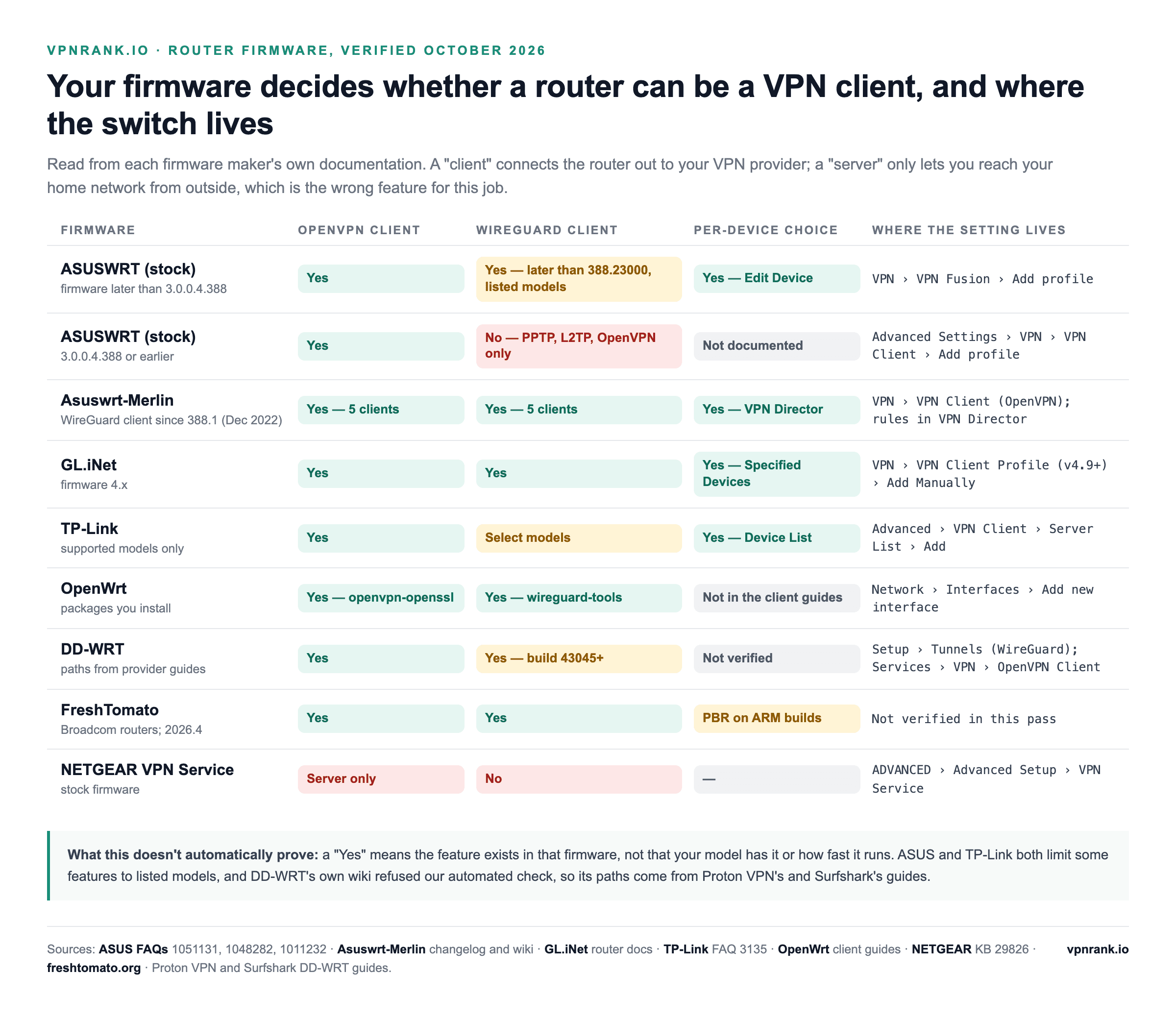
| Firmware | OpenVPN client | WireGuard client | Exact menu path | Choose which devices | Source | What it doesn't automatically prove |
|---|---|---|---|---|---|---|
| ASUSWRT, firmware later than 3.0.0.4.388 | Yes | Yes, on firmware later than 3.0.0.4.388.23000 and listed models | VPN › VPN Fusion › Add profile | Turn off Apply to all devices, then Edit Device | ASUS FAQs 1051131 and 1048282 | That your model has WireGuard: ASUS points to a model list, and Proton VPN says RT-ACxxx and some RT-AXxxx models lack it |
| ASUSWRT, 3.0.0.4.388 or earlier | Yes, alongside PPTP and L2TP | No | Advanced Settings › VPN › VPN Client › Add profile | Not documented | ASUS FAQ 1011232 | That it recovers by itself: ASUS says the client "will not automatically reconnect" after the VPN server goes off and comes back |
| Asuswrt-Merlin | Yes, up to five clients | Yes, up to five clients, since 388.1 (3 December 2022) | VPN › VPN Client (OpenVPN); routing in VPN Director | VPN Director rules by local IP, up to 199 rules | Merlin changelog and wiki | That every ASUS model qualifies: 388.1 was AX-only, and Merlin notes that enabling WireGuard disables hardware NAT acceleration |
| GL.iNet, firmware 4.x | Yes | Yes | VPN › VPN Client Profile › Add Manually (v4.9 and later); VPN › WireGuard Client on v4.7–4.8 | VPN Dashboard: All Clients or Specified Devices | GL.iNet router docs | That the steps match older units: the docs cover v4.7 and later, and features vary by model |
| TP-Link, supported models | Yes, alongside PPTP and L2TP/IPSec | Select models only | Advanced › VPN Client › Server List › Add | Device List › Add; unselected devices skip the VPN | TP-Link FAQ 3135, updated 17 April 2026 | That several locations can run at once: up to six profiles, one active, and the .ovpn file must be under 20 KB in unified format |
| OpenWrt | Yes (openvpn-openssl) | Yes (wireguard-tools) | Network › Interfaces › Add new interface › WireGuard VPN | Not covered in the client guides | OpenWrt client guides; Proton VPN's OpenWrt guide | That it is preset: you install the packages and set the firewall zone and DNS yourself |
| DD-WRT | Yes | Yes, build 43045 or later | Setup › Tunnels › Add Tunnel (WireGuard); Services › VPN › OpenVPN Client | Not verified | Surfshark and Proton VPN DD-WRT guides | That DD-WRT documents it this way: its own wiki refused our automated check, so these paths come from provider guides |
| FreshTomato | Yes | Yes, "full Wireguard support with PBR (ARM)" | Not verified in this pass | Policy-based routing on ARM builds | freshtomato.org, release 2026.4 | That your router can run it: Broadcom-based models only |
| NETGEAR stock VPN Service | No, server only | No | ADVANCED › Advanced Setup › VPN Service | — | NETGEAR KB 29826, updated 7 July 2025 | That the router can reach a VPN provider: it lets your phone reach your home network, the reverse direction |
Router firmware VPN clients and menu paths, verified October 2026.
Two rows are worth a second look. The two ASUS rows are the same brand on either side of a firmware line: on 3.0.0.4.388 and earlier the feature is called VPN Client and has no WireGuard, while later firmware calls it VPN Fusion. And Fortify, ExpressVPN's new router, is GL.iNet hardware running GL.iNet firmware, so the GL.iNet row describes the platform it is built on.
Every VPN provider hands out its router file from a different place
A router can't show a sign-in screen, so it needs either a configuration file, separate manual credentials or a login token from your VPN account. Each of the nine providers we track puts these somewhere different, and some don't offer them at all. The table records where each provider's own documentation says to look, and which router products it supports. For which provider performs best on a router, see the router ranking; this table is only about getting the file.
| Provider | Router guides it publishes | Protocols for routers | Where the file or login comes from | Router-specific products | Source | What it doesn't automatically prove |
|---|---|---|---|---|---|---|
| ExpressVPN | Manual OpenVPN guides (Asus, DD-WRT, Tomato, Sabai, pfSense and others) plus its router app | OpenVPN for manual setups; Fortify uses WireGuard at launch; Aircove used Lightway | Applications › Advanced setup › Manual Configuration: username, password and .ovpn files | Fortify (GL-MT6000, from 16 September 2026); Aircove and Aircove Go retired from sale | ExpressVPN router FAQ, Fortify announcement, Asus setup guide | Equal protection: ExpressVPN says manual OpenVPN "does not offer the same security and privacy benefits as the ExpressVPN app" |
| NordVPN | ASUS WRT, Merlin, DD-WRT, OpenWRT, GL.iNet, TP-Link, Tomato, pfSense, OPNsense and others | OpenVPN files; access token where NordVPN is built into the firmware | Nord Account › NordVPN › Advanced settings › Set up NordVPN manually (files, plus a Service credentials tab); tokens under Get access token | Pre-configured FlashRouters units, including Privacy Hero 2 | NordVPN support; ASUS FAQ 1051215 | NordLynx on your router: NordVPN says popular self-bought Asus models (RT-AX86U, RT-AX68U, RT-AX88U) "will not support NordLynx" |
| Surfshark | WireGuard for GL.iNet, OpenWRT, DD-WRT, TP-Link, FRITZ!Box and Asus VPN Fusion; OpenVPN for AsusWRT and OpenWRT | WireGuard and OpenVPN | VPN › Manual setup › Router › WireGuard: generate a key pair, then download one file per location | Built into ASUS VPN Fusion and GL.iNet's WireGuard client | Surfshark support; ASUS FAQ 1049833 | That your account password works: these are "not your regular credentials", and ASUS warns the private key is shown once |
| Proton VPN | AsusWRT, AsusWRT-Merlin, DD-WRT, FreshTomato, GL.iNet Flint, MikroTik, OpenWRT, OPNsense, pfSense, Vilfo | WireGuard and OpenVPN | account.protonvpn.com › Downloads › WireGuard configuration, platform Router; OpenVPN username under Account | None; router connections work on every plan, Free included | Proton VPN support | App features: NetShield and split tunneling "may not be available" through a router |
| Private Internet Access | ASUSWRT, Asuswrt-Merlin and DD-WRT named on its router page | OpenVPN in its guides; built into GL.iNet's WireGuard client | Model-specific guides in PIA's support portal | Pre-configured FlashRouter needing "almost zero setup" | PIA router page; GL.iNet docs | Exact menu paths: PIA's helpdesk blocked our automated read, so none are quoted here |
| CyberGhost | DD-WRT, Tomato, OpenWRT, AsusWRT and AsusWRT-Merlin | OpenVPN | Devices › Configure a new device › Other, then download the OpenVPN files | None | CyberGhost router page | WireGuard on a router: its router page mentions only OpenVPN |
| IPVanish | DD-WRT, AsusWRT, OpenWRT and ASUSWRT-Merlin, plus a supported-router list | OpenVPN in its router specs; built into GL.iNet's WireGuard client | Its manual setup guides | Pre-configured routers from partner FlashRouters | IPVanish routers page | Help if it goes wrong: it offers DIY steps "but no support for this installation" |
| TotalVPN | None found | None documented for routers | No router path documented | None | TotalVPN help centre (Technical, Account and Billing sections) | That a router can't work: only that you would be doing it unaided |
| PureVPN | Asus, DD-WRT, FreshTomato, GL.iNet, Linksys, MikroTik, Netgear, OpenWRT, pfSense, OPNsense, Synology NAS, TP-Link, TRENDnet and others | OpenVPN and WireGuard | WireGuard file from the Member Area; OpenVPN files from its knowledge base | Built into GL.iNet's WireGuard client | PureVPN support, updated 10 July 2026 | That it will work behind your ISP box: it asks you to make sure the router "is not working as a modem" |
Router files and products by provider, read from each provider's own pages. Verified October 2026.
The pattern matters more than any single row. A provider that publishes only OpenVPN files can still run over WireGuard on a router whose firmware has that provider built in: GL.iNet does this for IPVanish, NordVPN, Private Internet Access and PureVPN, and ASUS does it for NordVPN and Surfshark. So check your firmware's built-in list before you conclude a provider is "OpenVPN-only" on routers.
On an ASUS router, VPN Fusion imports a provider's file in seven steps
ASUS is the most common router brand in provider guides, and on firmware later than 3.0.0.4.388 the whole job happens on one page. These steps follow ASUS's own FAQs for the WireGuard and OpenVPN clients, with the account paths from each provider's guide.
- 1Get the file from your VPN account. For WireGuard: Proton VPN under Downloads › WireGuard configuration with the platform set to Router; Surfshark under VPN › Manual setup › Router › WireGuard. For OpenVPN: NordVPN under Advanced settings › Set up NordVPN manually; ExpressVPN under Applications › Advanced setup › Manual Configuration. Note the separate username and password that OpenVPN files need.
- 2Open the router's settings. Connect a laptop by cable or Wi-Fi and go to http://www.asusrouter.com or the router's LAN address (Proton VPN's guide gives 192.168.50.1), then sign in.
- 3Go to VPN › VPN Fusion and click Add profile.
- 4Name the connection and pick the VPN type: WireGuard or OpenVPN. ASUS notes the client must use the same VPN type as the server.
- 5Import the file. WireGuard: Upload Config (Proton's guide calls the button Import config file) and choose the .conf file. OpenVPN: Import .ovpn file, wait for the "Complete" hint, then enter the provider's manual credentials, not your website login.
- 6Choose devices. Leave Apply to all devices on to cover the whole home, or turn it off and use Edit Device to pick only the TV, console or streaming stick.
- 7Click Apply and Enable (Apply all settings on some versions). When the profile shows Connected, test from a device as described further down.
If you use NordVPN or Surfshark, step 5 can be skipped: choose the provider itself as the VPN type, then paste a NordVPN access token or a Surfshark WireGuard private key and pick a region. Both are shown only once when you create them, so copy them before closing the page. ASUS also notes that some regions may not offer these built-in types.
Asuswrt-Merlin needs a few OpenVPN settings that stock firmware hides
Merlin exposes the full OpenVPN client, which means more fields to get right. Proton VPN's guide uses Advanced settings › VPN › VPN Client › OpenVPN and sets Accept DNS Configuration to Exclusive, Redirect Internet traffic to Yes (all), Compression to Disabled and Automatic start at boot time to Yes. NordVPN's Merlin guide recommends Strict for a whole home and Exclusive for specific devices, and adds the optional kill switch, Block routed clients if tunnel goes down. Merlin's WireGuard clients have fewer choices: since 388.1 their DNS handling is identical to OpenVPN's Exclusive mode, and their routing always runs through VPN Director rules.
On GL.iNet, OpenWrt and DD-WRT, WireGuard is a file upload or a pasted config
These three firmwares cover most of the remaining provider guides. GL.iNet is closest to ASUS in effort; OpenWrt and DD-WRT expose the raw WireGuard fields, so a single wrong character in a key stops the tunnel.
GL.iNet, firmware 4.9 and later
- 1Sign in at 192.168.8.1, GL.iNet's default address.
- 2Go to VPN › VPN Client Profile. For a built-in provider, sign in from its entry; otherwise click Add Manually under WireGuard (or OpenVPN) and upload the file. GL.iNet accepts zip, tar, gz, conf and txt uploads.
- 3Click the three-dot icon next to the server and connect. A green dot appears once the tunnel is up.
- 4Open the VPN Dashboard to switch on Kill Switch, which cuts internet for the local network if the VPN drops, and to choose All Clients or Specified Devices.
On firmware 4.7 and 4.8 the same controls sit under separate pages, VPN › WireGuard Client and VPN › OpenVPN Client; PureVPN's GL.iNet guide follows that older layout, using VPN › WireGuard Client › Set up WireGuard Manually. GL.iNet merged them into the single VPN Client Profile page in v4.9.
OpenWrt, using the LuCI web interface
- 1System › Software, then Update lists, and install
luci-proto-wireguard. - 2Network › Interfaces › Add new interface: give it a name and choose WireGuard VPN as the protocol.
- 3Import configuration › Load configuration and paste the contents of your provider's .conf file.
- 4On the Peers tab, edit the peer and tick Route Allowed IPs. OpenWrt's own client guide recommends a persistent keepalive of 25 seconds.
- 5Network › Firewall › Zones: Proton VPN's guide adds a VPN zone with masquerading on, allows forwarding to it from lan, and turns on MSS clamping in the lan zone. OpenWrt's guide takes the shorter route of adding the VPN interface to the wan zone.
- 6Network › Interfaces › wan › Edit › Advanced Settings: untick Use DNS servers advertised by peer and enter your VPN's DNS server (Proton VPN's is 10.2.0.1). Then Save & Apply.
DD-WRT, with WireGuard or OpenVPN
- 1Log in to the router admin panel. Open a browser on a device connected to the router and go to the router's address — commonly 192.168.1.1 — then sign in with your admin credentials.
- 2Grab the config from your VPN. In your provider's dashboard, generate a manual router configuration for your chosen protocol and server location. This gives you the keys, addresses, and port you'll need.
- 3Open the tunnels section. On build 43045 or later, go to the Setup tab, select Tunnels, click Add Tunnel and enable it with WireGuard as the protocol.
- 4Enter the connection details. Paste in the private key, peer public key, endpoint address, port, and allowed IPs exactly as your provider supplied them. Surfshark's DD-WRT guide also sets MTU 1420, listen port 51820 and a persistent keepalive of 30, and switches on the inbound firewall and Kill Switch.
- 5Save and apply. Commit the settings and let the router reboot or reload the interface.
- 6OpenVPN instead: Proton VPN's guide uses Services › VPN › OpenVPN Client › Import Configuration, the separate OpenVPN credentials, then Status › OpenVPN, which should read Client: CONNECTED SUCCESS. It also disables IPv6 under Setup › IPV6.
- 7Confirm it's working. From a connected device, check that your public IP now shows the VPN server's location, and run a leak check. Our glossary explains what a DNS leak and a WebRTC leak are and why you should test for both.
If the connection fails, the usual culprits are a mistyped key, the wrong port, or firmware that's too old for WireGuard. Roll back to OpenVPN to isolate the problem, or update your firmware build and try again; our VPN won't connect guide covers the checks that apply on any device.
Want the least painful route to a whole-home VPN? A provider with a real router app skips the flashing entirely.
See our top-ranked VPNs →The router's processor caps VPN speed for the whole house, and GL.iNet publishes the ceilings
Every byte that crosses the tunnel is encrypted by the router's own processor, which is far weaker than a laptop's, and that one chip works for every device in the house. Proton VPN's router page puts it simply: "routers with weaker processors may experience slower speeds". GL.iNet publishes VPN throughput on each of its product pages, which makes it the clearest public evidence of how much the chip and the protocol matter.
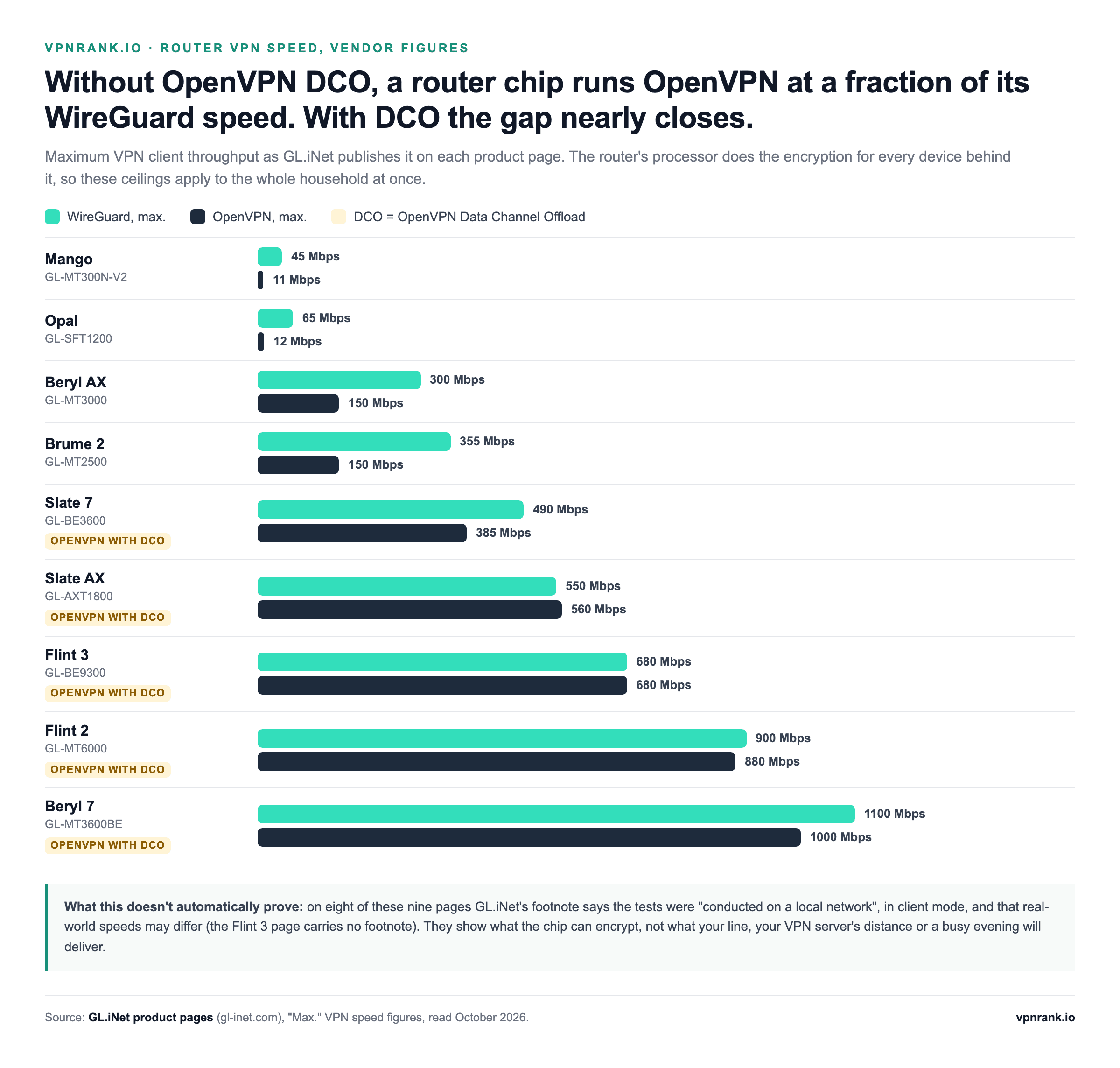
| Router (model) | WireGuard, max. | OpenVPN, max. | OpenVPN type |
|---|---|---|---|
| Mango (GL-MT300N-V2) | 45 Mbps | 11 Mbps | Standard |
| Opal (GL-SFT1200) | 65 Mbps | 12 Mbps | Standard |
| Beryl AX (GL-MT3000) | 300 Mbps | 150 Mbps | Standard |
| Brume 2 (GL-MT2500) | 355 Mbps | 150 Mbps | Standard |
| Slate 7 (GL-BE3600) | 490 Mbps | 385 Mbps | DCO |
| Slate AX (GL-AXT1800) | 550 Mbps | 560 Mbps | DCO |
| Flint 3 (GL-BE9300) | 680 Mbps | 680 Mbps | DCO |
| Flint 2 (GL-MT6000) | 900 Mbps | 880 Mbps | DCO |
| Beryl 7 (GL-MT3600BE) | 1,100 Mbps | 1,000 Mbps | DCO |
GL.iNet's published "Max." VPN client speeds, read October 2026.
Two things stand out. On the four models whose OpenVPN runs without DCO, WireGuard's published ceiling is two to about five times OpenVPN's, from 300 against 150 Mbps on the Beryl AX to 65 against 12 on the Opal. On the five with OpenVPN DCO (Data Channel Offload), the two protocols land within about a quarter of each other, and on the Slate AX OpenVPN is slightly ahead. GL.iNet's Flint 3 page explains why: DCO "uses kernel-level acceleration to handle encryption and decryption across multiple CPU cores". The blanket rule that WireGuard is several times faster holds for routers without OpenVPN DCO, not for every router sold in 2026.
Firmware can cost speed too. When Asuswrt-Merlin added WireGuard in 388.1, its changelog noted that "enabling WireGuard will disable hardware NAT acceleration due to compatibility reasons", so on a fast line the router's ordinary routing may slow down once a WireGuard client is on. GL.iNet's own footnote is the other caveat: its figures come from "tests conducted on a local network" in client mode, and real-world speeds may differ. They describe the chip, not your ISP line or how far away your VPN server is.
Practical rule:Choose WireGuard unless your router's maker publishes an OpenVPN DCO figure close to it, and treat any published ceiling as the most your whole household will share, not what each device gets.
For the protocol differences beyond routers, see what WireGuard is and our WireGuard vs OpenVPN vs IKEv2 guide; the fastest VPN comparison covers provider speeds.
Behind an ISP modem-router, double NAT is the first thing that breaks
Most homes can't replace the ISP's box, so the VPN router plugs into it: ExpressVPN's router guide describes exactly that, an Ethernet cable from the VPN router's Internet port to a LAN port on your modem or existing router. The tunnel usually connects fine this way. What breaks is everything around it, because both boxes now translate addresses (NAT) and your network is split in two.
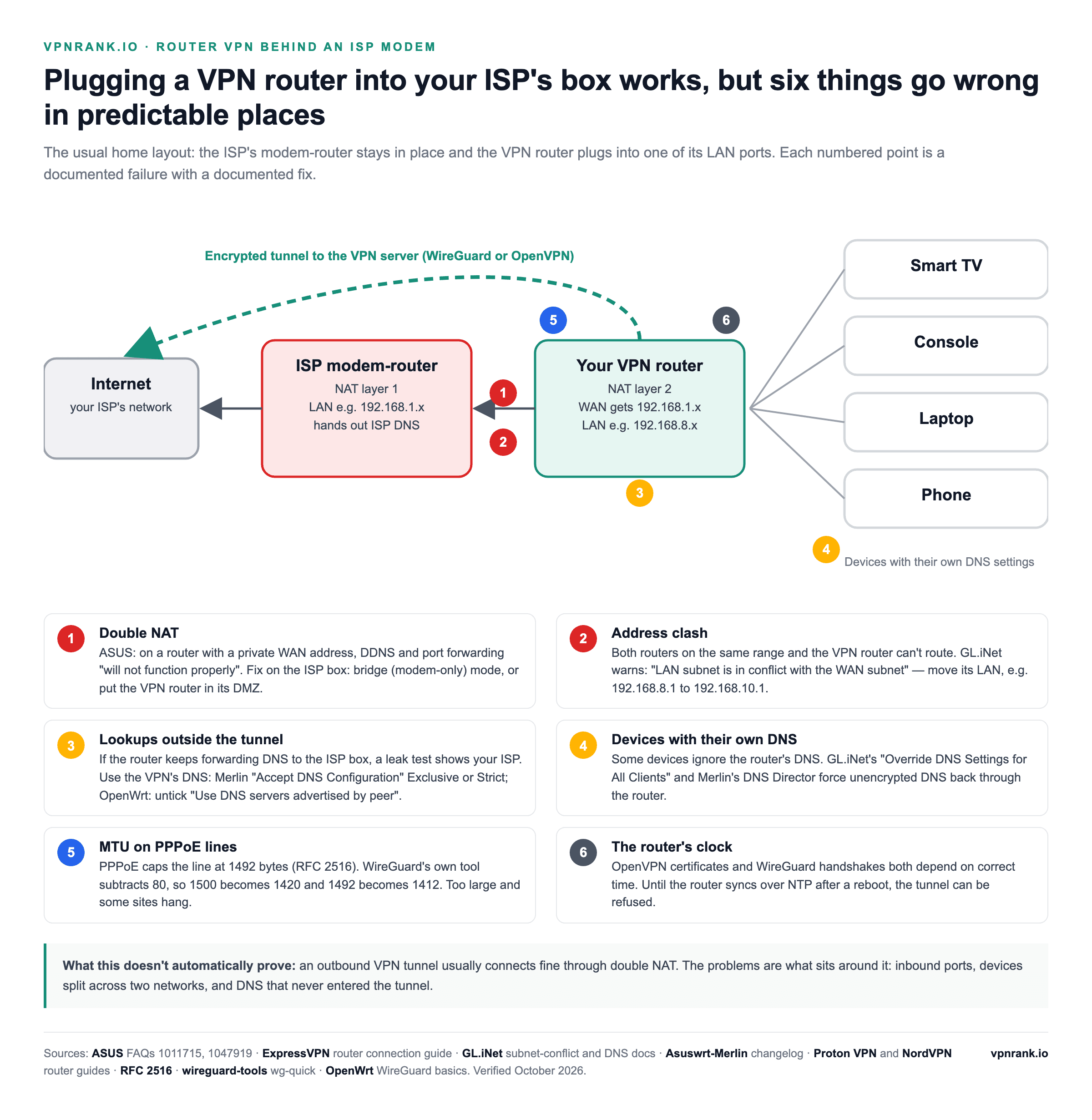
- Inbound features stop. ASUS's WAN guide says a router with a private WAN address sits in a multi-layer NAT network where "DDNS service and Port Forwarding will not function properly".
- Devices on the two halves can't see each other. ASUS says two routers in series "can divide your private network into two", so a phone still on the ISP's Wi-Fi may not find the TV on the VPN router. Put both on the VPN router's Wi-Fi.
- Address clash. If both routers use the same range, GL.iNet shows "LAN subnet is in conflict with the WAN subnet. Please Change LAN Subnet to a different address." The fix is to change the third number of 192.168.8.1, for example to 192.168.10.1. ASUS has a sibling case: an OpenVPN client "will not work" when the router's LAN IP equals the VPN server's IP.
The fixes belong on the ISP box. ExpressVPN lists two: put the ISP modem-router into bridge mode ("also known as 'bridging', 'transparent bridging' or 'modem only' mode"), or put the VPN router in the ISP box's DMZ. ASUS's usual cure for double NAT, switching the second router to Access Point mode, doesn't fit here: in AP mode "the firewall, IP sharing, and NAT functions are disabled by default", and routing is the job the VPN router is there to do. PureVPN's router page adds a related check: make sure the router you are configuring "is not working as a modem".
DNS is where a working router VPN still leaks
A router can carry all your traffic through the tunnel and still send name lookups somewhere else, usually to the ISP's resolver that it learned on its WAN port. A leak test then shows your ISP even though the tunnel is up. Each firmware has a specific setting that decides this, and the provider guides tell you what to choose.
- Asuswrt-Merlin, OpenVPN: set Accept DNS Configuration to Exclusive (Proton VPN) or Strict (NordVPN, which also sets the WAN DNS to its own servers, 103.86.96.100 and 103.86.99.100, with Connect to DNS Server automatically set to No). Since 388.1, an OpenVPN client that redirects all traffic in Exclusive mode "will now force redirect ALL DNS traffic".
- OpenWrt: untick Use DNS servers advertised by peer on the wan interface and enter the VPN's DNS. OpenWrt's OpenVPN guide suggests confirming the result with a DNS leak test afterwards.
- GL.iNet: leave Allow Custom DNS to Override VPN DNS off unless you mean it; when on, tunnel traffic is resolved by your custom DNS "instead of the DNS server settings from the VPN connections".
- DD-WRT: Proton VPN's guide disables IPv6 under Setup › IPV6 so nothing travels outside an IPv4-only tunnel.
Some devices also ignore the router's DNS because they have their own servers configured. Two firmwares can force them back: Asuswrt-Merlin's DNS Director (in the LAN section) can make specific devices or the whole network use a chosen resolver, though its wiki warns it "will interfere with resolution of local hostnames"; and GL.iNet's Override DNS Settings for All Clients overrides "unencrypted DNS settings". Encrypted DNS set inside a device's own browser or system is outside what either feature covers. After any change, check from a device with no VPN app using our VPN status and leak check.
Router-specific failures have documented symptoms and fixes
Most router VPN problems announce themselves in a recognisable way, and the router or provider documentation already describes the fix. The table pairs each symptom with its documented cause and remedy, and says what the symptom does not prove, so you don't fix the wrong layer.
| What you see | Documented cause | Documented fix | Source | What it doesn't automatically prove |
|---|---|---|---|---|
| GL.iNet: "LAN subnet is in conflict with the WAN subnet" | VPN router and ISP box use the same address range | On the LAN page, change 192.168.8.1 to, say, 192.168.10.1 and Apply | GL.iNet docs | Any fault in the VPN itself |
| ASUS OpenVPN profile never connects | Router LAN IP is the same as the VPN server's IP | Change the router's LAN IP | ASUS FAQ 1051131 | That this is common with commercial providers: ASUS's example is a home-to-home link |
| Port forwarding or DDNS on the VPN router does nothing | Private WAN address behind the ISP box (multi-layer NAT) | ISP box in bridge (modem-only) mode, or VPN router in its DMZ | ASUS FAQ 1011715; ExpressVPN router guide | That the tunnel is affected: outbound VPN connections usually work |
| Phone can't find the TV or printer | Two routers in series split the network in two | Join both devices to the VPN router's Wi-Fi | ASUS FAQ 1047919 | A VPN fault: the devices are on different networks |
| Leak test shows your ISP's DNS | Router still forwards lookups to the WAN or ISP resolver | Merlin: Accept DNS Configuration Exclusive or Strict; OpenWrt: untick Use DNS servers advertised by peer; GL.iNet: custom-DNS override off | Proton VPN, NordVPN, GL.iNet | That the tunnel is down: traffic can be encrypted while lookups go elsewhere |
| One device keeps its own DNS | Device configured with its own servers | Merlin DNS Director, or GL.iNet Override DNS Settings for All Clients | Merlin wiki; GL.iNet docs | Coverage of encrypted DNS: GL.iNet's override covers unencrypted settings |
| DD-WRT: IPv6 traffic bypasses the tunnel | IPv6 left on with an IPv4 tunnel | Setup › IPV6, disable | Proton VPN DD-WRT guide | That every firmware needs it: this is Proton's DD-WRT instruction |
| Some sites load, others hang | Tunnel packets bigger than the line allows, common on PPPoE | Set WireGuard MTU to the line's MTU minus 80 (1412 on PPPoE); MSS clamping on OpenWrt | RFC 2516; wireguard-tools; Proton VPN OpenWrt guide | That MTU is the cause on a non-PPPoE line: change one thing and retest |
| Tunnel refused after a power cut, fine later | Router clock wrong until it syncs over NTP | Make sure NTP is on and reachable, then reconnect | OpenWrt WireGuard basics; Merlin wiki; RFC 5280; WireGuard protocol | A provider outage: check the router's time first |
| Older ASUS firmware: VPN stays down after the server blips | The legacy VPN Client "will not automatically reconnect" | Re-activate the profile, or update to VPN Fusion firmware | ASUS FAQ 1011232 | That VPN Fusion behaves the same: ASUS's statement covers the older client |
| Devices go online unprotected when the tunnel drops | No kill switch configured | GL.iNet: VPN Dashboard › Kill Switch; Merlin: Block routed clients if tunnel goes down (WireGuard clients since 3004.388.8); DD-WRT: Kill Switch in the tunnel settings | GL.iNet docs; Merlin changelog; NordVPN and Surfshark guides | That router services are tunnelled: GL.iNet leaves Services From GL.iNet Use VPN off by default |
Router VPN failures and their documented fixes, verified October 2026.
Why 1420 and 1412 are the MTU numbers that matter
Ethernet carries 1,500-byte packets, and RFC 2516 caps PPPoE lines, which many ISPs use, at 1,492 because PPPoE adds 8 bytes of header. WireGuard's own wg-quick tool sets the tunnel MTU to the underlying link's MTU minus 80, which gives the familiar 1420 on ordinary Ethernet and 1412 on PPPoE. A router config that hard-codes 1420 on a PPPoE line sends packets 8 bytes too large, and a common symptom is that small pages load while large ones stall. Lowering the tunnel MTU, or enabling MSS clamping as Proton VPN's OpenWrt guide does, removes the problem.
A router can come back from a power cut with the wrong time
Routers set their clocks over the internet with NTP after they boot, and until that sync completes the time can be wrong. Both VPN protocols notice. OpenVPN checks the server's certificate against a validity window defined in RFC 5280, using the router's own clock. WireGuard's protocol page says the server "discards packets containing timestamps less than or equal to" the greatest it has seen from that client, and OpenWrt's WireGuard documentation warns that WireGuard "can refuse to pass traffic if the peer's clock is out of sync" and recommends relying on NTP. Asuswrt-Merlin's wiki notes the same dependency for encrypted DNS: it "won't use encryption until after your router's clock has been properly set through NTP".
Practical rule:If the tunnel fails only after a reboot or power cut, check the router's clock and its NTP setting before you touch the VPN profile. A new config file can't fix a wrong date.
Choosing which devices skip the tunnel is a router setting, not an app setting
The router-level version of split tunneling is per device rather than per app, and every firmware with it hides it somewhere different. It's how you send the TV through the VPN while the work laptop, the banking app or a lag-sensitive console uses the normal line.
- ASUS VPN Fusion: turn off Apply to all devices in the profile, then Edit Device and select the devices that should use it. ASUS also lets you run several VPN connections at once and assign different devices to different tunnels.
- Asuswrt-Merlin: VPN Director rules match a local IP and send it to a client or to WAN to bypass every tunnel; WAN rules take priority, and the limit is 199 rules.
- GL.iNet: the VPN Dashboard routes All Clients or Specified Devices, by connection type (LAN, guest network) and by destination, including an excluded domain or IP list.
- TP-Link: add devices under Device List; anything not selected keeps using the regular connection.
- Routers running ExpressVPN: up to five device groups, each with its own VPN location, no VPN or no internet, all on the same protocol.
This solves the two biggest router-VPN complaints at once: services that block VPN addresses get a clean route on one device, while everything else stays protected.
Smart TVs and consoles gain the most, but streaming services still detect VPNs
The whole point of a router VPN is reaching the gadgets an app can't. That's where it earns its keep: the living-room hardware you'd otherwise have no way to protect or relocate. But the same blanket coverage that makes it powerful also changes how streaming behaves, so it's worth setting expectations.
- Smart TVs and streaming sticks — few run a proper VPN app, so the router is often the only practical way to route them through a tunnel. See our smart TV setup guide for the alternatives.
- Game consoles — no native VPN support at all; a router lets them appear in another region for lobbies or content. Our PS5 and Xbox guide covers the console side.
- IoT and smart-home gear — covered automatically, with nothing to install.
- Phones and laptops — still work, though on these the standalone app is usually faster and lets you toggle location per device, and it keeps protecting them once they leave the house.
On streaming, be realistic: services actively detect and block VPN traffic, and they're good at it. A router VPN doesn't magically defeat that — you'll still need a provider with servers that work with your chosen platform. If watching from another region is your main goal, our guides for Netflix and BBC iPlayer cover which services hold up, and the Android TV guide is useful if your TV can actually run an app. Big live events are the classic use case — see our sports streaming hub for how a whole-home setup helps there.
Changing country on a router means switching profiles, not tapping a map
A router config file normally holds one server, so a new location means a new file or a second profile. Proton VPN says so directly: to change your VPN location "you need to update your router configuration", and "you can't switch servers instantly". Surfshark's router guide has you download one file per location for the same reason. The practical workaround is to load several profiles in advance and switch between them:
- TP-Link: up to six profiles in the Server List, with one active at a time.
- Asuswrt-Merlin: up to five OpenVPN and five WireGuard clients, each pointed at a different location and chosen per device in VPN Director.
- ASUS VPN Fusion: several simultaneous tunnels, with devices assigned to each.
- GL.iNet: built-in providers list their servers in the profile, so picking a new one is a menu choice rather than a new upload.
- Routers running ExpressVPN: each of the up to five device groups can sit in a different country.
A free router VPN exists, and it counts as one connection
Among the nine providers we track, Proton VPN is the one whose free plan explicitly covers routers. Its router page says "Router connections are available on all Proton VPN plans, including Proton Free", and that the router "only counts as one connection on a Free plan, no matter how many devices you connect to it". The WireGuard file comes from the same Downloads › WireGuard configuration page, though on the Free plan "the only VPN option available to you is VPN Accelerator". Expect the router's processor, not the plan, to set your speed. Our Proton VPN review and free VPN guide cover the free plan's other limits.
Check the tunnel from a device that has no VPN app of its own
The router's status page tells you the tunnel is up; it doesn't tell you every device is using it. ASUS shows Connected on the profile, GL.iNet a green dot and the connected server in its VPN Dashboard, and DD-WRT Client: CONNECTED SUCCESS under Status › OpenVPN. Then test from the devices themselves, with their own VPN apps switched off so the result reflects the router:
- 1Open our VPN check or what is my IP on a phone joined to the router's Wi-Fi. It should show the VPN server's location, not yours.
- 2Run a DNS leak test. Any server belonging to your ISP means the DNS settings above need another look.
- 3Run the WebRTC leak test in a browser.
- 4Disable the VPN profile on the router for a moment and watch what happens. With a kill switch on, devices should lose internet rather than fall back to your real address; our kill switch test walks through it.
- 5Run a speed test through the tunnel and compare it with your baseline from the speed test page.
Our full testing guide explains what each result means.
A router VPN is the most complete home setup, and the most involved one
A router VPN is the most complete way to cover a household, but it's also the most involved to set up and the most likely to cost you some speed. Match the path to your patience: use the client already in your firmware if you have one, buy a provider-built router if you want it done in minutes, flash DD-WRT or FreshTomato if you want maximum control and don't mind the risk, and always test for leaks once it's live.
If you're still deciding between doing this at the router or just running an app on the devices you care about, weigh it against your actual habits. For hands-off, whole-home coverage the router wins; for a single TV or laptop and occasional use, the app is simpler and faster. When you're ready to pick hardware and a provider, start with our router VPN guide and cross-check pricing on the VPN price index.
Every source behind this guide was re-read in October 2026
- ASUS — How to set up an OpenVPN client in VPN Fusion, WireGuard client in VPN Fusion, VPN Fusion as the default connection and VPN Client on older firmware
- ASUS — NordVPN in VPN Fusion and Surfshark in VPN Fusion
- ASUS — WAN connection types and multi-layer NAT, double NAT and Access Point mode
- Asuswrt-Merlin — changelog, VPN Director, DNS Director and DNS Privacy
- GL.iNet — VPN Client Profile, WireGuard Client, VPN Dashboard, DNS and subnet conflict
- GL.iNet product pages: Flint 2, Flint 3, Slate AX, Slate 7, Beryl 7, Beryl AX, Brume 2, Opal, Mango
- TP-Link — Set up a VPN client on your TP-Link router
- NETGEAR — How do I use VPN on my NETGEAR router with my iOS device?
- OpenWrt — WireGuard client, OpenVPN client, WireGuard basics and 8/64 warning
- FreshTomato and its hardware compatibility list
- RFC 2516 — PPPoE (MTU 1492) and RFC 5280 — certificate validity
- WireGuard — protocol and wg-quick MTU logic
- ExpressVPN — router FAQ, Aircove FAQ, future router updates, Fortify announcement, device groups, connecting behind a modem and manual OpenVPN on Asus
- NordVPN — setting up a router, Asus, AsusWRT-Merlin, which router to use and router login token
- Surfshark — manual WireGuard on a router and WireGuard on DD-WRT
- Proton VPN — install Proton VPN on your router, WireGuard configurations, AsusWRT WireGuard, AsusWRT-Merlin OpenVPN, OpenWrt WireGuard and DD-WRT OpenVPN
- Private Internet Access — VPN router
- CyberGhost — VPN router
- IPVanish — VPN routers
- PureVPN — supported routers and protocols and GL.iNet setup
- TotalVPN — help centre
Frequently asked questions
Do I need a special router to set up a VPN?
You need a router whose firmware has a VPN client, not just a VPN server. Many current ASUS routers (VPN Fusion), GL.iNet's routers, supported TP-Link models and routers running Asuswrt-Merlin or OpenWrt qualify. Many factory routers, NETGEAR's stock VPN Service among them, only run a server, so you'd need a VPN-ready model, a provider-built router, or custom firmware like DD-WRT or FreshTomato.
What's the difference between DD-WRT and Tomato?
Both are open-source firmwares that add VPN support your stock firmware may lack. DD-WRT is more powerful and supports far more router models, but its interface is dense; WireGuard needs build 43045 or later. Tomato, now FreshTomato, is cleaner and quick for OpenVPN, but it runs only on Broadcom-based routers, mostly Asus, Linksys and Netgear models. Release 2026.4 also has WireGuard. Choose DD-WRT for control, Tomato for simplicity.
Will a VPN on my router slow down my internet?
Usually, because the router's processor encrypts traffic for every device. GL.iNet's published figures show how much the chip matters: the Beryl AX reaches 300 Mbps on WireGuard and 150 on OpenVPN, while the Flint 2, with OpenVPN DCO, reaches 900 and 880. Use WireGuard unless your router publishes a comparable OpenVPN DCO figure, and measure your line before and after.
Which VPN has a native router app?
ExpressVPN is the provider best known for a dedicated router app. It retired its Aircove routers from sale on 16 September 2026 (updates continue to 2027 for Aircove and 2028 for Aircove Go) and now sells Fortify, a GL.iNet GL-MT6000 that connects over WireGuard. NordVPN and Surfshark are built into ASUS VPN Fusion as VPN types, and GL.iNet firmware has built-in profiles for IPVanish, NordVPN, PIA, PureVPN and Surfshark.
Can I use a router VPN to watch region-locked streaming?
It can help, but it's not guaranteed. A router VPN routes devices that can't run an app — like smart TVs and consoles — through a chosen region. However, streaming services actively detect and block VPN traffic, so you'll need a provider with servers that currently work for that platform. Check our streaming-specific guides for what holds up.
Is it safe to flash my router with custom firmware?
It's safe if done carefully, but flashing the wrong firmware image for your exact model and hardware revision can permanently brick the router — IPVanish's router page warns that incorrect flashing "can permanently damage your router". Always match the firmware to your precise model number and follow the project's official instructions. If that risk worries you, buy a pre-flashed router or choose a router with a built-in VPN client instead.
How many devices can a router VPN protect?
Effectively all of them. Because the tunnel lives on the router, every device that joins its Wi-Fi is covered through what your VPN counts as a single connection. Proton VPN says the router counts as one connection on its Free plan no matter how many devices connect, and ExpressVPN says you can connect as many devices as you want to the router. The real limit is the router's processor, which all those devices share.
Can I put a VPN on the router my ISP gave me?
Rarely. NordVPN says an ISP-issued router "probably does not support VPN configurations". The usual answer is to plug a VPN-capable router into a LAN port of the ISP box and join your devices to its Wi-Fi. That creates double NAT, so port forwarding and DDNS may stop working; bridge (modem-only) mode or a DMZ on the ISP box fixes it, and if both routers use the same address range, change the VPN router's LAN IP.
Can I use a free VPN on my router?
Yes, with Proton VPN. Its router page says router connections are available on all plans, including Proton Free, and that the router counts as one connection on the Free plan no matter how many devices use it. Download the WireGuard file from Downloads › WireGuard configuration with the platform set to Router; on the Free plan the only extra option is VPN Accelerator.
How do I change the VPN country on my router?
Load a different configuration file or switch to another saved profile, because one router file usually holds one location. Proton VPN notes you can't switch servers instantly on a router. TP-Link stores up to six profiles with one active, Asuswrt-Merlin runs up to five OpenVPN and five WireGuard clients, and routers running ExpressVPN support up to five device groups, each in a different location.
Why does my router VPN fail after a power cut?
Often because the router's clock is wrong until it syncs over NTP. OpenVPN checks certificate dates against that clock, and OpenWrt's documentation warns that WireGuard can refuse to pass traffic when clocks are out of sync. Make sure NTP is enabled and reachable, wait for the time to correct, then reconnect. On older ASUS firmware, the VPN client also won't reconnect by itself after the server drops.
Where is the VPN client setting on an ASUS router?
On firmware later than 3.0.0.4.388 it's VPN › VPN Fusion › Add profile, where you pick WireGuard or OpenVPN and import your provider's file (WireGuard needs firmware later than 3.0.0.4.388.23000 and a supported model). On 3.0.0.4.388 or earlier it's Advanced Settings › VPN › VPN Client › Add profile, which offers PPTP, L2TP and OpenVPN but not WireGuard.
The best VPNs of 2026, ranked
Now you know how — here are the VPNs we recommend, independently tested and ranked for speed, streaming, privacy and value. Any of them works for everything in this guide.

ExpressVPN Ultra fast & secure. Great for privacy, downloads, and everyday browsing on all your devices. 24/7 live chat support.
ExpressVPN Ultra fast & secure. Great for privacy, downloads, and everyday browsing on all your devices. 24/7 live chat support.

IPVanish Fast speeds with unlimited device connections. Strong no-logs privacy and 24/7 live chat support. Great for families.

IPVanish Fast speeds with unlimited device connections. Strong no-logs privacy and 24/7 live chat support. Great for families.

NordVPN Excellent speeds with one of the largest server networks. Strong security features and easy-to-use apps. 24/7 live chat support.
NordVPN Excellent speeds with one of the largest server networks. Strong security features and easy-to-use apps. 24/7 live chat support.

Proton VPN Swiss-based VPN with strong privacy focus. Audited no-logs policy and open-source apps. Great for privacy-conscious users.
Proton VPN Swiss-based VPN with strong privacy focus. Audited no-logs policy and open-source apps. Great for privacy-conscious users.

CyberGhost Fast speeds and strong privacy tools. Simple apps, automatic WiFi protection, and 24/7 live chat support.
CyberGhost Fast speeds and strong privacy tools. Simple apps, automatic WiFi protection, and 24/7 live chat support.

TotalVPN Affordable VPN with strong privacy and reliable speeds. Easy-to-use apps for all major devices. No-logs policy.
TotalVPN Affordable VPN with strong privacy and reliable speeds. Easy-to-use apps for all major devices. No-logs policy.

Private Internet Access High-speed VPN with a large server network and advanced security settings. Ad blocker included and 24/7 live chat support.
Private Internet Access High-speed VPN with a large server network and advanced security settings. Ad blocker included and 24/7 live chat support.

Surfshark Unlimited device connections at a budget-friendly price. Includes ad blocker and strong privacy tools. Great value for money.
Surfshark Unlimited device connections at a budget-friendly price. Includes ad blocker and strong privacy tools. Great value for money.
Rankings are based on our independent testing methodology. Each guide applies the criteria described on that page, including relevant performance, privacy, product features, and value data. We may earn affiliate commissions from links on this page, which helps fund our testing — this does not influence our rankings.
Related articles

How-To Guides
How to Set Up a VPN on Roku: The Two Routes That Actually Work

How-To Guides
How to Set Up a VPN on Any Smart TV: The Complete 2026 Method Guide

How-To Guides
How to Set Up a VPN on a PS5 or Xbox (Two Methods That Actually Work)

How-To Guides
VPN Won't Connect? 9 Fixes That Actually Work

How-To Guides
How to Test If Your VPN Is Actually Working: IP, DNS, WebRTC and Kill-Switch Checks

Privacy & Security
WireGuard vs OpenVPN vs IKEv2: Every VPN Protocol Explained in Plain English