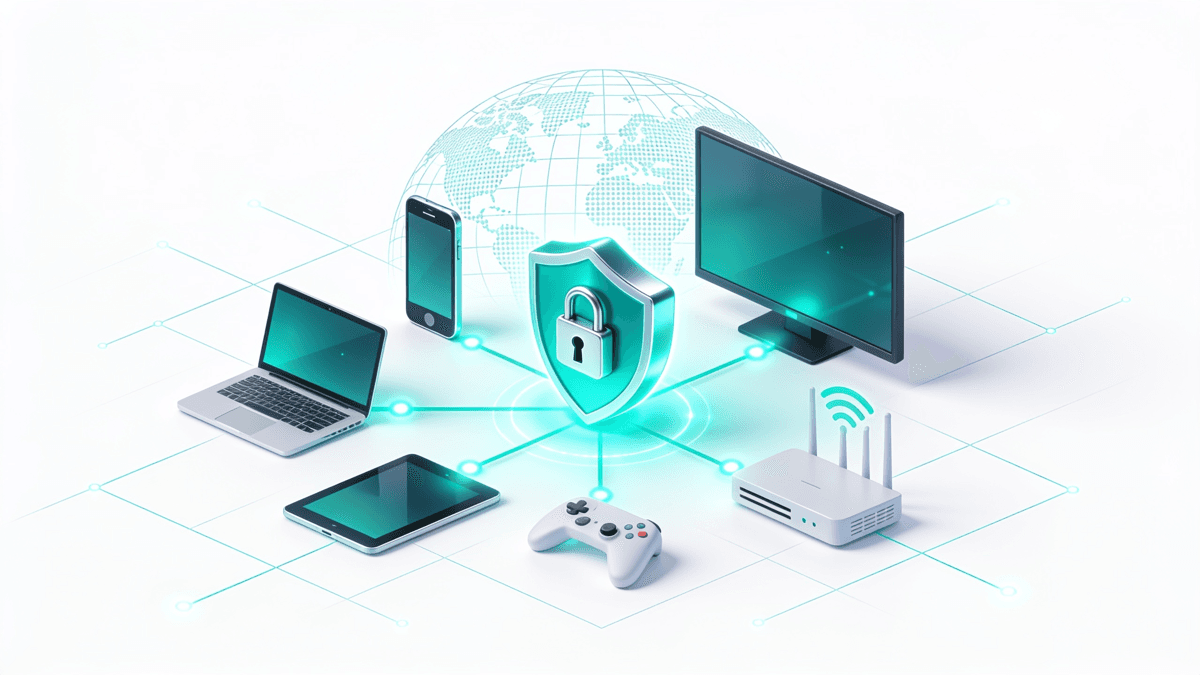
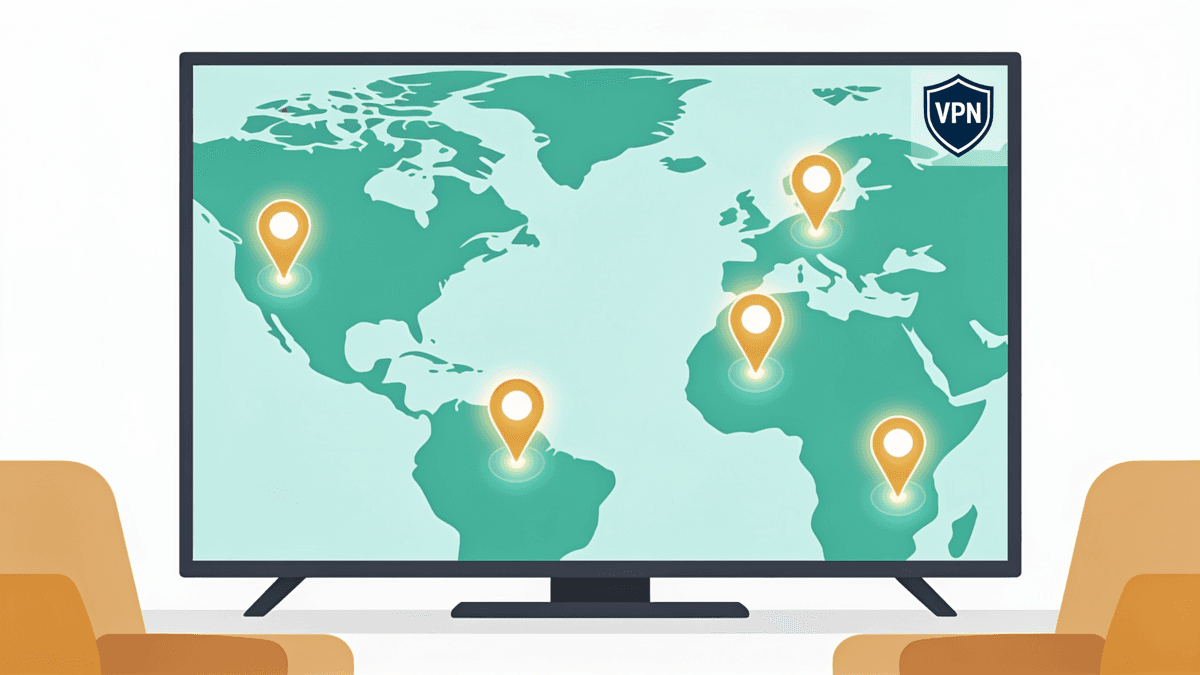
How to Set Up a VPN on Any Smart TV: The Complete 2026 Method Guide
Every working method for Samsung Tizen, LG webOS, Sony Google TV and Fire TV — native apps, router setup, Smart DNS, PC sharing and casting — with step-by-step instructions and the trade-offs nobody explains.

vpnrank.io is reader-supported: we may earn a commission if you buy through links in this article. This never affects our rankings.
Most Smart TVs cannot run a VPN app directly. Sony and other Android TV / Google TV sets can install one from the Play Store, and Fire TV devices from Amazon's Appstore — but Samsung's Tizen and LG's webOS have no native VPN support at all. This guide covers every working method, platform by platform.
First, work out which camp your TV is in
Before you touch any settings, identify the operating system your television runs. This single fact decides whether you install an app in two minutes or set up a network-level workaround. There are four common platforms in living rooms today, and they split cleanly into "apps allowed" and "apps not allowed."
TVs that support VPN apps directly
- Android TV / Google TV — Sony Bravia sets, plus most TCL, Hisense, Philips (pre-2026), Sharp and Xiaomi models. These run a full app platform with access to the Google Play Store, where the major VPNs publish dedicated big-screen apps.
- Amazon Fire TV — Fire TV Sticks, Fire TV Cube and Fire-edition TVs. Apps install from the Amazon Appstore. Note the 2025 platform split, covered below.
TVs that do NOT support VPN apps
- Samsung Tizen — every Samsung Smart TV. There is no VPN in the Tizen app store and no way to sideload one.
- LG webOS — every LG Smart TV. Same story: no native VPN, no sideloading.
- Vidaa, Titan OS, Roku TV and other proprietary systems — these locked-down platforms also block VPN apps.
If you fall in the first camp, jump to the native-app sections. If you're in the second, you'll use one of the network-level methods: a VPN on your router, Smart DNS, sharing a connection from a PC, or casting from a protected phone. We cover all of them in full. If you want to do it without paying, our free VPN for smart TV guide sets out which of these routes a free plan is documented to support. If your only goal is unblocking a specific show or match, our Can I Watch tool tells you which region and method you actually need before you invest time in setup.
The five methods at a glance
Every approach to putting a VPN on a television is a variation of five core methods. They differ enormously in effort, cost, speed impact and privacy. Skim this summary first, then read the detailed walkthrough for whichever one fits your TV and your goal.
- 1Native app (Android/Google TV and Fire TV only) — easiest, full encryption, per-app control. The default choice if your TV supports it.
- 2Router VPN — works for any TV including Samsung and LG, protects every device, but slower setup and one server for the whole house.
- 3Smart DNS — fast, no speed loss, unblocks regions on any TV; but no encryption and no privacy — geo-unblocking only.
- 4PC / laptop connection sharing — turns a computer into a VPN-protected hotspot; free but the PC must stay on.
- 5Casting from a phone — cast from a VPN-protected mobile; convenient for occasional use, with important caveats.
A rough rule of thumb: if you can install an app, do that. If you can't, and you care about privacy across the whole house, set up the router. If you only want a foreign catalogue and speed matters (4K, sports), Smart DNS is often the smarter pick. For a one-off, share from your laptop or cast from your phone.
Method 1a: Native app on Sony, TCL, Hisense (Android TV / Google TV)
This is the gold standard and by far the least painful route. Android TV and Google TV are full app platforms, so a VPN installs and runs on the television itself — real encryption, a proper kill switch, and the ability to change server without touching any other device. Sony Bravia sets have used Android TV since 2015, moving to Google TV from 2021.
Install from the Play Store (the normal way)
- 1From the home screen, open the Google Play Store (the apps row, or the search icon at the top).
- 2Search for your VPN by name — most top providers have a dedicated Android TV app.
- 3Select the app and choose Install, then Open when it finishes.
- 4Sign in with your existing VPN account. You do not need a separate subscription for the TV — the same login works.
- 5Grant the VPN permission to create a network connection when prompted (Android shows a one-time key/connection request).
- 6Pick a server and connect. For a foreign catalogue, choose a city in that country; for privacy, the nearest fast server is fine.
If the app isn't in your TV's store: sideload it
Older or region-limited Android TVs sometimes hide the VPN app or lack the Play Store entirely. In that case you can sideload the official APK. Only ever download the file from the provider's own website — never a random mirror.
- 1Go to Settings → System → About and click Build number seven times to unlock Developer options.
- 2Go to Settings → Device Preferences → Security & Restrictions (or System → Developer options on some sets) and enable Unknown sources.
- 3Install the Downloader by AFTVnews app from the Play Store.
- 4Open Downloader, enter the provider's official APK URL, and let it fetch the file.
- 5When prompted, allow installs from Downloader, then choose Install, then Open.
For the full ranked list of apps we've tested on the big screen, see our dedicated best VPNs for Android TV guide, which digs into remote-friendly interfaces and streaming reliability model by model.
Method 1b: Native app on Amazon Fire TV (and the 2025 Vega OS split)
Fire TV Sticks and Cubes install VPNs straight from the Amazon Appstore — no sideloading needed for the mainstream providers. There's one crucial wrinkle in 2026, though: Amazon introduced a brand-new operating system, and for a while it broke VPN support entirely. You need to know which system your device runs.
Fire OS vs Vega OS — the key 2026 detail
For over a decade, Fire TV ran Fire OS, which is Android-based. In October 2025 Amazon launched the Fire TV Stick 4K Select on Vega OS, a new Linux-based system that is not Android and cannot run Android apps. When it shipped, no VPNs worked on it at all.
- Fire OS devices (the vast majority in use — Fire TV Stick 4K, 4K Max, Cube, older sticks on Fire OS 7+) support VPN apps and have for years.
- Vega OS (the Fire TV Stick 4K Select) gained VPN support only after a firmware update rolled out in late November 2025. NordVPN and IPVanish were the first two to launch native Vega apps at that point; Surfshark followed several months later, adding its Vega OS app in May 2026. Support is real now, but the app selection is still much narrower than on Fire OS.
- 1st and 2nd generation Fire TV Sticks are too old and generally will not run current VPN apps.
Install a VPN on Fire TV
- 1From the Fire TV home screen, use the search (magnifying glass) or open the Appstore from the Apps row.
- 2Type your VPN's name and select it from the results.
- 3Choose Get or Download, then Open.
- 4Sign in with your existing account, allow the connection request, choose a server and connect.
- 5Optional: set the VPN to auto-connect on startup in its settings so you're always protected.
A Fire TV Stick is also the cheapest way to add VPN support to a Samsung or LG TV without touching your router — you plug the stick into a spare HDMI port and run the app there, ignoring the TV's own locked-down system entirely.
Method 2: Install the VPN on your router (works for every TV)
A router-level VPN is the universal answer for Samsung, LG and any other appless TV. You configure the tunnel once on the router, and every device on the network — TV, console, phone, laptop — is protected automatically, with no per-device apps. It's the most powerful method and the most involved to set up.
Check your router can do it
Not every router supports a VPN client. You need one of the following: an Asus router running the stock AsusWRT or the enhanced Asuswrt-Merlin firmware; a router flashed with DD-WRT, OpenWRT or FreshTomato; a provider-branded VPN router; or a pre-flashed unit from a specialist like FlashRouters. Look for OpenVPN or, ideally, WireGuard client support in the admin panel.
General setup steps
- 1Log into your router admin panel (usually 192.168.1.1 or 192.168.0.1 in a browser).
- 2Download the configuration files or credentials from your VPN provider's manual-setup / router area — this is typically a WireGuard config or a set of OpenVPN .ovpn files plus a service username and password.
- 3In the router's VPN section, enable the VPN client, choose the protocol (WireGuard for speed, OpenVPN for maximum compatibility), and import the config or paste the server address, port and keys.
- 4Enable the router's kill switch / "block routed clients if tunnel down" option if available, so devices don't fall back to your real IP if the VPN drops.
- 5Save, apply, and reboot the router. Confirm on any device that your public IP now shows the VPN location.
The trade-offs to accept
- One location for the whole house. Changing the VPN country means logging back into the router — you can't switch as freely as an app. Many people run a second router or a guest network for this reason.
- Speed. Consumer routers have weaker processors than a phone or TV, so encryption throughput can be a bottleneck. WireGuard is far lighter than OpenVPN and is the right choice for 4K.
- Don't double up. Running a router VPN and an app VPN at once creates a double hop that roughly halves speed. Pick one layer for the TV.
- Casting suddenly works. A bonus: because the router puts every device on the same VPN'd network, casting from your phone to a Chromecast or Google TV works normally again (see Method 5).
If you're considering this route, our best VPNs for routers guide covers which providers offer WireGuard router support, one-click firmware and pre-configured hardware.
Method 3: Smart DNS — fast geo-unblocking with no encryption
Smart DNS is the method most people overlook and, for pure streaming, often the best. Instead of tunnelling all your traffic, it only reroutes the small DNS lookups that reveal your location, sending them through a proxy in your target country. Your real traffic takes the direct path, so there is zero speed penalty — ideal for 4K and live sport.
What Smart DNS does and doesn't do
- Does: make a streaming service think you're in another country, unlocking that regional catalogue, with no impact on speed.
- Doesn't: encrypt anything, hide your IP address, or protect your privacy. Your ISP, network admin and advertisers still see your activity. It is a geo-unblocking tool only, not a security tool.
Most major VPN providers bundle a Smart DNS feature with their subscription. Crucially, you almost always have to whitelist your home IP address in your account dashboard first, so the proxy knows to trust your connection. If your ISP gives you a dynamic IP, you'll need to re-whitelist whenever it changes.
Set up Smart DNS on a Samsung Tizen TV
- 1In your VPN account dashboard, activate Smart DNS and whitelist your current IP. Note the DNS server address it gives you.
- 2On the TV: Settings → General → Network → Network Status → IP Settings.
- 3Open DNS Setting and choose Enter manually.
- 4Type the DNS server address from your dashboard and press OK.
- 5Restart the TV. Note: on Tizen OS 9, a known bug can revert DNS to Auto — if that happens, set both IP Settings and DNS Settings to Manual.
Set up Smart DNS on an LG webOS TV
- 1Whitelist your IP and get the DNS address from your VPN dashboard.
- 2On the TV: Settings → Network → Wi-Fi Connection (or wired), then Other Network / Advanced Wi-Fi Settings → Edit.
- 3Uncheck Set Automatically, then set DNS Mode to Manual.
- 4Enter the DNS server address and confirm.
- 5If your TV allows a second DNS entry, add the provider's secondary address too. Reboot to apply.
Because Smart DNS leaves your connection unencrypted, understand what it is not protecting: your DNS requests can still leak your real activity. If privacy matters even a little, read our primer on DNS leaks before relying on this method, and use a full VPN instead.
Method 4: Share a VPN connection from your PC or laptop
If you don't want to reconfigure your router, you can turn a Windows PC (or Mac) into a VPN-protected hotspot and connect the TV to that. It's free and requires no new hardware, but the computer has to stay switched on the whole time you're watching, which makes it best for occasional use rather than a permanent setup.
Windows: share over Ethernet (most reliable for TVs)
- 1Install and connect your VPN app on the PC as normal.
- 2Plug an Ethernet cable from the PC directly into the TV's LAN port.
- 3Open Control Panel → Network and Sharing Center → Change adapter settings.
- 4Right-click your VPN adapter, choose Properties → Sharing, and tick Allow other network users to connect through this computer's Internet connection.
- 5In the Home networking connection dropdown, select the Ethernet adapter connected to the TV, then click OK.
- 6On the TV, set the wired connection to obtain settings automatically. It now routes through the VPN.
Windows: share over Wi-Fi (Mobile hotspot)
- 1Connect your VPN on the PC.
- 2Go to Settings → Network & Internet → Mobile hotspot and turn it on, sharing over Wi-Fi.
- 3In Change adapter settings, open the VPN adapter → Properties → Sharing, enable Internet Connection Sharing, and in the dropdown select the hotspot's virtual adapter (often named "Local Area Connection* nn").
- 4On the TV, connect to the new hotspot Wi-Fi network with the password Windows shows.
If Windows' built-in sharing misbehaves — it sometimes does — third-party virtual-router tools like Connectify can create the hotspot for you. On a Mac, the equivalent lives under System Settings → General → Sharing → Internet Sharing, though sharing a VPN tunnel is fiddlier on macOS and often needs the VPN configured at the system level rather than in an app.
Method 5: Cast from a VPN-protected phone (and why it usually fails)
The obvious idea — connect a VPN on your phone, then cast to the TV — runs into a wall, and it's worth understanding why so you don't waste an evening on it. Casting depends on your phone and the TV/Chromecast being able to find each other on the same local network. An active VPN typically breaks that local discovery.
Why the VPN blocks casting
When your phone connects to a VPN, its traffic is routed out through a remote server, and most VPN apps block the local mDNS discovery that Chromecast and Google TV rely on to appear in the cast menu. The result: the TV vanishes from the list, or the cast connects but the video won't load because the two devices are effectively on different networks.
How to make casting actually work
- Enable "allow local network access" in your VPN app's settings, if it offers it (many Android apps and some desktop apps do). This lets the phone keep the VPN on while still seeing devices on your LAN.
- Put the VPN on the router instead (Method 2). Then the phone and Chromecast are both already on the VPN network, discovery works, and you don't toggle anything.
- Note what casting protects. When you cast from a VPN'd phone, it's often the phone that's protected, not necessarily the stream the TV pulls — many cast targets fetch the video themselves. For genuine, reliable geo-unblocking on the big screen, a native app or router VPN beats casting every time.
Speed, buffering and getting reliable 4K
The number one complaint about VPNs on TVs is buffering, and it's almost always avoidable. A modern VPN on a fast connection costs only a small fraction of your speed — the trick is choosing the right protocol, the right server and the right method for your goal. Streaming 4K needs roughly 25 Mbps; 8K wants far more, on the order of 80 Mbps or higher.
- Use WireGuard (or a provider's WireGuard-based protocol) wherever possible. It's dramatically faster and lighter than OpenVPN — a good VPN on WireGuard typically keeps around 85–90% of your baseline download speed.
- Pick a nearby server when you only need privacy; pick the closest server inside the target country when you need a specific catalogue.
- Avoid double VPNs and double hops. Running a router VPN plus an app VPN can roughly halve your speed and cause constant buffering. One layer only.
- For pure geo-unblocking with zero speed loss, use Smart DNS instead of a full tunnel — it's the buffer-free option for 4K sport.
- Check your baseline. If your raw connection can't do 4K, no VPN can fix that; test without the VPN first.
Why streaming apps still say "you're using a VPN"
Even with a perfect setup, you may hit a proxy error. This isn't your fault — it's an ongoing cat-and-mouse game. Services like Netflix maintain large blocklists of VPN and datacentre IP addresses, and they cross-check for mismatches between your IP location and your DNS location. When something looks off, they show an error or silently serve you the home catalogue.
How to get past a proxy block
- Switch to a different server in the same country — providers rotate fresh IPs constantly, and a neighbouring city often works.
- Clear the streaming app's cache, or sign out and back in, so it re-checks your location.
- On Smart DNS, confirm your current IP is still whitelisted — a changed home IP is the most common cause of sudden failure.
- Consider a dedicated IP add-on. Because it looks like a normal household connection and isn't shared with thousands of others, it's the most consistent way to beat detection on stubborn services.
- Choose a provider that actively maintains streaming access. Only a handful reliably unblock the major libraries at any given time.
This is where provider choice genuinely matters. If your primary aim is watching a specific service or event abroad, our best VPNs for streaming rankings track which services currently defeat the blocks, and the Can I Watch tool matches a show or match to the exact region and provider that works.
Not sure which VPN handles Smart TV streaming best? See our current top-rated picks — ranked for big-screen apps, router support and reliable 4K unblocking.
See our top-ranked VPNs →Is any of this legal?
Using a VPN is legal in the vast majority of countries, including the US, UK, Canada and across the EU, and no streaming subscriber has faced legal action for connecting through one. There's an important nuance, though, between what's lawful and what a service's own rules permit.
- The law: in most places, running a VPN is entirely legal. A small number of countries restrict or ban VPNs — check local rules if you're travelling somewhere with heavy internet controls.
- Terms of service: using a VPN to watch another region's catalogue does breach most streaming platforms' terms. In practice the penalty is a proxy error, not a ban — providers would rather keep your subscription than lock you out.
- Account sharing is separate: a VPN doesn't get around household limits. Services like Netflix now tie accounts to a single home and cap simultaneous devices regardless of your VPN.
Bottom line on legality: the connection itself is fine; you're navigating a company's rulebook, not a courtroom. Keep expectations realistic and don't rely on a VPN to sidestep account-sharing limits.
The bottom line
There's no single "right" way to put a VPN on a Smart TV — the best method is dictated by your hardware and your goal. If your TV runs Android TV, Google TV or Fire TV, install the native app and you're done in minutes. If it's a Samsung or LG, you'll pick a network-level route instead.
- Sony / TCL / Hisense (Android or Google TV): install the app from the Play Store, or sideload it via Downloader. See best VPNs for Android TV.
- Fire TV: install from the Appstore — but check whether you're on Fire OS or the newer Vega OS first.
- Samsung / LG / any appless TV, for privacy: set up a router VPN so the whole house is covered, or the cheapest fix — add a Fire TV Stick and run the app there.
- Any TV, for pure geo-unblocking with no speed loss: use Smart DNS.
- One-off or occasional use: share from a PC or cast from a protected phone.
Whatever route you take, favour WireGuard, don't stack two VPN layers, and match your server to your goal. If you're weighing up which provider to actually buy, start with our overall VPN rankings or compare current pricing on the VPN Price Index before you commit.
Frequently asked questions
Can I install a VPN app directly on a Samsung or LG Smart TV?
No. Samsung's Tizen and LG's webOS have no native VPN app and don't allow sideloading, so there's no direct install option. You have to use a network-level workaround instead: put the VPN on your router, use Smart DNS, share a connection from a PC, or plug in an inexpensive Fire TV Stick and run the app on that device.
Does using a VPN slow down streaming on my TV?
A little, but far less than most people expect. On the WireGuard protocol a good VPN keeps roughly 85–90% of your baseline download speed, which is invisible for 4K (which needs about 25 Mbps). Buffering usually comes from stacking two VPN layers, using the slower OpenVPN protocol, or a distant server. For zero speed loss, use Smart DNS, which doesn't encrypt your traffic.
What's the difference between a VPN and Smart DNS for a TV?
A VPN encrypts all your traffic and hides your IP, giving both privacy and geo-unblocking, but with some speed cost. Smart DNS only reroutes the location-revealing DNS lookups, so it unblocks foreign catalogues with no speed penalty — but it provides no encryption or privacy at all. Choose a VPN for security; choose Smart DNS purely for fast, buffer-free geo-unblocking on any TV.
Why does casting from my phone stop working when the VPN is on?
Casting needs your phone and the Chromecast or Google TV to discover each other on the same local network, and most VPN apps block that local discovery when active. Either enable the "allow local network access" setting in your VPN app, or put the VPN on your router so both devices sit on the same protected network and casting works normally again.
Do I need a separate VPN subscription for my TV?
No. Your existing VPN account works on the TV — you just sign in with the same credentials. Providers count the TV against your simultaneous-connection limit (typically five to unlimited depending on the plan). A router VPN is even more efficient, since the whole network counts as a single connection no matter how many devices are behind it.
Which method is best for a Fire TV Stick?
Install the VPN straight from the Amazon Appstore — it's the simplest route and no sideloading is required for mainstream providers. First check your operating system, though: most sticks run Android-based Fire OS with full VPN support, but the newer Fire TV Stick 4K Select runs Vega OS, which only gained VPN support in late 2025 and still offers a narrower selection of apps.
Will a VPN get me banned from Netflix or other streaming services?
No. No subscriber has been banned for using a VPN. Using one to access another region does breach most services' terms of use, but the practical consequence is only a proxy error, not account suspension — platforms would rather keep your subscription. Note that a VPN won't bypass household or device limits, which are enforced separately from your connection location.
Is it worth putting the VPN on my router instead of each device?
If you have Samsung/LG TVs or many devices, yes. A router VPN protects everything on the network automatically with no per-device apps, and it makes casting work again. The trade-offs are a more involved setup, one VPN location for the whole house at a time, and potentially slower speeds on weaker router hardware — so use WireGuard and a capable router.
The best VPNs of 2026, ranked
Now you know how — here are the VPNs we recommend, independently tested and ranked for speed, streaming, privacy and value. Any of them works for everything in this guide.

ExpressVPN Ultra fast & secure. Great for privacy, downloads, and everyday browsing on all your devices. 24/7 live chat support.
ExpressVPN Ultra fast & secure. Great for privacy, downloads, and everyday browsing on all your devices. 24/7 live chat support.

IPVanish Fast speeds with unlimited device connections. Strong no-logs privacy and 24/7 live chat support. Great for families.

IPVanish Fast speeds with unlimited device connections. Strong no-logs privacy and 24/7 live chat support. Great for families.

NordVPN Excellent speeds with one of the largest server networks. Strong security features and easy-to-use apps. 24/7 live chat support.
NordVPN Excellent speeds with one of the largest server networks. Strong security features and easy-to-use apps. 24/7 live chat support.
Proton VPN Swiss-based VPN with strong privacy focus. Audited no-logs policy and open-source apps. Great for privacy-conscious users.
Proton VPN Swiss-based VPN with strong privacy focus. Audited no-logs policy and open-source apps. Great for privacy-conscious users.

CyberGhost Fast speeds and strong privacy tools. Simple apps, automatic WiFi protection, and 24/7 live chat support.
CyberGhost Fast speeds and strong privacy tools. Simple apps, automatic WiFi protection, and 24/7 live chat support.

TotalVPN Affordable VPN with strong privacy and reliable speeds. Easy-to-use apps for all major devices. No-logs policy.
TotalVPN Affordable VPN with strong privacy and reliable speeds. Easy-to-use apps for all major devices. No-logs policy.
Private Internet Access High-speed VPN with a large server network and advanced security settings. Ad blocker included and 24/7 live chat support.
Private Internet Access High-speed VPN with a large server network and advanced security settings. Ad blocker included and 24/7 live chat support.

Surfshark Unlimited device connections at a budget-friendly price. Includes ad blocker and strong privacy tools. Great value for money.
Surfshark Unlimited device connections at a budget-friendly price. Includes ad blocker and strong privacy tools. Great value for money.
Rankings are based on our independent testing methodology. Each guide applies the criteria described on that page, including relevant performance, privacy, product features, and value data. We may earn affiliate commissions from links on this page, which helps fund our testing — this does not influence our rankings.