How to Set Up a VPN on a PS5 or Xbox (Two Methods That Actually Work)
Neither console has a native VPN app — here's how to route your gaming traffic through one anyway, using your router or a spare PC.

vpnrank.io is reader-supported: we may earn a commission if you buy through links in this article. This never affects our rankings.
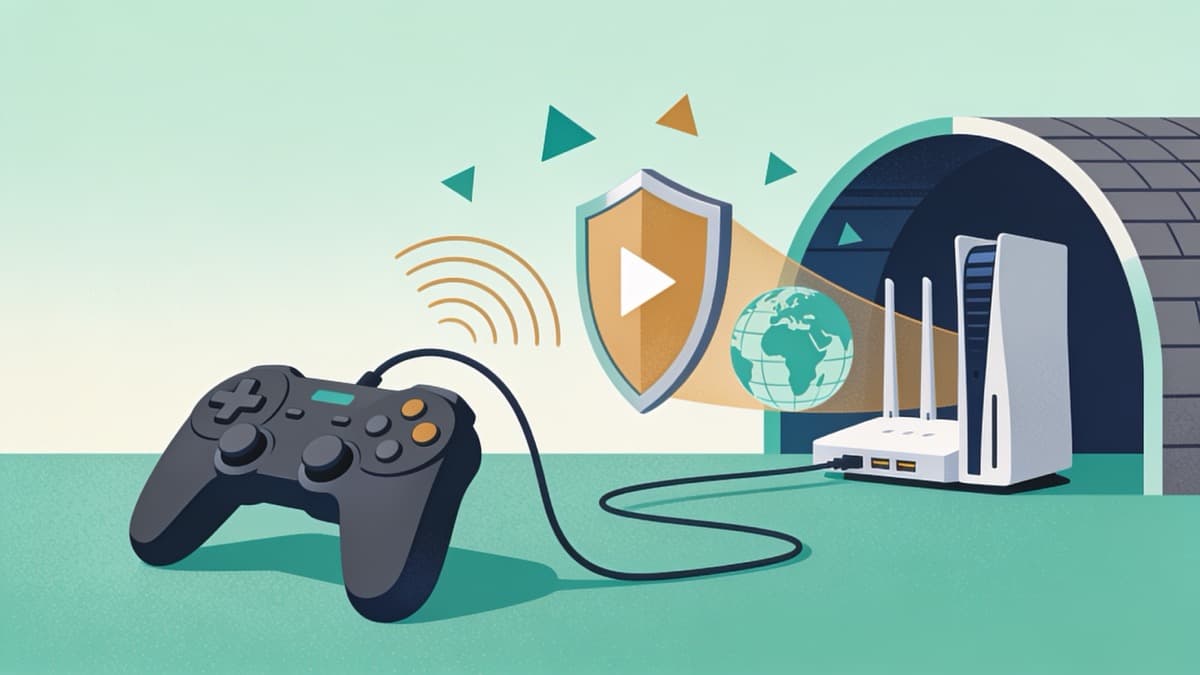
Neither the PS5 nor any Xbox console lets you install a VPN app — there is nothing to download from the PlayStation Store or the Microsoft Store. To route console traffic through a VPN you have to do it one level up: either configure the VPN on your router, or share a VPN connection from a Windows PC or Mac over Ethernet. Both work, and this guide covers each.
Why consoles have no native VPN app
The single fact that trips up most people is that a PS5 or Xbox is a locked-down appliance. Sony and Microsoft curate exactly what software can run, and neither has ever approved a consumer VPN client. So the familiar phone-app experience — install, tap, connect — simply does not exist on either platform, and no amount of digging through settings will surface one.
That is not a bug or an oversight you can work around with a hidden menu. The console's network stack has no VPN client built in and no way to load one. What both machines do understand is a normal internet connection handed to them over Ethernet or Wi-Fi. The trick, then, is to put the VPN somewhere upstream of the console and let the console treat the encrypted link as an ordinary network. Everything below is a variation on that one idea.
- No app store option: there is no VPN category in the PlayStation or Xbox store, and sideloading is not possible.
- The console just needs an internet connection: it does not care whether that connection is already encrypted upstream.
- So you move the VPN upstream: onto the router, or onto a computer that shares its connection to the console.
Method 1: Configure the VPN on your router
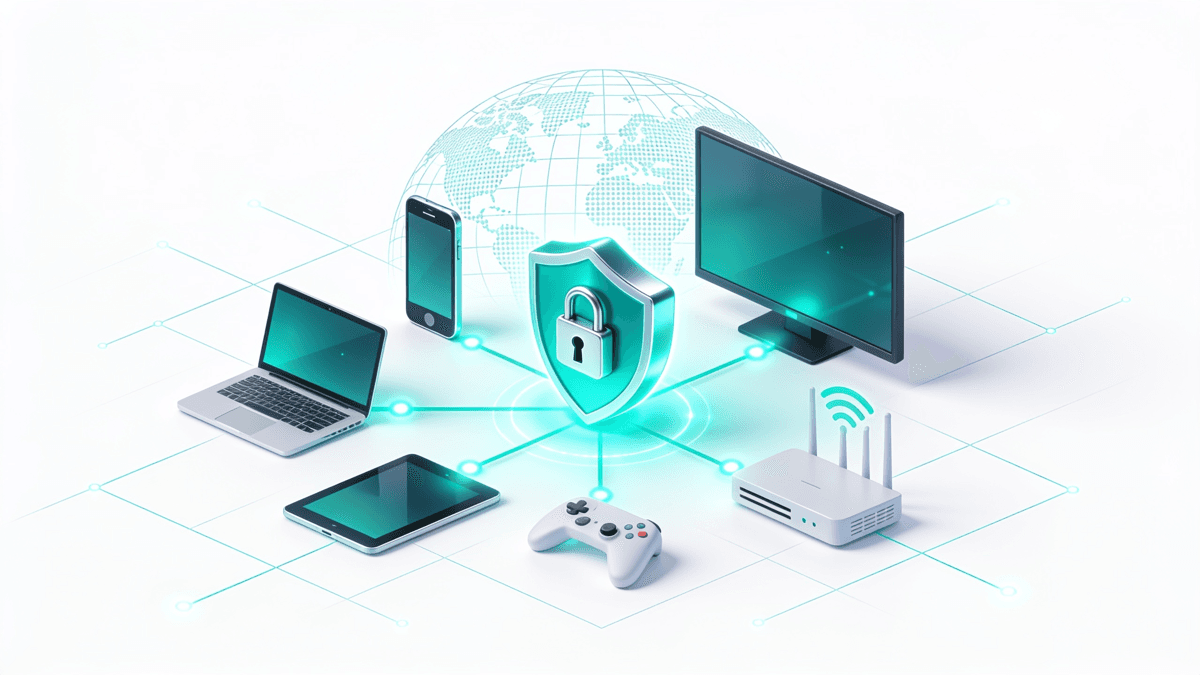
Installing the VPN on your router is the cleanest long-term setup. The router holds the VPN connection, and every device behind it — your PS5, your Xbox, phones, laptops, smart TVs — inherits it automatically with zero per-device configuration. You set it up once and forget it. The catch is that not every router can do this, so check compatibility first.
What you need first
Router-level VPN needs firmware that includes a VPN client. Many ASUS and Netgear models ship with one, and flashing open-source firmware such as DD-WRT or OpenWrt adds the capability to a wider range of hardware. If your ISP-supplied box can't run a VPN client, a dedicated VPN-ready router solves it — our best VPNs for routers guide covers which providers publish router firmware and configuration files.
- 1Log in to your router's admin panel, usually at 192.168.1.1 or 192.168.0.1 in a browser.
- 2Find the VPN Client section (often under Advanced or WAN settings).
- 3Download the OpenVPN or WireGuard configuration file for your chosen server from your VPN provider's site.
- 4Upload that config file and enter your VPN account credentials.
- 5Connect, confirm the router shows an active VPN tunnel, then restart your PS5 or Xbox so it picks up the connection.
Once the router reports a live tunnel, your console is already protected — there is nothing to change on the PS5 or Xbox itself. The trade-off is that everything behind that router now runs through the VPN, which can be slower for downloads and mildly annoying if some services misbehave abroad. Many people solve this by running two SSIDs, or by putting the VPN only on a secondary router that the console connects to.
One thing worth knowing before you commit to a router setup: running a VPN on the router means the router itself does the encryption, and consumer routers have modest processors. A cheap box can bottleneck a fast line badly — you might see a 300 Mbps connection drop to 60 or 80 Mbps once the VPN is doing the work. If speed matters for large game downloads, look for a router with hardware that can handle your line rate, or accept that the shared-PC method (where a powerful CPU handles encryption) will often be faster.
A note on double NAT
If you keep your existing ISP router and add a second VPN router behind it, both hand out addresses and you can end up double-NATed, which sometimes worsens the Strict or Type 3 NAT status consoles dislike. To avoid it, put the ISP box in bridge or modem-only mode, or set the VPN router as the primary. It is a common snag that shows up as party-chat and matchmaking problems rather than a total outage, so it is easy to misdiagnose.
Method 2: Share a VPN connection from a PC or Mac
If your router can't run a VPN, or you only want to protect the console occasionally, share the connection from a computer instead. You run the ordinary VPN app on a Windows PC or Mac, then hand that already-encrypted connection to the console over an Ethernet cable. It costs nothing extra, but the computer has to stay on the whole time you're playing.
One practical requirement for the shared-PC method catches people out: your computer needs two network interfaces — one to reach the internet and a second to hand the connection to the console. A laptop on Wi-Fi with a single Ethernet port is fine, because Wi-Fi is one interface and the Ethernet jack is the other. But a desktop that only has Ethernet will need a cheap USB-to-Ethernet adapter or a Wi-Fi card so it can be online on one interface and share out on the other. Sort this out before you start wiring.
On Windows
Windows makes this straightforward through Internet Connection Sharing. Connect the PC to the internet as usual, run your VPN app, then bridge the encrypted adapter to the Ethernet port your console plugs into. A wired link between PC and console keeps latency low, which matters for online play. One catch: Internet Connection Sharing works by attaching to a discrete VPN network adapter, and on Windows that usually means connecting with the OpenVPN protocol — IKEv2 or WireGuard connections often don't expose an adapter you can share, so switch your app to OpenVPN if the VPN adapter doesn't appear.
- 1Connect and log in to your VPN app on the PC, then connect to your chosen server using the OpenVPN protocol.
- 2Run Ethernet from the PC to the console (or plan to share over Wi-Fi).
- 3Press Windows key + R, type ncpa.cpl, and press Enter to open Network Connections.
- 4Right-click the VPN adapter, choose Properties, and open the Sharing tab.
- 5Tick Allow other network users to connect, then pick the adapter your console uses (Ethernet or Wi-Fi).
- 6On the console, set the network to automatic/DHCP and test the connection.
On a Mac
macOS can share a connection through System Settings > General > Sharing > Internet Sharing, but with a real limitation: the built-in Internet Sharing does not forward the OpenVPN tunnels most third-party apps use — in practice it only passes Apple's own L2TP/IPsec setup — and some VPN apps won't appear in the share dropdown at all. If you hit that wall, the router method is the more reliable route on Mac.
Whichever computer you use, connect the console with an Ethernet cable rather than Wi-Fi where you can. A wired hop between machine and console avoids a second wireless leg that would add lag — the last thing you want in a ranked match. Once the console has an address and internet, its traffic is flowing through the VPN on the computer.
Why gamers set one up in the first place
Going through this much effort only makes sense if there's a payoff, and for gamers there are three real ones: reaching content and servers in other regions, blunting ISP throttling, and adding a layer of privacy. None of these is magic, and a VPN won't lower your ping to a nearby server — but each solves a specific, common frustration.
- Region access: a VPN combined with a matching store-region change lets you connect through another country to reach game servers, store regions, or streaming libraries that aren't available at home — sometimes even playing a title before it releases in your region.
- ISP throttling: because a VPN encrypts your traffic, your ISP can't see that it's gaming data and can't selectively slow it, which can steady your connection during congested hours.
- Privacy and DDoS cover: your real IP is hidden behind the VPN server, which is useful in games where opponents can attempt to knock rivals offline.
On latency specifically, the honest rule is distance. Your data has to travel to the VPN server and then on to the game server, so the closer the VPN server is to both you and the game, the smaller the penalty. Picking a VPN endpoint in the same city or country as the game server can keep the added ping in the low single digits; picking one on another continent can add 100 milliseconds or more and make fast-paced play miserable. Test a couple of nearby servers and keep the one with the lowest, steadiest ping.
Set expectations honestly, though. A VPN adds a hop, so pinging a server that's already close to you will usually get slightly slower, not faster. The wins come from consistency and access, not raw speed. We dig into the full trade-off in our companion piece on whether you actually need a VPN for gaming, which is the read to reach for before you commit.
Want a provider with published router firmware and reliable region unblocking? See how the top gaming-friendly VPNs compare in our main best VPN rankings.
See our top-ranked VPNs →Which method should you pick?
The right choice comes down to how often you'll use it and what hardware you already own. There's no universally best answer — a household that wants every device covered leans one way, while someone protecting a single console for the odd import game leans the other. Weigh the trade-offs below before you start.
- Pick the router method if you want every device covered permanently, you have (or will buy) a VPN-capable router, and you don't want to leave a PC running.
- Pick connection sharing if your router can't run a VPN, you already keep a PC nearby, and you only need the console protected some of the time.
- On a Mac, lean toward the router method — macOS Internet Sharing often won't forward the VPN protocol your app uses.
Before you buy anything, it's worth checking your provider's speeds and value. Our live VPN speed test shows how much overhead each service adds — important when latency matters — and the VPN price index tracks current pricing so a long-term router setup doesn't lock you into a bad deal. Both update automatically.
Common problems and quick fixes
Most console-VPN setups fail at the same handful of points: the router won't take the config, the shared connection won't hand out an address, or a service refuses to load because it detects the VPN. These are usually quick to resolve once you know where to look, so run through this checklist before assuming your provider is at fault.
- 1Console gets no internet after sharing: set the console's network to automatic (DHCP) and reboot the PC and console in that order.
- 2Router rejects the config file: confirm the firmware supports a VPN client and that you downloaded the right protocol file (OpenVPN vs WireGuard).
- 3A service still shows the wrong region: switch to a different VPN server in the target country — some IPs get flagged and rotating usually fixes it.
- 4Everything is slow: pick a VPN server geographically closer to you, or one closer to the game's server, to cut the added distance.
If you want to sanity-check that your setup is actually private and not quietly exposing your real connection, learn what a DNS leak is and how a WebRTC leak can give you away. Those two glossary entries explain the failure modes worth testing for once your console is online through the VPN.
Frequently asked questions
Can you install a VPN app directly on a PS5 or Xbox?
No. Neither Sony nor Microsoft offers VPN apps in their stores, and you can't sideload one onto the console. The only ways to route console traffic through a VPN are to configure it on your router or to share an already-connected VPN from a Windows PC or Mac over Ethernet or Wi-Fi.
Does a VPN make console gaming faster?
Usually not for nearby servers — a VPN adds a hop, so pinging a close server tends to get slightly slower. The real benefits are consistency and access: it can stop an ISP from throttling gaming traffic and it lets you reach servers or stores in other regions. Choose a nearby VPN server to keep the added latency small.
Do I need a special router for the router method?
You need a router whose firmware includes a VPN client. Many ASUS and Netgear models have one built in, and open-source firmware like DD-WRT or OpenWrt adds it to other hardware. If your ISP box can't run a VPN client, a dedicated VPN-ready router is the simplest fix — our routers guide covers compatible options.
Why won't Internet Sharing work with my VPN on Mac?
macOS Internet Sharing does not forward the OpenVPN tunnels most third-party VPN apps use — in practice it only passes Apple's own L2TP/IPsec connection — and some VPN apps don't appear in the sharing dropdown at all. If you hit that limitation, the router method is the more reliable way to protect a console from a Mac household.
Will a VPN get my console account banned?
Using a VPN itself is legal, but accessing region-locked content or store regions you're not entitled to can breach a platform's or publisher's terms of service. Read the rules for the specific game or store before relying on a VPN for region access, and understand that enforcement varies by service.
Should I connect the console to the PC with Ethernet or Wi-Fi?
Ethernet, wherever possible. A wired link between the sharing computer and the console avoids a second wireless leg that adds lag — which matters most in online and ranked play. Reserve Wi-Fi sharing for cases where running a cable isn't practical, and expect slightly higher, less stable latency if you do.
The best VPNs of 2026, ranked
Now you know how — here are the VPNs we recommend, independently tested and ranked for speed, streaming, privacy and value. Any of them works for everything in this guide.

ExpressVPN Ultra fast & secure. Great for privacy, downloads, and everyday browsing on all your devices. 24/7 live chat support.
ExpressVPN Ultra fast & secure. Great for privacy, downloads, and everyday browsing on all your devices. 24/7 live chat support.

IPVanish Fast speeds with unlimited device connections. Strong no-logs privacy and 24/7 live chat support. Great for families.

IPVanish Fast speeds with unlimited device connections. Strong no-logs privacy and 24/7 live chat support. Great for families.

NordVPN Excellent speeds with one of the largest server networks. Strong security features and easy-to-use apps. 24/7 live chat support.
NordVPN Excellent speeds with one of the largest server networks. Strong security features and easy-to-use apps. 24/7 live chat support.

Proton VPN Swiss-based VPN with strong privacy focus. Audited no-logs policy and open-source apps. Great for privacy-conscious users.
Proton VPN Swiss-based VPN with strong privacy focus. Audited no-logs policy and open-source apps. Great for privacy-conscious users.

CyberGhost Fast speeds and strong privacy tools. Simple apps, automatic WiFi protection, and 24/7 live chat support.
CyberGhost Fast speeds and strong privacy tools. Simple apps, automatic WiFi protection, and 24/7 live chat support.

TotalVPN Affordable VPN with strong privacy and reliable speeds. Easy-to-use apps for all major devices. No-logs policy.
TotalVPN Affordable VPN with strong privacy and reliable speeds. Easy-to-use apps for all major devices. No-logs policy.

Private Internet Access High-speed VPN with a large server network and advanced security settings. Ad blocker included and 24/7 live chat support.
Private Internet Access High-speed VPN with a large server network and advanced security settings. Ad blocker included and 24/7 live chat support.

Surfshark Unlimited device connections at a budget-friendly price. Includes ad blocker and strong privacy tools. Great value for money.
Surfshark Unlimited device connections at a budget-friendly price. Includes ad blocker and strong privacy tools. Great value for money.
Rankings are based on our independent testing methodology. Each guide applies the criteria described on that page, including relevant performance, privacy, product features, and value data. We may earn affiliate commissions from links on this page, which helps fund our testing — this does not influence our rankings.