
How to Set Up a VPN on Windows 11: App vs Manual, Protocols, Kill Switch and Fixes
The exact Settings path, every field in the Add VPN dialog, which VPN types Microsoft has deprecated, which provider apps run on ARM64 PCs, and the documented fix for each setup failure

vpnrank.io is reader-supported: we may earn a commission if you buy through links in this article. This never affects our rankings.

To set up a VPN on Windows 11 (checked October 2026), install your provider's app and click Connect — or open Settings > Network & internet > VPN > Add VPN, choose Windows (built-in) and enter the server details.
Those are two genuinely different ways to run a VPN. The app is right for almost everyone; the manual client is for connecting to a specific server your provider or workplace gives you. This guide covers both, with the field names Microsoft uses, the VPN types Windows offers and what Microsoft has deprecated, which provider apps run on ARM64 PCs, and the documented fix for each setup failure.
Windows 11 gives you two ways to run a VPN, and they solve different problems
Before you touch any settings, it helps to know which of the two paths you are on, because the steps diverge completely from there. One path installs a full application that manages everything for you. The other uses the connection manager Microsoft ships inside Windows, where you type in server details by hand. Microsoft's own support page points personal VPN users the first way: it suggests checking the Microsoft Store to see whether there's an app for your VPN service.
- The provider app — you download a program from the VPN company, sign in, pick a location and click connect. It handles protocols, encryption, the kill switch and server selection automatically. This is the option most people want.
- The built-in Windows client — you open Settings and enter a server address, a connection type and your credentials by hand. There is no app to install. It is meant for connecting to one specific server, typically a work network or a self-hosted server, not for browsing a menu of countries.
The practical difference: the built-in client is a manual dialer. It cannot show you a list of cities, it will not rotate servers, and it has no kill-switch toggle or ad blocking. If your goal is privacy on public Wi-Fi or reaching content while travelling, the app path is the one that gets you there. If your employer handed you a server address and a shared key, the manual path is what you need. Our main best VPN roundup is organised around the app path, since that is what the vast majority of Windows users end up using.
Practical rule:If someone handed you a server address, a VPN type and a set of credentials, use the built-in client. If you bought a VPN subscription, install the provider's app — the built-in client cannot run WireGuard or OpenVPN.
The provider app takes five steps and picks the protocol for you
For everyday use — securing a coffee-shop connection, keeping your ISP out of your browsing, or reaching a service while abroad — the provider app is faster to set up and far more capable than the manual client. The whole process takes a couple of minutes and requires no networking knowledge. Here is the full sequence.
- 1Go to the provider's official website in a browser and download the Windows app — the ARM64 version if your PC has an ARM processor (see below). Avoid third-party download sites and app-store clones, which are a common source of tampered installers.
- 2Run the installer and approve the Windows User Account Control prompt. The app installs its own network driver, which is what makes the kill switch and split tunneling possible.
- 3Open the app and sign in with the account you created when you subscribed.
- 4Pick a server location. Choose one physically near you for the fastest speeds, or a specific country if you need an address in that region.
- 5Click Connect. Within a few seconds the app confirms you are protected and shows your new virtual location.
ARM64 PCs need the ARM64 installer, and Settings > System > About tells you which you have
Windows 11 runs on two kinds of processor: x64 chips from Intel and AMD, and ARM64 chips such as Qualcomm's Snapdragon line used in many thin laptops. Microsoft's documentation tells you to check Settings > System > About if you aren't sure which you have; the System type line names the processor architecture. It matters because VPN apps install a network driver, and that driver is built for one architecture.
ExpressVPN says Windows 11 on ARM64 needs its separate ARM64 app. NordVPN released a native ARM64 app in autumn 2024 and says that from release 7.38.1.0 it is identical to the x64 version, split tunneling included. Proton VPN launched its native ARM64 app on 5 November 2024 with the same features as its x64 app. PIA and Surfshark both list ARM64 downloads. CyberGhost's published Windows requirements name only 32-bit (x86) and 64-bit (x64) processors.
That is the entire setup. The app has already selected a protocol for you and enabled encryption, and on several providers the kill switch is on by default. To confirm everything is actually working after connecting, run our VPN check, a quick VPN speed test, and look for a DNS leak or a WebRTC leak — those are the two ways an otherwise-connected VPN can still expose you.
Each provider's Windows app has its own minimum version, ARM64 build and kill-switch name
Provider apps share the same five steps, but not the same requirements or labels. The table below is limited to what each provider states on its own help centre or Windows download page. Where a page could not be read or did not say, the cell says so rather than guessing.
| Provider | Minimum Windows | ARM64 build | Kill switch setting | Split tunneling setting | What it doesn't automatically prove |
|---|---|---|---|---|---|
| ExpressVPN | Windows 10 or above (version 10.54.0.8 for Windows 7, 8, 8.1) | Yes — a separate ARM64 app | Internet Kill Switch (Profile tab > Settings), on by default; "Enable at all times" blocks traffic whenever the VPN is off | Split Tunneling (Profile tab), with Bypass VPN and Only VPN rules | That the x64 installer works on an ARM64 PC — ExpressVPN says ARM64 needs the ARM64 app |
| NordVPN | Windows 10 64-bit (version 1607 and later) or Windows 11; older systems use legacy version 6.45 | Yes — native since autumn 2024, identical to x64 from 7.38.1.0 | Kill Switch (Settings > Kill Switch), described as the Internet Kill Switch | Split tunneling (Settings > Split tunneling > Add apps) | That the two combine cleanly — NordVPN says excluded apps lose internet access when both are on |
| Surfshark | Windows 10 and 11 (Windows 7, 8, 8.1 and x86 on a legacy app only) | Yes — x64 and ARM64 downloads | Kill Switch | Bypasser — apps and websites | That IPv6 is handled — Surfshark's Windows troubleshooting says it does not currently support IPv6 |
| Proton VPN | Windows 10 and 11 | Yes — native since 5 November 2024 | Kill switch and advanced kill switch (Settings > Connection) | Split tunneling (Settings > Connection) | That older versions pair split tunneling with the kill switch — that arrived in version 4.3.7 (25 November 2025) |
| Private Internet Access | Windows 10 and 11, 64-bit only | Yes — Windows ARM64 | VPN Kill Switch (on by default) and Advanced Kill Switch (Settings > Privacy) | Split Tunnel (Settings > Split Tunnel), with Bypass VPN and Only VPN rules for apps and IP rules | That closing the app lifts the block — PIA says Advanced Kill Switch stays active when the app is closed |
| CyberGhost | Windows 10 or later | Not listed — requirements name 32-bit (x86) and 64-bit (x64) processors | Automatic Kill-Switch (Privacy Settings) | Exceptions under Smart Rules — websites, not apps | That ARM64 is unsupported outright — only that it isn't on the published requirements |
| IPVanish | Not confirmed | Not confirmed | Not confirmed | Not confirmed | Anything: IPVanish’s help-centre pages did not state these details when checked in October 2026, so check inside the app |
| PureVPN | Windows 10 and 11 | Not stated on its Windows download page | Internet Kill Switch | Split Tunneling (Settings > Connection tab) | That ARM64 works — the page doesn't say either way |
| TotalVPN | Windows 10 or higher (also Windows Server 2016 or higher) | Not stated | Not documented in its Windows settings guide | Split tunneling — URL-based on Windows (Bypass VPN or Route via VPN), used with the Hydra protocol | That there is no kill switch — only that the help centre doesn't document one for Windows |
Provider details verified October 2026 against each provider's own help centre or Windows download page (listed in the sources section). "Not confirmed" means the page could not be read or did not state it.
Two patterns stand out. Every provider that states a minimum puts it at Windows 10 or later, so any Windows 11 PC clears the bar — the question that actually decides which installer you need is x64 or ARM64. And the same feature goes by different names: ExpressVPN's Internet Kill Switch, PIA's VPN Kill Switch and CyberGhost's Automatic Kill-Switch do the same job, and Surfshark's split tunneling is called Bypasser. Our reviews cover how each app behaves beyond these settings, and the best VPN for Windows ranking compares them side by side.
The built-in client lives at Settings > Network & internet > VPN > Add VPN
The manual route lives in Settings and asks you to type in server details yourself. Use it when someone has given you a specific server address, a connection type and login credentials — a workplace network, a NAS box, or a server you host. You will need those details in hand before you start, because Windows cannot guess them.
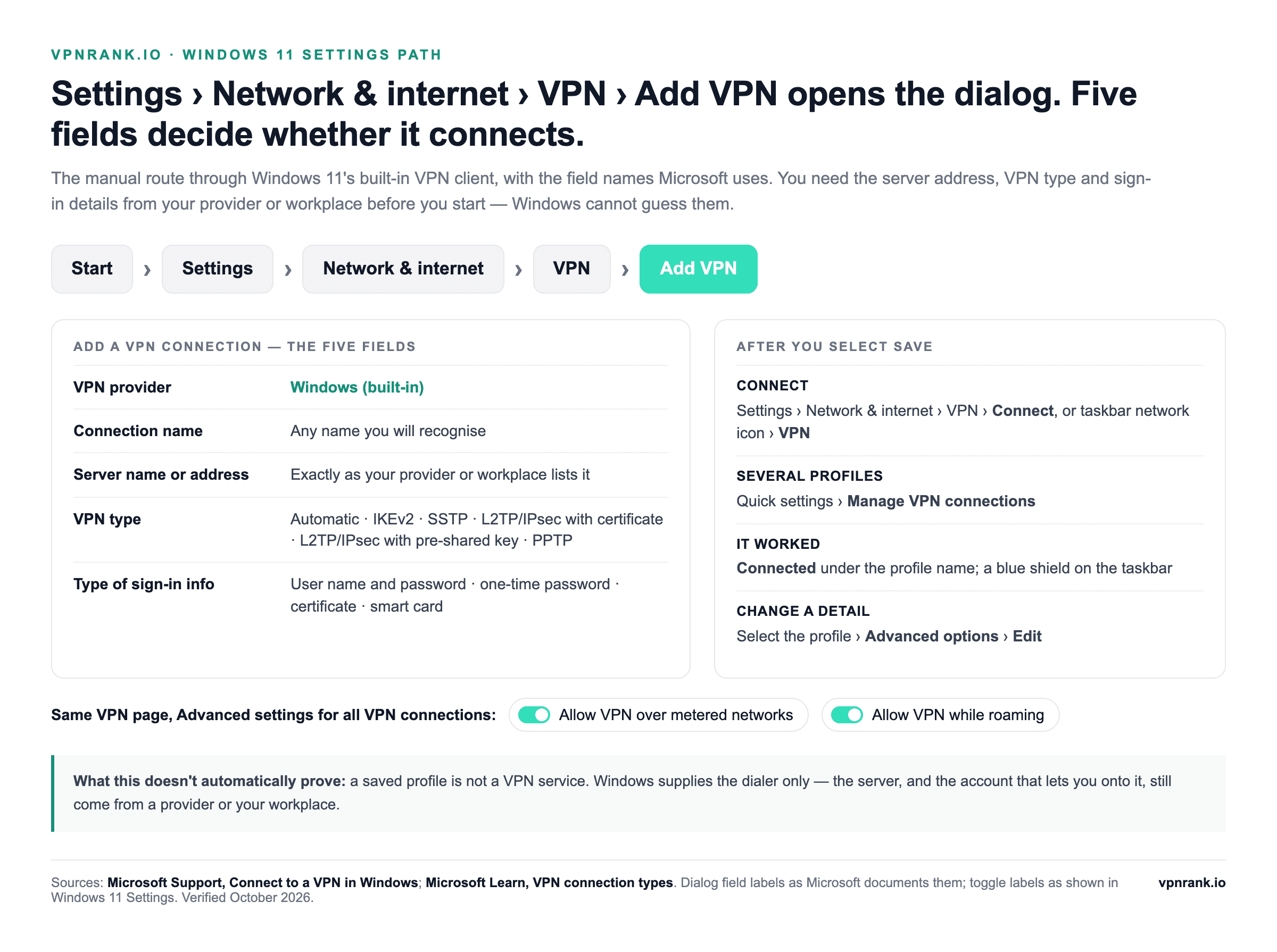
Adding the profile takes seven entries and a Save
- 1Open Settings, then go to Network & internet and select VPN.
- 2Click Add VPN.
- 3Set VPN provider to Windows (built-in).
- 4Give the connection a name you will recognise under Connection name.
- 5Enter the address you were given in the Server name or address field.
- 6Choose the VPN type — the drop-down offers Automatic, IKEv2, SSTP, L2TP/IPsec with a pre-shared key, L2TP/IPsec with certificate, and the legacy PPTP.
- 7Choose the type of sign-in info and enter it (usually a username and password, plus the pre-shared key for L2TP), then select Save.
Every field in the Add a VPN connection dialog has one job
| Field | What Microsoft says to enter | Where the value comes from | What it doesn't automatically prove |
|---|---|---|---|
| VPN provider | Windows (built-in) | Fixed for a manual setup. The field exists because Windows' VPN platform also accepts plug-ins supplied by apps | That any other entry in the list is right for you — pick an app's plug-in only if that app's own instructions say so |
| Connection name | A name you'll recognise, for example My Personal VPN | You choose it | Anything about the server — it is only a label |
| Server name or address | The address for the VPN server | Your provider's manual-setup page or your IT team. Microsoft's PowerShell reference accepts a hostname, an IPv4 address or an IPv6 address | That the server accepts the VPN type you pick next |
| VPN type | The type of VPN connection you want to create | Must match what the server runs; Automatic tries each built-in type in turn | That the server supports it — a mismatch fails at negotiation, where Windows errors 789 and 812 point |
| Type of sign-in info | Username and password, one-time password, certificate, or smart card | Usually your provider's manual-setup credentials, which can differ from your website login | That a rejection means a wrong password — error 812 means the authentication method doesn't match |
Field names and descriptions from Microsoft Support, "Connect to a VPN in Windows"; address formats from Microsoft's Set-VpnConnection reference. Verified October 2026.
Once saved, the VPN connects from the taskbar in two clicks
Microsoft documents two ways to connect a saved profile. From the taskbar, select the network icon, then VPN, and switch the connection on; if you have several profiles, choose Manage VPN connections. From Settings, go to Network & internet > VPN and select Connect next to the profile. When it works, the profile shows Connected underneath its name, and Microsoft says a blue shield appears on the taskbar when you're connected to a recognised VPN.
Changing a saved profile goes through Advanced options, or PowerShell
To change a detail, select the connection, choose Advanced options, then Edit next to the setting you want to change, and Save or Apply. The same profiles are scriptable through Windows PowerShell's VpnClient module: Get-VpnConnection lists them, Set-VpnConnection changes the server address, the tunnel type (Pptp, L2tp, Sstp, Ikev2 or Automatic) or split tunneling, and Remove-VpnConnection deletes a profile you no longer need.
Windows 11's VPN type menu holds four protocols plus Automatic, and two are deprecated on Microsoft's servers
The VPN type drop-down is where most manual setups go wrong, because it has to match what the server runs. Microsoft's documentation lists four built-in tunneling protocols — IKEv2, L2TP, PPTP and SSTP — plus Automatic, which tries each of them from most secure to least secure until one succeeds. L2TP appears twice in the menu, once with a certificate and once with a pre-shared key.
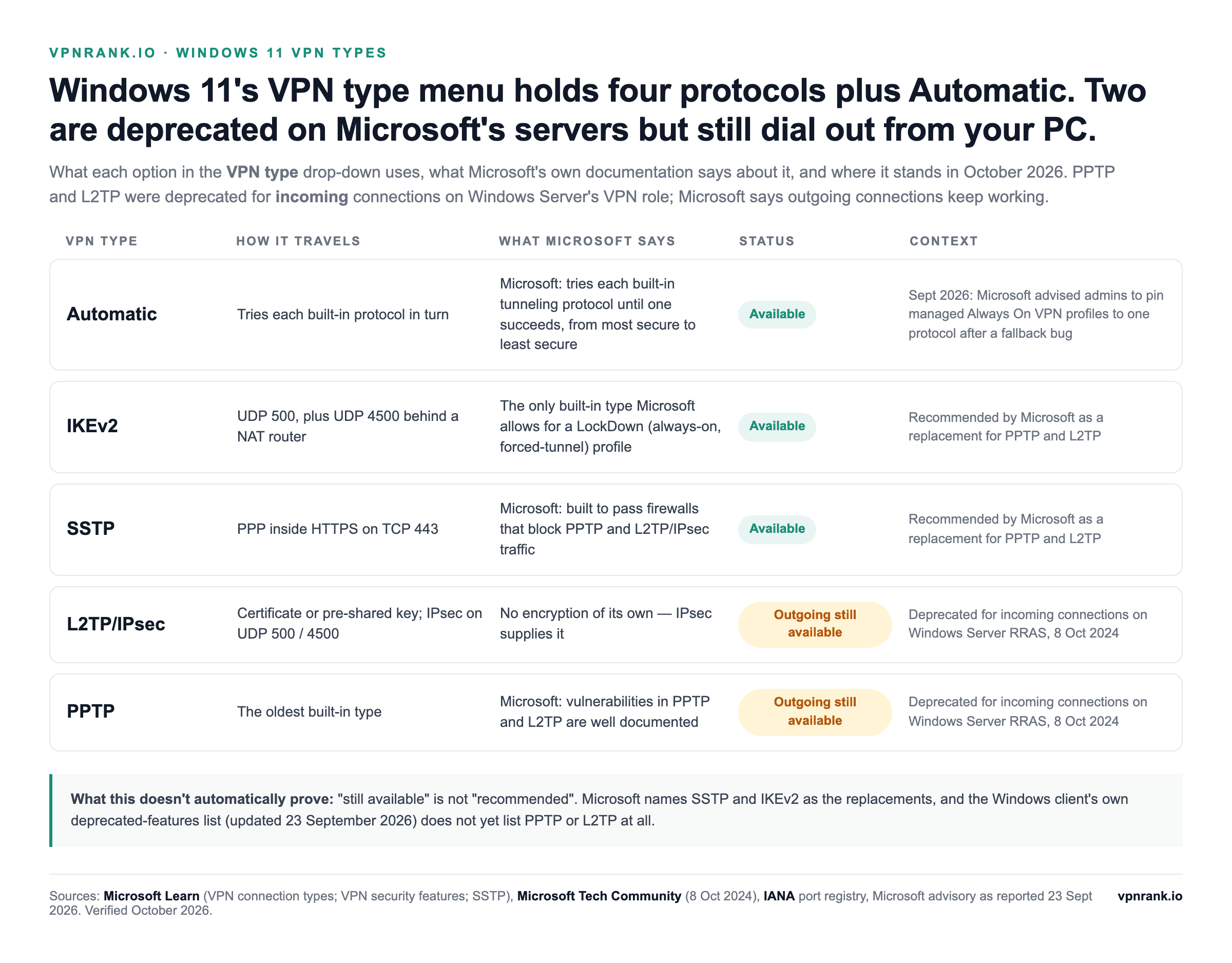
| VPN type | How it connects | Status in October 2026 | Use it when | What it doesn't automatically prove |
|---|---|---|---|---|
| Automatic | Tries each built-in protocol, most secure first | Available | You don't know what the server runs | That it settles on the protocol you'd choose — and in September 2026 Microsoft told admins to pin managed Always On VPN profiles to one protocol after a fallback bug |
| IKEv2 | IPsec key exchange on UDP 500, moving to UDP 4500 behind a NAT router | Available; named by Microsoft as a replacement for PPTP and L2TP | The server supports it — the default for a modern manual setup | That the network you're on allows UDP 500 and 4500 |
| SSTP | PPP inside HTTPS on TCP 443 | Available; named by Microsoft as a replacement | A firewall blocks IKEv2 | That it can't be spotted — some networks inspect traffic on 443 too |
| L2TP/IPsec (certificate or pre-shared key) | L2TP for the tunnel, IPsec for the encryption — L2TP has none of its own | Outgoing still available; deprecated for incoming connections on Windows Server's VPN role, 8 October 2024 | An older appliance offers nothing else | That it will keep working against future Windows Server VPNs — Microsoft says those won't accept it |
| PPTP | The oldest built-in type | Outgoing still available; deprecated on Windows Server's VPN role, 8 October 2024 | Avoid it | That a successful connection is a secure one — Microsoft says its weaknesses are well documented |
Protocol behaviour from Microsoft Learn (VPN connection types; SSTP) and the IANA port registry; deprecation status from Microsoft's Windows Server team, 8 October 2024. Verified October 2026.
If you do not know which VPN type to pick, IKEv2 is the safest default on modern networks, and SSTP is the fallback when a restrictive firewall blocks everything else: Microsoft describes it as carrying PPP traffic over HTTPS, so it travels on TCP 443 like ordinary web browsing and was designed to pass firewalls that block PPTP and L2TP/IPsec. Avoid PPTP. Windows keeps it for backward compatibility, and Microsoft has said that the vulnerabilities of both PPTP and L2TP are well documented.
Microsoft deprecated PPTP and L2TP in October 2024, but only for incoming connections
On 8 October 2024 Microsoft's Windows Server team announced it was deprecating PPTP and L2TP from future versions of Windows Server. The scope is narrower than many guides suggest. Future versions of the Windows Server VPN role, Routing and Remote Access (RRAS), will stop accepting incoming connections over either protocol, but Microsoft's post says both "will still remain available if you want to make outgoing VPN connections". It named SSTP and IKEv2 as the replacements. The Windows client's own list of deprecated features, last updated on 23 September 2026, does not mention PPTP or L2TP at all — which is why both are still in the Windows 11 drop-down in October 2026.
Practical rule:Pick IKEv2 first and SSTP when a firewall blocks it. Treat L2TP/IPsec and PPTP as compatibility options for old equipment, not choices for a new setup.
A September 2026 Windows update broke automatic protocol fallback on managed PCs
On 23 September 2026 Microsoft warned administrators, in an advisory reported by BleepingComputer, that September's Windows 11 updates — KB5124008 on versions 24H2 and 25H2, and KB5124012 on version 26H1 — can stop Always On VPN connecting when a profile is set to fall back between protocols, for example automatic selection between IKEv2 and SSTP. Connections sit on Connecting or retry without succeeding, and later attempts can show The specified port is already in use. Microsoft's workaround is to set the profile to a single protocol: SSTP only or IKEv2 only.
The advisory covers managed Always On VPN profiles; it says nothing about profiles you add yourself in Settings. Still, if a home profile set to Automatic hangs on Connecting after that update, switching its VPN type to IKEv2 or SSTP through Advanced options is the same change, and it costs nothing to try.
The built-in client cannot run WireGuard or OpenVPN; those arrive with an app
Microsoft's built-in client supports four protocols, and WireGuard and OpenVPN are not among them. They reach a Windows PC only through software that installs its own network driver — a provider's app, or the projects' own clients. That single fact explains most of the gap between the two setup paths.
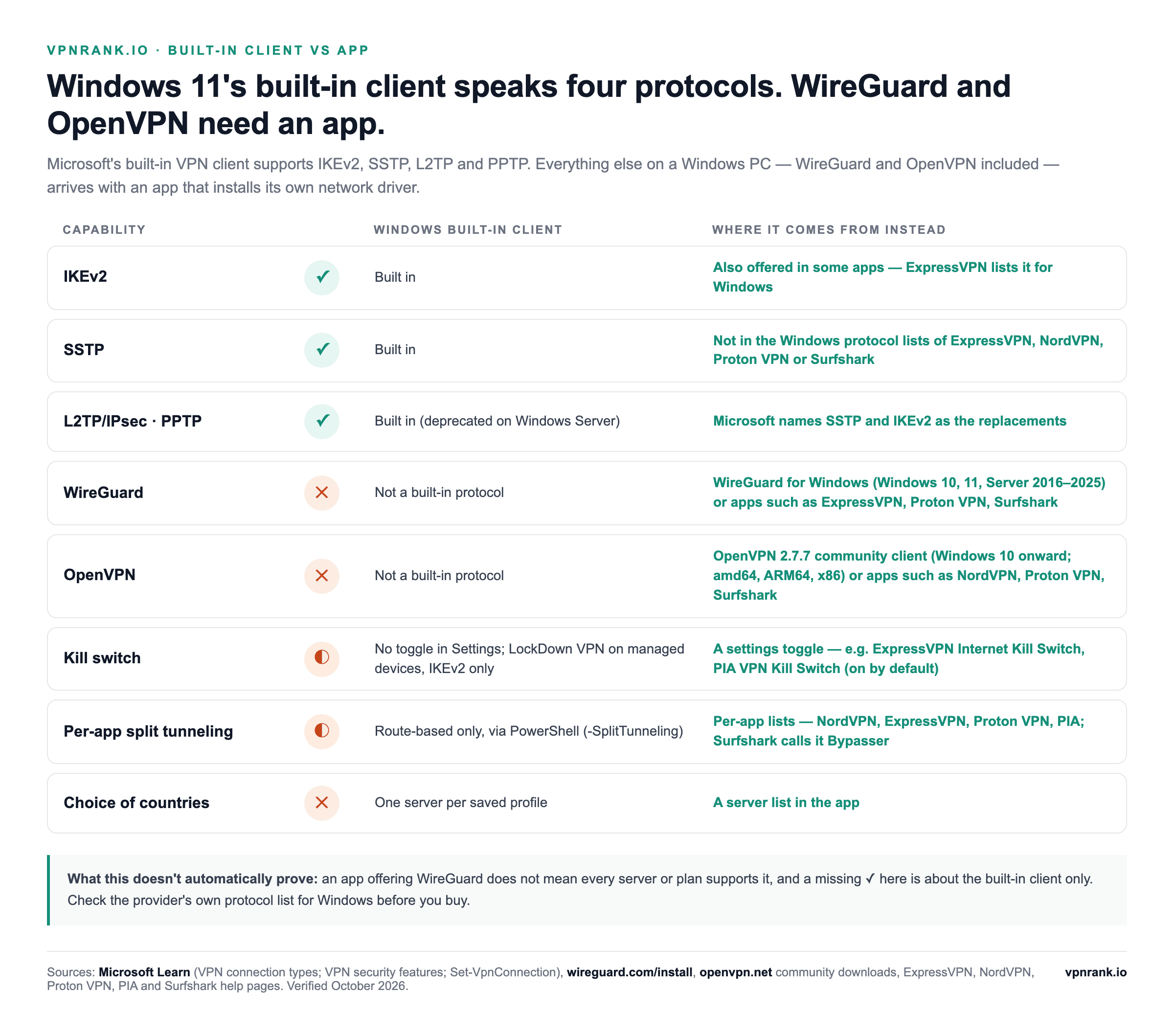
| Capability | Windows built-in client | Provider app or project client | What it doesn't automatically prove |
|---|---|---|---|
| WireGuard | Not a built-in protocol | WireGuard for Windows (Windows 10, 11 and Server 2016–2025); ExpressVPN, Proton VPN and Surfshark list it in their Windows apps | That every server or plan in an app supports it |
| OpenVPN | Not a built-in protocol | OpenVPN 2.7.7 community client (Windows 10 onward; 64-bit, ARM64 and 32-bit installers); NordVPN, Proton VPN and Surfshark list it | That the community client gives you a server list — it only reads configuration files |
| IKEv2 · SSTP | Built in | IKEv2 also appears in ExpressVPN's Windows protocol list | That an app offering IKEv2 uses Windows' own implementation |
| Kill switch | No toggle in Settings; LockDown VPN for managed devices, IKEv2 only | A settings toggle in most apps | That a toggle is on — check the default in your app |
| Per-app split tunneling | Route-based only, through PowerShell | Per-app lists in NordVPN, ExpressVPN, Proton VPN and PIA; Surfshark's Bypasser | That excluded apps keep working with the kill switch on |
| Choice of countries | One server per saved profile | A server list in the app | That every listed location suits streaming |
Built-in protocols from Microsoft Learn, VPN connection types; LockDown VPN from Microsoft Learn, VPN security features; client details from wireguard.com, wintun.net and openvpn.net; app protocol lists from each provider's help pages. Verified October 2026.
WireGuard's official Windows client runs on Wintun, a minimal network driver originally designed for WireGuard and published for AMD64, x86, ARM64 and 32-bit ARM. OpenVPN's community client ships separate installers for 64-bit, ARM64 and 32-bit Windows. Either works with a configuration file from a provider that supports manual setups — Proton VPN and NordVPN both publish Windows guides for this — but neither gives you a server list, so for a subscription the provider's own app is the simpler route.
WireGuard is the protocol to pick in an app; IKEv2 is the one to pick in the built-in client
A protocol is the rulebook that decides how your device and the VPN server talk and encrypt data. It affects speed, stability and how well the connection survives hostile networks. Provider apps and the built-in client expose different sets of protocols, so it is worth knowing what each one is good for before you commit.
In a provider app, start with WireGuard and fall back to OpenVPN
Modern apps typically default to WireGuard or an in-house protocol of their own, and that default is almost always the right call. The WireGuard project says it aims to be faster and leaner than IPsec and considerably more performant than OpenVPN, and its protocol and cryptography have been formally verified. OpenVPN remains the battle-tested fallback for networks that block WireGuard's traffic. Menus differ by provider: ExpressVPN's Windows app lists Automatic, Lightway (UDP and TCP), OpenVPN, IKEv2 and WireGuard; NordVPN's lists NordLynx, NordWhisper and OpenVPN; Surfshark's lists WireGuard and OpenVPN over UDP or TCP.
- WireGuard — fast, lean and modern; the best default for streaming, gaming and general use. Our WireGuard explainer covers how it works.
- OpenVPN — slower but extremely mature and good at slipping through restrictive networks; switch to it if WireGuard won't connect.
- IKEv2 — very stable when you move between Wi-Fi and mobile hotspots, so it shines on laptops that roam.
In the built-in client, use IKEv2 and keep SSTP for locked-down networks
The Windows client does not offer WireGuard or OpenVPN. Your realistic choices there are IKEv2 for a fast, stable modern connection, or SSTP when you are behind a firewall that blocks standard VPN ports — SSTP runs over TCP 443, the same port as HTTPS, so it usually gets through. L2TP/IPsec still turns up on older appliances and needs a pre-shared key or certificate. Treat PPTP as off-limits. For the trade-offs in more depth, see our protocol comparison.
The built-in client has no kill-switch toggle; provider apps put one in their settings
A kill switch is a safety net: if the VPN tunnel drops unexpectedly, it cuts your internet instead of letting traffic fall back to your exposed connection. Without it, a momentary drop can leak your real IP address and location for exactly as long as it takes the VPN to reconnect — which is more than enough for a tracker to notice.
This is a clear area where the provider app wins. Most apps ship with a kill switch you toggle in the settings menu, and some enable it by default — ExpressVPN says its Internet Kill Switch is on by default, and PIA says the same of its VPN Kill Switch. Several offer two strengths: one that reacts when the tunnel drops, and a stricter mode that blocks all traffic unless the VPN is connected. ExpressVPN calls the stricter mode "Enable at all times", Proton VPN calls it the advanced kill switch, and PIA's Advanced Kill Switch keeps blocking even when the app is closed.
The built-in Windows client has no equivalent toggle in Settings. Microsoft does offer something close for managed devices: a LockDown VPN profile, set through device management, keeps the VPN always connected, stops the user disconnecting or editing it, forces all traffic through the tunnel, and blocks outbound traffic when the VPN isn't available. For the built-in client it only works with IKEv2, and Microsoft warns that a LockDown device can't send or receive anything without the VPN. On a personal PC without that management, the alternative is hand-built Windows Firewall rules, which are fiddly and easy to get wrong. If a reliable kill switch matters to you, that alone is a strong reason to use an app — and either way, run our kill switch test and read how a kill switch decides what to block.
For a Windows VPN with a dependable kill switch, WireGuard support and consistently fast speeds, ExpressVPN is a strong pick.
See our top-ranked VPNs →Split tunneling on Windows 11 is per-app in provider apps and route-based in the built-in client
Split tunneling lets you decide which apps or destinations go through the encrypted tunnel and which use your normal connection. It is genuinely useful: you can route your browser through the VPN while letting a banking app that flags foreign logins, or a local network printer, stay on your ordinary connection. That mix keeps speed high where you don't need protection.
- App-based split tunneling — pick specific programs to include in or exclude from the tunnel. Common in provider apps: NordVPN's is under Settings > Split tunneling > Add apps, and ExpressVPN and PIA both offer Bypass VPN and Only VPN rules.
- Route-based split tunneling — the built-in Windows client can be told, through PowerShell's Set-VpnConnection with -SplitTunneling $True, to send only traffic for the remote network over the VPN. Microsoft's reference says traffic to destinations outside the intranet then does not flow through the tunnel.
- Inverse split tunneling — protect everything by default and exclude a named few apps; handy when only one or two programs misbehave over a VPN.
In a provider app, split tunneling is a menu toggle where you tick the apps to include or exclude. Historically, some Windows apps forced you to choose between split tunneling and the kill switch, but providers have been closing that gap: Proton VPN's Windows release notes for version 4.3.7 (25 November 2025) say split tunneling now works with the kill switch, so apps you route through the VPN stay protected if it drops. NordVPN documents the opposite behaviour — with both on, apps excluded from the VPN lose internet access, because the kill switch takes priority. Check how your provider combines the two before relying on it.
Not every app splits by program. CyberGhost's Windows app offers Exceptions for websites rather than apps, and TotalVPN's Windows split tunneling is URL-based. Our split tunneling explainer covers when each mode makes sense.
Two switches on the VPN page decide whether Windows uses the VPN on metered or roaming connections
Below the list of saved connections, Windows 11's VPN page has advanced settings for all VPN connections with two switches: Allow VPN over metered networks and Allow VPN while roaming. They matter most on laptops with a SIM or eSIM, because Microsoft treats cellular connections as metered by default, while Wi-Fi is not metered unless you set it to be. Microsoft documents the managed-device versions of these controls — the AllowVPNOverCellular and AllowVPNRoamingOverCellular policies — and both default to allowed, so a switch that is off or locked on a work PC can point to an administrator's policy.
| Setting | Where it is | What it controls | When to change it | What it doesn't automatically prove |
|---|---|---|---|---|
| Allow VPN over metered networks | Settings > Network & internet > VPN | Whether VPN connections run on connections Windows treats as metered | The VPN won't start on a phone hotspot, a cellular connection, or a network you marked as metered | That metering is the cause on Wi-Fi — Wi-Fi is unmetered unless you set it |
| Allow VPN while roaming | Settings > Network & internet > VPN | Whether the VPN connects while the PC roams on a cellular network | You travel abroad with a SIM-equipped laptop | That roaming data is cheap — your carrier's charges still apply |
| Metered connection | Settings > Network & internet > Wi-Fi (or Ethernet) > your network | Marks that network as metered so Windows limits background data | You switched it on by mistake for home Wi-Fi | That apps stop using data altogether — Microsoft says they may be limited, not stopped |
Metered behaviour and paths from Microsoft Support, "Metered connections in Windows"; policy defaults from Microsoft Learn, Connectivity Policy CSP. Switch labels as shown in Windows 11 Settings. Verified October 2026.
Windows 11 setup failures leave specific messages, and each has a documented fix
Most setup failures on Windows 11 are not mysterious: the installer, the app or Windows itself names the problem, and the vendor whose message it is documents the fix. The table below is limited to failures that appear on a vendor's own support page, with the wording you see. The numbered errors from the built-in client — 809, 806, 800, 789, 812, 691, 868, 813 and 619 — have their own table in our VPN troubleshooting guide, with Microsoft's description of each.
| What you see | Where | Documented fix | Source | What it doesn't automatically prove |
|---|---|---|---|---|
| This program does not support the version of Windows your computer is running | NordVPN app on Windows 10 64-bit or 11 | Open C:\Program Files\NordVPN, right-click NordVPN.exe > Properties > Compatibility, untick "Run this program in compatibility mode for", Apply, then update the app | NordVPN support | That your Windows is too old — NordVPN says compatibility mode causes it on supported versions |
| Error 0x80070005 | ExpressVPN installer | A system-permissions error: run the installer as administrator and temporarily disable firewall and antivirus | ExpressVPN support (updated 7 July 2026) | That the download is damaged |
| No action was taken as a system reboot is required (0x8007015E) | ExpressVPN installer | Install pending Windows updates, uninstall the app, pause security software, then install the latest version | ExpressVPN support | That the VPN app itself is at fault |
| App stuck on Connecting, or error notifications | NordVPN app | Connect manually to several countries, update the app, add it to antivirus exclusions, set the protocol to Auto (Recommended), then run the network reset in the app's diagnostics tool (it restarts the PC) | NordVPN support | That other apps' menus match — the order of steps carries over, the labels don't |
| App cannot connect; IPv6 enabled on the PC | Surfshark app | Test each protocol, add Surfshark to antivirus exclusions, remove other VPN apps, update or reinstall, and disable IPv6 | Surfshark support | That other providers lack IPv6 support — this is Surfshark's statement about its own app |
| Old Surfshark TUN and TAP adapters still listed | Windows, after upgrading the Surfshark app | Uninstall the app and those adapters, restart, reinstall from the official download page | Surfshark support | That the current app still uses TAP |
| App connects but traffic is intercepted by a proxy | Proton VPN app | Turn off Start > Settings > Network & Internet > Proxy > Manual proxy setup > Use a proxy | Proton VPN support | That a proxy is always the cause — Proton lists it alongside antivirus and network blocks |
| Connection blocked by Windows Firewall | Any VPN app | Windows Security > Firewall & network protection > Allow an app through firewall > Change settings > tick the app, or Allow another app | Microsoft Support | That allowing the app is risk-free — Microsoft warns each allowed app makes the device less secure |
| Certificate or handshake errors after the clock drifts | Any VPN, built-in or app | Settings > Time & language > Date & time > turn on Set time automatically and Set time zone automatically | Microsoft Support | That the server's certificate is valid — only that your PC can now judge it |
| The specified port is already in use; profile stuck on Connecting | Always On VPN profiles on Automatic, after the September 2026 updates | Set the profile to a single protocol, SSTP only or IKEv2 only | Microsoft advisory, as reported by BleepingComputer, 23 September 2026 | That home Settings profiles are affected — the advisory covers managed Always On VPN |
Messages and fixes from each vendor's support page, verified October 2026. The table is limited to failures a vendor documents; it is not a list of every possible error.
Network reset is the last resort, because it removes your VPN adapters too
Windows 11's network reset lives at Settings > Network & internet > Advanced network settings > Network reset; select Reset now, then Yes. Microsoft is explicit about the cost: it removes every network adapter you have installed and their settings, you might need to reinstall VPN client software afterwards, and it might set each known network to the Public profile. Before reaching for it, try the app's own repair — NordVPN, for one, builds a network reset into its diagnostics tool. If you want the gentler command-line version first, Microsoft lists netsh winsock reset, netsh int ip reset, ipconfig /release, ipconfig /renew and ipconfig /flushdns.
Practical rule:Reinstall the VPN app before you reset the network, and plan to reinstall it after. A Windows network reset deletes the very adapter the app depends on.
Old VPN apps can leave adapters behind that a clean reinstall removes
Every VPN app adds a virtual network adapter, and uninstalling one app doesn't always remove what an older version installed. Surfshark's reinstall guide tells Windows users to uninstall leftover Surfshark TUN and TAP adapters from older versions, restart, and only then reinstall; its connection guide also says to remove any other VPN apps that may interfere. Two VPN apps fighting over the network stack is a pattern worth ruling out before anything more drastic.
When it doesn't work, the symptom points to the fix
When a VPN won't connect on Windows 11, the failure shows up either as a numbered error from the built-in client or as a stuck status in an app. The three numbers you are most likely to see are 809, 691 and 800 — mostly on the built-in client, since provider apps handle these situations internally. Start from what you see:
| Symptom | First fix | Read more |
|---|---|---|
| Built-in profile fails with 809 | Try the same profile on a phone hotspot; if it works there, switch the VPN type to SSTP | Error 809, below |
| Built-in profile fails with 691 | Re-enter the manual-setup credentials, not your website login | Error 691, below |
| Built-in profile fails with 800 | Check the server address, then the VPN type | Error 800, below |
| App sits on Connecting | Set the protocol to automatic, add the app to antivirus exclusions | The setup-failure table above |
| Connected, but pages don't load | Flush DNS (ipconfig /flushdns) and check for a system proxy | DNS and network-stack reset |
| Every server fails on hotel or train Wi-Fi | Turn off auto-connect and the kill switch, log in to the Wi-Fi page, reconnect | Captive portals |
| Connected, but the printer or NAS disappears | Turn on your app's local-network setting | LAN access settings |
| Automatic profile hangs after the September 2026 update | Set the VPN type to IKEv2 or SSTP | The September 2026 section above |
Error 809 means something on the path is blocking the VPN
This means the connection between your PC and the VPN server could not be established, usually because a firewall, router or your network is blocking the VPN's ports. IKEv2 and L2TP need UDP 500 and 4500 open. Try switching the VPN type to SSTP, which uses port 443 and slips through most firewalls.
If the L2TP/IPsec server sits behind a NAT router, Microsoft documents a registry change on the client: create a DWORD (32-bit) value named AssumeUDPEncapsulationContextOnSendRule under HKEY_LOCAL_MACHINE\SYSTEM\CurrentControlSet\Services\PolicyAgent, set it to 1 when the server is behind NAT or 2 when both the server and your PC are, then restart. Microsoft's article (originally KB926179) was written for Windows Vista and Windows Server 2008, so back up the registry first. Community troubleshooting guides also suggest temporarily stopping the Xbox Live Networking Service for L2TP failures; Microsoft's documentation doesn't list that fix, so treat it as a last resort and switch the service back on afterwards.
Error 691 means the server refused the credentials or the method
The server refused your username and password, or the authentication method your client is offering isn't permitted. Retype your credentials carefully, confirm Caps Lock is off, and make sure the account is still active. Some providers issue separate credentials for manual connections, so check you're not using your website login. If those are correct, the authentication protocol selected on your side may not match what the server allows — check with whoever provided the server.
Error 800 means the tunnel couldn't be built at all
A broad error meaning the tunnel simply couldn't be built. Confirm you have a working internet connection first, double-check the server address for typos, verify the VPN type matches what the server expects, and update your router firmware. If you are on the built-in client and can't resolve it, installing the provider's app usually sidesteps the whole class of problem, because the app negotiates the connection for you.
If the tunnel connects but something still feels off — sites loading in the wrong language, or content that should be unblocked staying blocked — the issue is usually a leak rather than the connection itself. Test for a DNS leak and run our WebRTC leak test, and if privacy is your main concern, our privacy VPN guide covers what to look for. The full nine-step order is in VPN won't connect? 9 fixes that actually work.
Windows says Connected, but only a leak test proves your traffic is inside the tunnel
Microsoft's own signs of success are the word Connected under the profile name and the blue shield on the taskbar. Those confirm Windows negotiated a session; they don't confirm that every lookup and browser request is travelling through it. Four quick checks close the gap: our IP lookup should show the server's location, not yours; the VPN check and a DNS leak test should show your provider's resolvers; the WebRTC leak test should show no real public address; and the kill switch test should confirm traffic stops when the tunnel drops.
Pay particular attention to IPv6. Surfshark's Windows guidance says its app does not currently support IPv6 and recommends disabling it when connections misbehave, which is a reminder that a VPN can handle IPv4 perfectly while an IPv6 address takes another route. Our full testing guide explains how to read each result.
The same setup keeps your home streaming services working while you travel
One of the most common reasons people set up a VPN on a laptop is to keep their usual streaming going while travelling. Connecting to a server back home gives your Windows machine an IP address in that region, so region-locked libraries and live sports behave as though you never left. It is the same setup you already did above — just pick a server in the right country.
This is where the app path pays off again, because you can hop between server locations in a click. From a single laptop you can reach your home Netflix catalogue, catch up on BBC iPlayer, or follow a match on Peacock. For a full walkthrough of which services work and how to pick a server, see our streaming VPN guide, and if you're planning around a specific fixture, the World Cup 2026 hub covers broadcaster-by-broadcaster access. You can also check any given title or event against our can I watch tool before you travel.
Use the provider app unless someone handed you a server address
For the overwhelming majority of Windows 11 users, the provider app is the right answer. It is quicker to set up, offers WireGuard and OpenVPN, includes a real kill switch and per-app split tunneling, and handles server switching and errors that would otherwise send you into registry edits. Reserve the built-in client for the narrow case it was built for.
- Use a provider app if you want privacy on public Wi-Fi, faster speeds, a kill switch, easy server switching, or to watch content while travelling. On an ARM64 PC, download the ARM64 build.
- Use the built-in client only when connecting to one specific server you've been given — a workplace network or a self-hosted box — and you have the exact address, type and credentials. Choose IKEv2, or SSTP behind a strict firewall.
If you've decided on the app route, our best VPN for Windows guide compares the current options on speed, features and price, and the live VPN price index shows what each is actually charging right now so you don't overpay on a first-year deal. Setting up other devices too? Start with our any-device setup guide, or go straight to Mac, Chromebook or your router.
Every source behind this guide was re-read in October 2026
- Microsoft Support — Connect to a VPN in Windows
- Microsoft Learn — VPN connection types and VPN security features (LockDown VPN)
- Microsoft Tech Community — PPTP and L2TP deprecation: a new era of secure connectivity (8 October 2024)
- Microsoft Learn — Deprecated features in the Windows client (updated 23 September 2026)
- Microsoft Learn — Set-VpnConnection (VpnClient module)
- Microsoft Learn — RRAS Secure Socket Tunneling Protocol (SSTP over HTTPS, TCP 443)
- Microsoft Learn — Configure L2TP/IPsec server behind NAT-T device
- Microsoft Learn — Connectivity Policy CSP (AllowVPNOverCellular, AllowVPNRoamingOverCellular)
- Microsoft Support — Metered connections in Windows
- Microsoft Support — Fix Wi-Fi connection issues in Windows (network reset)
- Microsoft Support — Set time, date, and time zone settings in Windows
- Microsoft Support — Risks of allowing apps through Windows Firewall
- BleepingComputer — Microsoft: September Windows updates break Always On VPN connections (23 September 2026)
- IANA — Service Name and Transport Protocol Port Number Registry
- WireGuard — installation, formal verification and Wintun driver
- OpenVPN — community downloads (2.7.7)
- ExpressVPN — compatible device versions, Windows setup, Internet Kill Switch and Windows installer errors
- NordVPN — supported operating systems, using the Windows app, Windows ARM app, split tunneling, kill switch and split tunneling together, unsupported-Windows error and connection problems on Windows
- Surfshark — Windows download and requirements, Windows setup, unable-to-connect fixes and reinstalling on Windows
- Proton VPN — Windows requirements, native ARM app (5 November 2024), using the Windows app, Windows release notes, advanced kill switch and Windows troubleshooting
- PIA — supported operating systems, Windows download, Windows kill switch settings and split tunnel
- CyberGhost — supported platforms, Windows requirements, privacy settings and Smart Rules
- PureVPN — Windows download and split tunneling on Windows
- TotalVPN — system requirements, split tunneling and settings guide
Frequently asked questions
Does Windows 11 have a built-in VPN?
Yes. Windows 11 includes a built-in VPN client under Settings > Network & internet > VPN > Add VPN. But it's a manual connection manager, not a VPN service — it has no servers of its own. You supply a server address, a VPN type and credentials from a provider or workplace. It supports IKEv2, SSTP, L2TP/IPsec and PPTP, but not WireGuard or OpenVPN, and it has no kill-switch toggle, which is why most people use a provider app instead.
Do I still need a VPN provider if Windows has a built-in client?
Yes. The built-in client is only the software that dials a connection — it doesn't provide any servers, IP addresses or encryption service on its own. You need a VPN provider, or a server at work, to give you something to connect to. With most providers you'll install their app rather than use the built-in client, since the app is faster to set up and far more capable.
Which VPN protocol is best on Windows 11?
In a provider app, WireGuard is the best default for most people: the WireGuard project says it intends to be considerably more performant than OpenVPN, and its protocol has been formally verified. Switch to OpenVPN if a network blocks WireGuard. In the built-in Windows client, which offers neither, choose IKEv2 for a fast modern connection, or SSTP when a firewall is blocking standard VPN ports.
Does the built-in Windows 11 VPN have a kill switch?
Not as a setting you can switch on. If the connection drops, your traffic falls back to your normal, exposed connection. Microsoft's closest equivalent is a LockDown VPN profile, which blocks outbound traffic whenever the VPN isn't connected, but it's set through device management and only works with IKEv2. On a personal PC, a provider app is the practical route — ExpressVPN and PIA both say their kill switch is on by default.
How do I fix VPN error 809 on Windows 11?
Error 809 means the server isn't responding, usually because a firewall or router is blocking the VPN's ports (UDP 500 and 4500 for IKEv2 and L2TP). Try the profile on a phone hotspot, then switch the VPN type to SSTP, which uses TCP 443. If an L2TP/IPsec server is behind NAT, Microsoft documents the AssumeUDPEncapsulationContextOnSendRule registry value: 1 if the server is behind NAT, 2 if both ends are, followed by a restart.
Can I choose which apps use the VPN on Windows 11?
Yes, that's called split tunneling. Most provider apps let you include or exclude specific programs — NordVPN under Settings > Split tunneling, PIA under Settings > Split Tunnel, while Surfshark calls the feature Bypasser. The built-in Windows client can only split by route, using PowerShell's Set-VpnConnection with -SplitTunneling, so app-based control is much simpler in a provider app.
Is the built-in Windows VPN safe to use?
It can be, but it depends on the protocol and server. Stick to IKEv2 or SSTP and avoid PPTP, whose weaknesses Microsoft says are well documented. The bigger limitation is missing features: no kill-switch toggle and no leak protection, so a dropped connection can expose your real IP. A reputable provider app is generally the safer, more complete choice.
Are PPTP and L2TP being removed from Windows 11?
Not as of October 2026. On 8 October 2024 Microsoft deprecated PPTP and L2TP for incoming connections on future versions of Windows Server's VPN role, and said outgoing connections over both remain available. The Windows client's own deprecated-features list, updated 23 September 2026, doesn't include either, so both are still in the Windows 11 VPN type menu. Microsoft recommends SSTP or IKEv2 instead.
Can I use WireGuard or OpenVPN without a provider's app?
Yes, but not through the Settings app. WireGuard's official Windows client supports Windows 10 and 11, and the OpenVPN community client (2.7.7) supports Windows 10 onward with 64-bit, ARM64 and 32-bit installers. Both need a configuration file from a provider that supports manual setups, and neither gives you a server list to choose from.
Do VPN apps work on ARM-based Windows 11 PCs?
Many do, but you need the right installer. ExpressVPN, NordVPN, Proton VPN, PIA and Surfshark all publish ARM64 builds; ExpressVPN says Windows 11 on ARM64 requires its ARM64 app. CyberGhost's published Windows requirements list only x86 and x64 processors. Check Settings > System > About to see which processor your PC has before you download.
Can Windows 11 host its own VPN server?
Not from the VPN page in Settings, which only creates outgoing connections to a server someone else runs. Microsoft's VPN server role, Routing and Remote Access, is part of Windows Server, and Microsoft has said future versions won't accept incoming PPTP or L2TP connections. For connecting a Windows 11 PC to a VPN, you only need the outgoing client described in this guide.
What does Allow VPN over metered networks do in Windows 11?
It decides whether VPN connections are allowed on networks Windows treats as metered, which includes cellular connections by default and any Wi-Fi or Ethernet network you've marked as metered. If your VPN won't start on a phone hotspot or SIM connection, check this switch and Allow VPN while roaming on the Settings > Network & internet > VPN page. Microsoft's matching device policies default to allowed.
The best VPNs of 2026, ranked
Now you know how — here are the VPNs we recommend, independently tested and ranked for speed, streaming, privacy and value. Any of them works for everything in this guide.

ExpressVPN Ultra fast & secure. Great for privacy, downloads, and everyday browsing on all your devices. 24/7 live chat support.
ExpressVPN Ultra fast & secure. Great for privacy, downloads, and everyday browsing on all your devices. 24/7 live chat support.

IPVanish Fast speeds with unlimited device connections. Strong no-logs privacy and 24/7 live chat support. Great for families.

IPVanish Fast speeds with unlimited device connections. Strong no-logs privacy and 24/7 live chat support. Great for families.

NordVPN Excellent speeds with one of the largest server networks. Strong security features and easy-to-use apps. 24/7 live chat support.
NordVPN Excellent speeds with one of the largest server networks. Strong security features and easy-to-use apps. 24/7 live chat support.

Proton VPN Swiss-based VPN with strong privacy focus. Audited no-logs policy and open-source apps. Great for privacy-conscious users.
Proton VPN Swiss-based VPN with strong privacy focus. Audited no-logs policy and open-source apps. Great for privacy-conscious users.

CyberGhost Fast speeds and strong privacy tools. Simple apps, automatic WiFi protection, and 24/7 live chat support.
CyberGhost Fast speeds and strong privacy tools. Simple apps, automatic WiFi protection, and 24/7 live chat support.

TotalVPN Affordable VPN with strong privacy and reliable speeds. Easy-to-use apps for all major devices. No-logs policy.
TotalVPN Affordable VPN with strong privacy and reliable speeds. Easy-to-use apps for all major devices. No-logs policy.

Private Internet Access High-speed VPN with a large server network and advanced security settings. Ad blocker included and 24/7 live chat support.
Private Internet Access High-speed VPN with a large server network and advanced security settings. Ad blocker included and 24/7 live chat support.

Surfshark Unlimited device connections at a budget-friendly price. Includes ad blocker and strong privacy tools. Great value for money.
Surfshark Unlimited device connections at a budget-friendly price. Includes ad blocker and strong privacy tools. Great value for money.
Rankings are based on our independent testing methodology. Each guide applies the criteria described on that page, including relevant performance, privacy, product features, and value data. We may earn affiliate commissions from links on this page, which helps fund our testing — this does not influence our rankings.
Related articles
How-To Guides
VPN Won't Connect? 9 Fixes That Actually Work

How-To Guides
How to Test If Your VPN Is Actually Working: IP, DNS, WebRTC and Kill-Switch Checks

Privacy & Security
WireGuard vs OpenVPN vs IKEv2: Every VPN Protocol Explained in Plain English

Privacy & Security
What Is a VPN Kill Switch? How It Works and Why It Actually Matters

Privacy & Security
VPN Split Tunneling, Explained: Route Some Traffic, Keep the Rest Local

How-To Guides
How to Set Up a VPN on Any Device: The Complete 2026 Walkthrough