Privacy Explained
Can the Wi-Fi Owner See What Sites You Visit?
What the person who runs the router can read, what HTTPS already hides, which free settings close the gaps, and where a VPN stops helping.

The short answer
The Wi-Fi owner can see which sites you visit, but not which pages you open or what you type. As of September 2026, HTTPS encrypts the rest of the address after the site name, your search terms and the content, while the site name still leaks through the DNS lookup and the TLS SNI field unless encrypted DNS and Encrypted Client Hello hide it. A VPN hides every site name from the router, leaving one connection to a VPN server. A VPN does not help against Screen Time, monitoring apps or company management on the phone itself.
vpnrank.io is reader-supported: we may earn a commission if you buy through links on this page. This never affects our picks.
The Wi-Fi owner sees site names, times and data use, not pages or searches
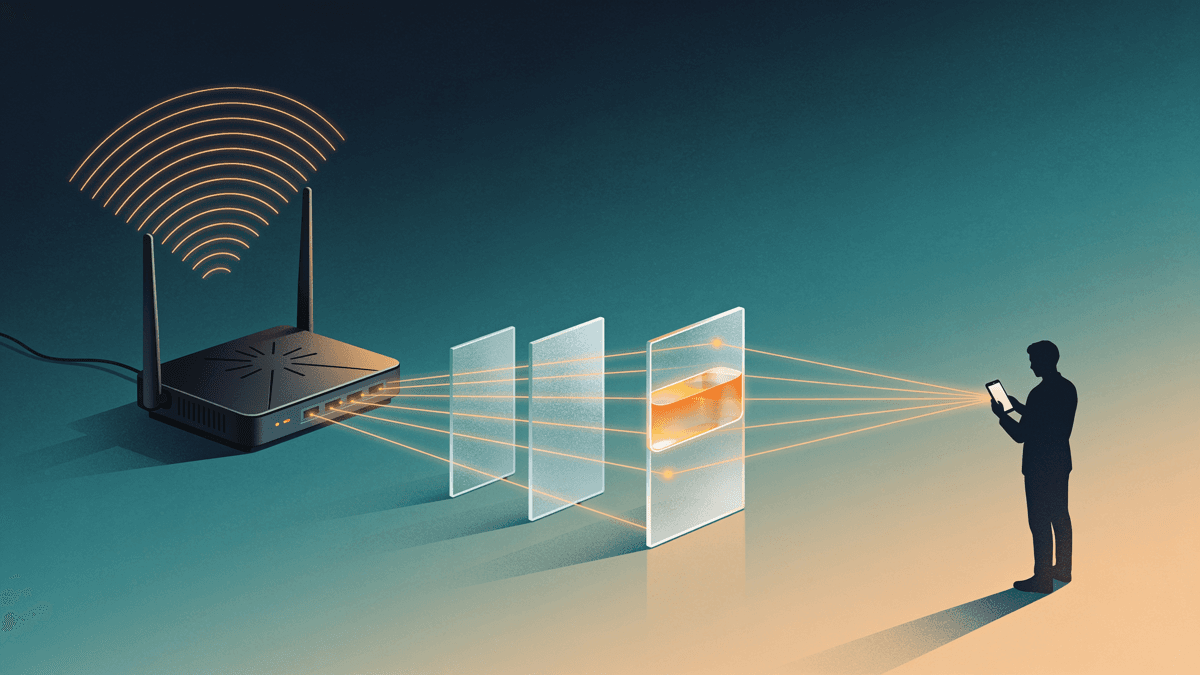
A Wi-Fi owner who looks at the router, or at a service attached to it, can usually reconstruct a list of the sites each device contacted, with times and the amount of data. On an HTTPS site, which is almost every site in 2026, the owner cannot read the page you opened, what you searched for inside the site, your messages or your passwords.
Think of it as the difference between an envelope and a letter. HTTPS seals the letter: the path after the domain (/deals?q=…), cookies, form fields and the page itself travel encrypted. The envelope is another matter. Before the sealed part begins, your phone asks where the site lives, connects to that address, and announces the site's name in the first message of the encrypted handshake. Each of those steps can name the site to anyone who runs the network in between.
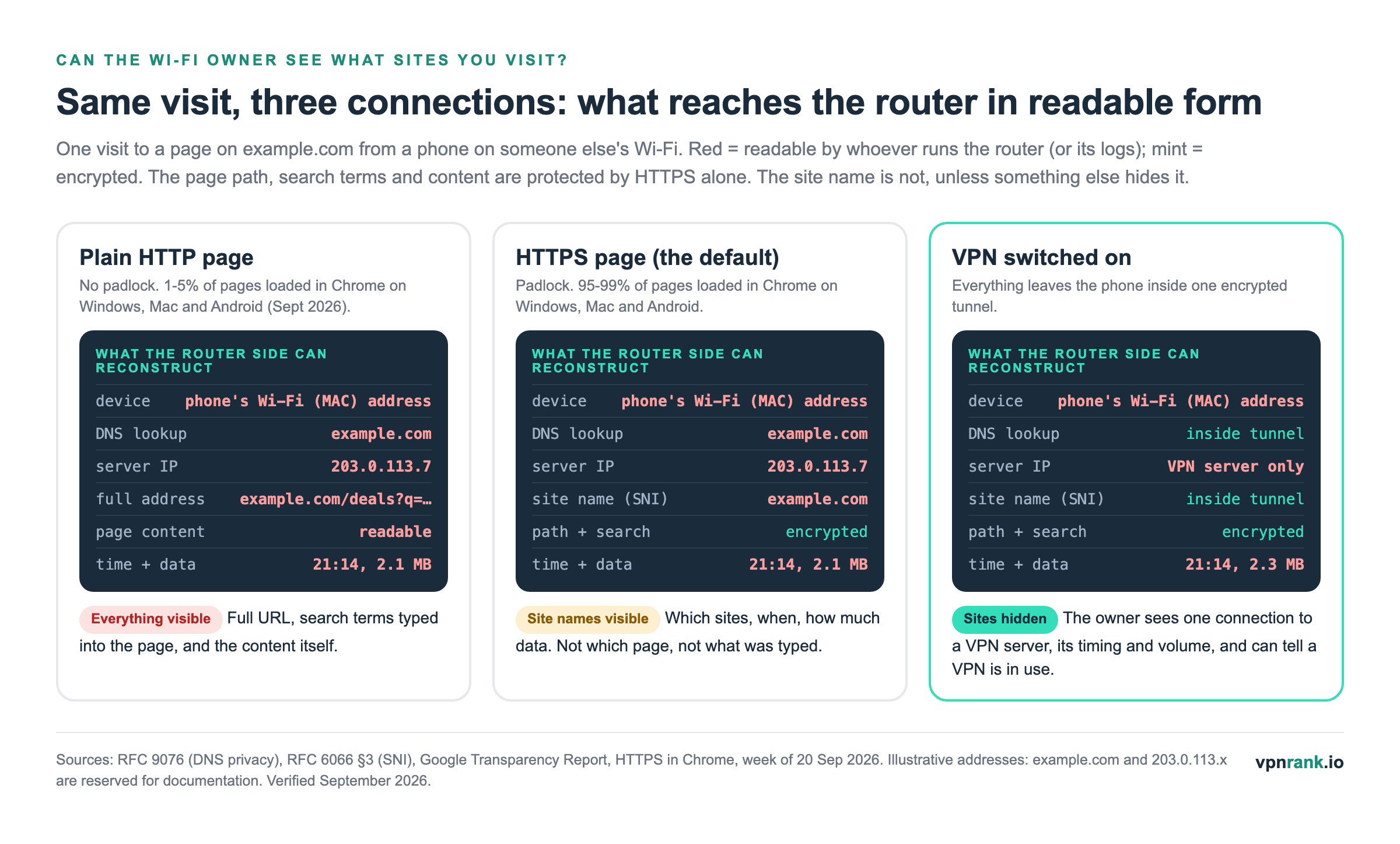
Plain HTTP pages, the ones without a padlock, are the exception. According to Google's Transparency Report, in the week of 20 September 2026 Chrome loaded 95% of pages over HTTPS on Windows, 98% on Mac and 99% on Android, and 98% of pages in the United States. The remaining few percent travel unencrypted, so on those pages the full address and the content are readable to the network. Incognito or private mode changes none of this: it stops the browser saving history on the phone and does nothing to the traffic that crosses the router (more in VPN vs incognito mode).
Practical rule:HTTPS hides what you do on a site; it does not hide which site you are on. To hide the site name from the Wi-Fi owner you need encrypted DNS plus Encrypted Client Hello, or a VPN.
Three messages can name the site before HTTPS encryption starts
Opening an HTTPS site is not a single message. The phone first performs a DNS lookup (it asks a resolver which IP address belongs to the site's name), then connects to that IP address, then starts the TLS handshake, the setup step of HTTPS, by sending a “hello” that names the site. Only after the handshake does the encrypted request for the page go out. The first three messages are the leak.
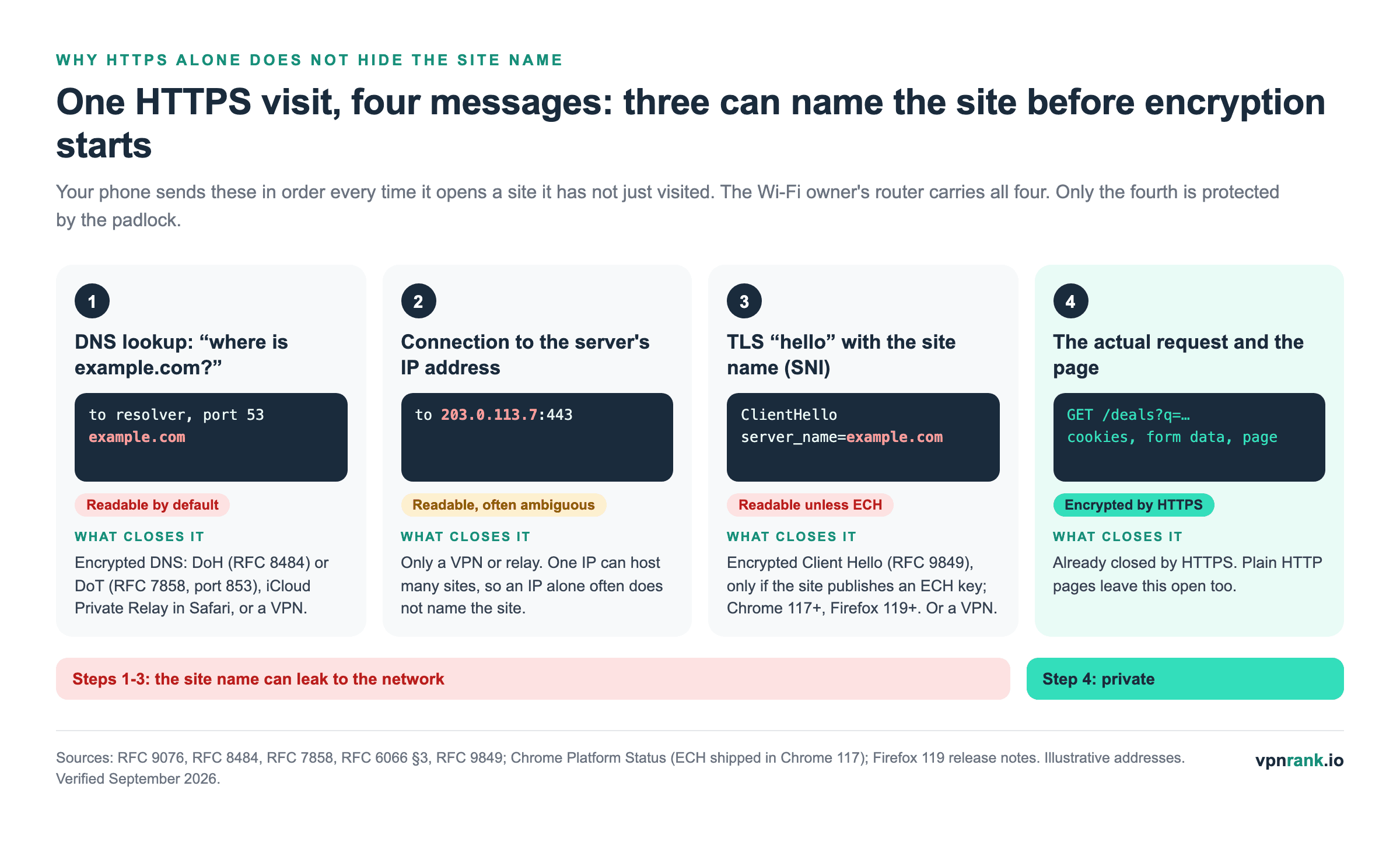
- DNS lookup. RFC 9076, DNS Privacy Considerations, published by the Internet Engineering Task Force (IETF) in 2021, noted that at the time almost all DNS traffic was sent unencrypted. Plain DNS is still unencrypted today, unless your browser or phone upgrades it to DNS over HTTPS (DoH) or DNS over TLS (DoT), so every plain lookup names the site to the network it crosses.
- Server IP address. The router must know where to send your packets, so the destination IP is always visible without a VPN. It is a weaker clue than it sounds: hosting providers routinely serve many sites from one shared address, which is the very reason SNI exists, so an IP often narrows the site down without naming it.
- SNI, the site name in the TLS hello. Server Name Indication, defined in RFC 6066 section 3, lets one server host many HTTPS sites by having the browser state the hostname in its first handshake message, the ClientHello. In standard TLS that message is not encrypted, so the site name crosses the router in readable form even when DNS is encrypted.
Each leak has its own fix, and a fix for one does not close the others. Encrypted DNS hides the lookup but not the SNI. Encrypted Client Hello hides the SNI, but only for sites that support it, and it gains little if the DNS lookup has already named the site in plain text. A VPN closes all three at once because the lookup, the IP and the handshake all happen inside the tunnel.
| What crosses the router | Plain HTTP | HTTPS (default) | HTTPS + encrypted DNS + ECH | VPN on | What this doesn't prove |
|---|---|---|---|---|---|
| Site name in the DNS lookup | Visible | Visible | Hidden | Hidden | Chrome's automatic mode only encrypts if your DNS provider supports it, and can fall back |
| Server IP address | Visible | Visible | Visible | Hidden (VPN server IP shown) | A shared IP may not identify the site |
| Site name in the TLS hello (SNI) | No TLS | Visible | Hidden only if the site supports ECH | Hidden | Each site must publish an ECH key first |
| Page path and search terms | Visible | Hidden | Hidden | Hidden | The site itself still sees them |
| Page content, messages, passwords | Visible | Hidden | Hidden | Hidden | Monitoring apps on the phone can still see them |
| Device, time and data volume | Visible | Visible | Visible | Visible | A VPN does not hide that the phone is online |
What the Wi-Fi owner can read, by connection type. Sources: RFC 9076, RFC 6066, RFC 8484, RFC 9849, Chrome Help (secure DNS), Chrome Platform Status (ECH). Verified September 2026.
What a home router records depends on the model and its settings
Being able to see traffic and keeping a readable history are different things. Many home routers keep no browsing history by default, some keep a short log only when a filtering feature is switched on, and others, such as mesh systems with a parental-controls service, build a report of sites per person. What the Wi-Fi owner can actually look back on depends on which of these the router has and whether it was turned on.
NETGEAR's own support page for Nighthawk routers such as the R7000 shows the limits well. The activity log stores up to 256 entries, and entries appear only when keyword blocking is enabled; the device set as the router's “trusted” device, which is exempt from blocking, leaves no entries. Each entry shows the date and time, the source IP of the device, the target address (the site's name or IP) and whether access was allowed or blocked. The steps to open it on those models:
- 1On a device connected to the router's Wi-Fi, open a browser and go to
routerlogin.net. - 2Sign in with the router's admin user name and password.
- 3Select ADVANCED > Administration > Logs.
- 4Read the Date and time, Source IP, Target address and Action columns. Clear Log empties the list.
Router parental-control services go further, and TP-Link's basic tier costs nothing extra. TP-Link's HomeShield page lists a “Browser History Analysis” report that shows which websites family members visit, alongside “Online Time Analysis”; its free Basic parental-control tier includes Insight, and the paid Advanced tier adds Comprehensive Insight. Either way the report is built from the same network-level signals shown above, so it lists sites, not pages or searches. If you run your own router and want to know what it keeps, the admin app or page is the place to check, and our router VPN setup guide covers the other direction.
| Router or feature | What the owner can review | Where | Limit stated by the vendor |
|---|---|---|---|
| NETGEAR Nighthawk (e.g. R7000) activity log | Time, device IP, site name or IP, allowed or blocked | ADVANCED > Administration > Logs | Up to 256 entries; only when keyword blocking is on |
| TP-Link HomeShield reports (Deco and Archer) | Which websites family members visit; time online | Deco or Tether app, Parental Controls / Family tab | Basic tier: Insight; paid Advanced tier: Comprehensive Insight |
| Any router's device list (DHCP) | Each device's name and Wi-Fi (MAC) address, current IP | Router admin page or app | iPhone private Wi-Fi address changes the MAC shown, not the fact that a device is present |
| Company or school Always On VPN (managed Apple devices) | All traffic from the device, filtered and monitored | Organisation's device management (MDM) | Configured by the organisation, not by the Wi-Fi router |
What common router features let the Wi-Fi owner review. Sources: NETGEAR KB 24224, TP-Link HomeShield page, Apple Support 102509, Apple Platform Deployment VPN overview. Verified September 2026.
The device list is the part people forget. The router hands every phone an IP address through DHCP, the automatic address system, and lists it with a device name and its Wi-Fi hardware (MAC) address. Apple's private Wi-Fi address feature gives an iPhone a different address on each network, set to Fixed by default on networks with WPA2 or stronger security, so the owner of your home or office network still sees the same stable identifier for your phone every day. It stops tracking across networks; it does not make you anonymous on one.
Free settings hide some site names without a VPN, and each has a gap
Before paying for anything, three free tools on your own device close part of the leak. Encrypted DNS hides the lookup, Encrypted Client Hello hides the site name in the handshake for sites that support it, and iCloud Private Relay covers Safari on an iPhone or Mac with an iCloud+ plan. None of them hides the destination IP from the router, and each switches off in situations the owner controls.
- 1Chrome secure DNS. Google's Chrome Help page gives the path on a computer: More > Settings > Privacy and security > Security, then under Advanced, Use secure DNS. It is on by default in automatic mode, but automatic mode only encrypts lookups when your current DNS provider supports it, and on most home Wi-Fi the router hands out the internet provider's DNS, which often doesn't. Automatic mode also falls back to an unencrypted lookup if the encrypted one has problems. Choosing a custom provider from the drop-down menu turns encryption on and stops the fallback. Google also states the feature cannot be used on a managed device or with parental controls on.
- 2Android Private DNS. Android 9 and later can encrypt DNS for every app with DNS over TLS (DoT, RFC 7858). The Android developers blog states that devices automatically upgrade to DNS over TLS if the network's DNS server supports it; entering a Private DNS provider hostname under Network & internet sets a specific provider.
- 3Encrypted Client Hello. Nothing to switch on: Chrome shipped it in version 117 and Firefox made it available in version 119, released 24 October 2023. It only works when the website publishes an ECH key in DNS, which is why it pairs with encrypted DNS.
- 4iCloud Private Relay. On iPhone: Settings > [your name] > iCloud > Private Relay. Apple says it protects web browsing in Safari, DNS queries and insecure HTTP traffic from apps, and it encrypts your DNS queries so that no single party, Apple included, sees both who you are and which site you visit. It needs iCloud+ and is not available in every country or region.
Each of these has an off switch in the network owner's hands. Apple's guide for network administrators explains that a network can block Private Relay by making its DNS refuse two Apple hostnames; the iPhone then alerts you to disable Private Relay for that network or choose another one. Per-network, the same switch is Settings > Wi-Fi > (i) > Limit IP Address Tracking, and turning it off disables Private Relay on that network for every device on your Apple Account. HTTPS traffic from apps outside Safari is not relayed, so those apps' server names still appear in the TLS hello.
A VPN hides every site name from the Wi-Fi owner, but not the VPN itself
A VPN (virtual private network) wraps everything the phone sends in one encrypted tunnel to a VPN server, and the server makes the real requests. The DNS lookup, the destination IP and the TLS hello all happen inside that tunnel, so the router only sees a single connection to the VPN server's address. It covers every app's whole connection; Private DNS hides only lookups, and Private Relay covers whole connections only in Safari.
What the owner still sees: that your device is online, when, how much data it moves, and the IP address of the VPN server, which usually makes it obvious a VPN is in use. For hiding sites from a local network the server location barely matters; pick the nearest server for speed, since the goal is the tunnel, not a different country. The DNS has to go through the tunnel too, or the lookup leaks around it. Proton VPN's free plan, for example, has no data or time limits and no ads, which is enough to keep one phone's browsing off a shared network. After connecting, check the result with our is my VPN working test and the WebRTC leak test.
The trade is that whoever runs the VPN server is now in the position the Wi-Fi owner was in: it can see the site names you connect to. That is why the provider's logging policy and whether it has been independently audited matter more than its server count; what a no-logs VPN actually promises explains how to read those claims. Some hotel and airport networks block common VPN connections; obfuscated servers, which disguise VPN traffic as ordinary HTTPS, exist for that case (see obfuscated servers explained).
A VPN cannot hide what software on the phone itself reports
Everything above is about traffic crossing the router. A VPN does nothing about software or settings on the device, because those see your activity before it is encrypted. If the Wi-Fi owner is also the person who manages your phone, your child account or your work laptop, the network is not where they look, and hiding traffic from the router changes nothing they can see.
- Apple Screen Time and Family Sharing. Apple's Screen Time page describes Ask to Browse, which sends the parent a request when a child wants to visit a new website in Safari or another supported browser, plus allow and block lists. These run on the device, so a VPN does not affect them.
- Work and school devices. Apple's deployment guide says an organisation using Always On VPN can monitor and filter traffic to and from the device and restrict its internet access. On a managed device, Chrome's own help page says secure DNS cannot be used at all.
- Synced browser history and accounts. If you are signed in to a browser or account that someone else can open, your history is readable there regardless of the network.
- The sites themselves. The site you visit always sees your activity on it. A VPN changes the IP address it sees, not your login.
Changing the network does not help against any of this either. Switching to mobile data moves the view from the Wi-Fi owner to your mobile carrier, which sees the same site names through the same DNS and SNI mechanism. This guide does not cover getting around a parent's controls on a child's device or an employer's policy on a work device; on those, the honest route is asking the person who set them up.
Your search history does not appear on the Wi-Fi bill, but the ISP can see sites
A common worry is that the monthly bill lists what each person browsed. It does not. Comcast's guide to reading an Xfinity bill walks through the billing date, service period, services, add-ons, equipment rentals, and taxes and fees; nothing in it lists websites or searches. The bill is an invoice for the connection, and whoever pays it learns nothing about browsing from it.
The internet provider behind the bill is a different matter, because it carries the same DNS lookups and SNI names as the router. The US Federal Trade Commission's October 2021 staff report on six large providers found that many collect far more than customers expect, including access to all of their internet traffic, and that several combine personal, app usage and web browsing data to target ads. The account holder cannot pull your history from the provider through the bill, but the provider can see the sites, which is the second reason people use a VPN at home as well as on shared Wi-Fi.
If a protection setting fails on someone else's Wi-Fi, the network is usually the cause
Networks you do not run often behave differently from your home connection. Hotels add login pages, offices block encrypted DNS, and some public hotspots refuse VPN protocols. The symptom usually tells you which layer the network is interfering with, and the fix is to change that layer rather than to switch every protection off at once.
- 1If your iPhone says Private Relay is not available on this network, the network is blocking it on purpose, as Apple's administrator guide allows. Either disable it for that network (Limit IP Address Tracking) and use a VPN instead, or choose a different network.
- 2If pages stop loading after choosing a custom secure DNS provider in Chrome, the network is probably blocking that provider. Chrome does not fall back in custom mode, so switch back to automatic mode or turn secure DNS off while on that network.
- 3If the VPN connects but a hotel or café login page never appears, disconnect the VPN, complete the login page, then reconnect. The login page has to load before any tunnel can get out.
- 4If the VPN will not connect at all on a hotel or airport network, switch the app's protocol or use an obfuscated server, which disguises VPN traffic as normal HTTPS. On a school or workplace network that forbids VPNs, follow the network's rules instead.
Who runs the network changes what they can realistically see
The mechanism is identical on every Wi-Fi network, but what the owner does with it varies. A parent with a basic router may see nothing unless a family-safety feature is on. A café may log nothing at all. An employer or university may inspect everything and has rules about what you may use. Matching the answer to the network is more useful than assuming the worst everywhere.
- Shared flats and dorms. The person with the router's admin login, often a landlord or the building's provider, is the one in a position to review traffic. Private Relay or a VPN keeps site names off that router.
- Cafés, hotels and airports. The operator sees what any router owner sees, and our public Wi-Fi risks guide covers the rest. The protections above work the same way here, subject to the network blocking them.
- Work and school. Treat these networks as monitored. Use your own mobile data for anything private, and remember that a managed device reports from the inside whatever network it is on.
To see what the network sees about you right now, check your public IP address with and without a VPN. If you decide a paid VPN is worth it, our VPN Price Index tracks what each provider actually charges today, and the free VPN comparison covers the no-cost options.
VPNs that fit this job
Hiding site names from a Wi-Fi owner needs a VPN that routes DNS through its tunnel, works on networks that resist VPNs, and covers every device you use. Four providers from our list match one of those needs each; the wider ranking is on our VPN privacy ranking.
| VPN | Best for | 2-year price | Why | Deal |
|---|---|---|---|---|
| Proton VPN | Free option for one phone | $2.99/mo30-day refund | Proton VPN's free plan has no data or time limits and shows no ads, according to Proton's own free-plan page (checked September 2026). It covers one device, which is enough to keep a single phone's site names off a shared router without paying. | Get dealPrice today |
| ExpressVPN | Keeping DNS lookups off the router | $2.79/mo30-day refund | ExpressVPN says it runs its own private, encrypted DNS on every VPN server, so lookups travel inside the tunnel and never go out to third-party resolvers. That closes the DNS leak this guide describes. | Get dealPrice today |
| NordVPN | Hotel and airport Wi-Fi that blocks VPNs | $3.09/mo30-day refund | NordVPN's help centre says its Obfuscated Servers now run on NordWhisper, a protocol that makes VPN traffic resemble regular web traffic on networks that block VPNs. They sit under Specialty servers in the Windows, macOS, Android and iOS apps. | Get dealPrice today |
| Surfshark | Every device in a shared house | $1.78/mo30-day refund | Surfshark's support centre states that Starter, One and One+ plans allow an unlimited number of devices to connect at the same time, so phones, laptops and a TV on someone else's Wi-Fi can all use the tunnel on one subscription. | Get dealPrice today |
Prices are the 2-year plan per month in USD from our VPN Price Index, checked daily.
Need a different use case? See the full privacy ranking
Frequently asked questions
If I delete my browsing history, can the Wi-Fi owner still see it?
Yes, if the router or a parental-control service recorded it; the internet provider keeps its own records, which the Wi-Fi owner cannot read through the bill. Deleting history on your phone or laptop only clears the copy stored in your browser. A router log or a parental-control report sits on other equipment, so clearing your browser does not touch it. A VPN switched on before browsing prevents the router from recording site names in the first place; deleting history afterwards cannot remove what was already logged elsewhere.
How do I hide my browsing history from the Wi-Fi owner?
Use a VPN, which hides every site name from the router and leaves only a connection to the VPN server. Without a VPN, turn on encrypted DNS in your browser or phone and use a browser with Encrypted Client Hello, which hides site names for sites that support it; on an iPhone with iCloud+, Private Relay covers Safari. None of these hide activity from monitoring apps or Screen Time on the device.
Can someone see everything on my phone if I use their Wi-Fi?
No. Joining someone's Wi-Fi gives them a view of your traffic, not your phone. They can see which sites and services your phone contacts, when and how much data, plus its device name and Wi-Fi address. They cannot see your photos, messages, app content or the pages you read on HTTPS sites. Only software installed on the phone, or a management profile, can see more.
How does a Wi-Fi owner see what sites I visit on my phone?
Through the router. Your phone's DNS lookups, the IP addresses it connects to and the site name in each HTTPS handshake pass through the router, and the owner can read them in a router log, a parental-control report or a network monitoring tool. Many home routers keep no history by default; some log only when filtering is switched on.
Can my parents see my browsing history on Wi-Fi?
They can see which sites were visited if their router or a family-safety service keeps that record, such as a parental-control report listing websites per profile. They cannot see the pages, searches or messages on HTTPS sites through the router. If your phone uses Screen Time or another parental control set up by them, that works on the device itself and can apply rules regardless of the network.
Does incognito mode hide websites from the Wi-Fi owner?
No. Incognito or private mode only stops the browser from saving history, cookies and form data on your own device after you close the window. The DNS lookups and connections still cross the router exactly as in a normal window, so the Wi-Fi owner sees the same site names. To hide them from the network you need encrypted DNS with ECH, or a VPN.
Can the Wi-Fi owner see what I search on Google?
Not the search terms. Search engines use HTTPS, so the words you type and the results page are encrypted between your browser and the search engine. The Wi-Fi owner can see that you contacted the search engine, and then which site you opened from the results, because that new site's name leaks through DNS and SNI like any other visit.
Sources we read for this guide
- DNS over HTTPS (Chromium Projects)
- RFC 9076: DNS Privacy Considerations (IETF, 2021)
- RFC 8484: DNS Queries over HTTPS (IETF, October 2018)
- RFC 7858: DNS over Transport Layer Security (IETF, May 2016)
- RFC 6066: TLS Extensions, section 3 Server Name Indication (IETF, January 2011)
- RFC 9849: TLS Encrypted Client Hello (IETF, 2026)
- Chrome Platform Status: TLS Encrypted Client Hello (shipped in Chrome 117)
- Firefox 119.0 release notes (Mozilla, 24 October 2023)
- Manage Chrome safety and security: Use secure DNS (Google Chrome Help)
- DNS over TLS support in Android P (Android Developers Blog)
- HTTPS encryption on the web (Google Transparency Report)
- About iCloud Private Relay (Apple Support)
- Protect your web browsing with iCloud Private Relay on iPhone (Apple iPhone User Guide)
- Prepare your network or web server for iCloud Private Relay (Apple Developer)
- Use private Wi-Fi addresses on Apple devices (Apple Support)
- Use Screen Time to manage your child's iPhone or iPad (Apple Support)
- VPN overview for Apple device deployment (Apple Platform Deployment)
- How do I view the activity logs of my Nighthawk router? (NETGEAR KB 24224)
- HomeShield (TP-Link)
- FTC staff report on ISP privacy practices (Federal Trade Commission, October 2021)
- Understanding your Xfinity bill (Comcast)
- Proton VPN free plan (Proton)
- A VPN with a private DNS (ExpressVPN)
- How to connect to NordVPN's obfuscated servers (NordVPN Help Center)
- NordVPN Obfuscated Servers are getting an upgrade (NordVPN Help Center)
- How many devices can I use with Surfshark simultaneously? (Surfshark Support)