VPN Won't Connect? 9 Fixes That Actually Work
A practical, step-by-step troubleshooting guide — from switching servers and protocols to clearing DNS, fixing your clock, and a clean reinstall.

vpnrank.io is reader-supported: we may earn a commission if you buy through links in this article. This never affects our rankings.
When a VPN won't connect, the cause is almost always one of a handful of ordinary problems: an overloaded server, a protocol your network is quietly blocking, a firewall, or a system clock that's out of sync. Work through the nine fixes below in order and most people are back online within a few minutes.
The first checkpoint that fails is the only one worth fixing
A VPN connection is not one event. Your device has to clear a sequence of checkpoints: a working local network, any hotel or café login page, a lookup of the server's name, packets actually reaching the server, a certificate handshake, an account check, and finally traffic moving inside the tunnel. Each one depends on the one before it. That is why the nine fixes below are ordered the way they are, and why the error message you see matters more than most guides admit — it usually tells you which checkpoint you are stuck at.
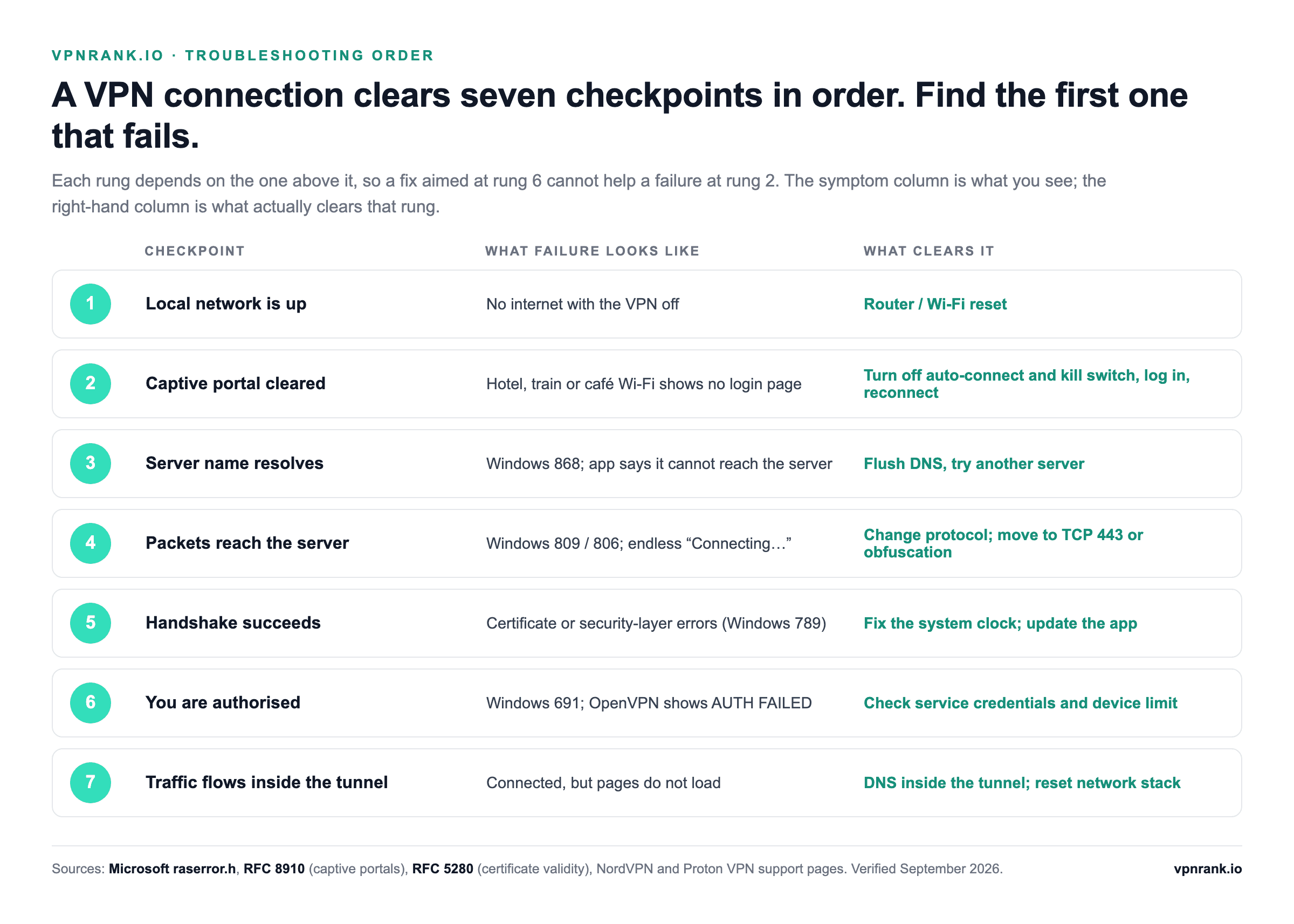
Practical rule:Find the first checkpoint that fails and fix only that one. A fix aimed at a later checkpoint cannot repair an earlier one — new login details will never get you past a hotel Wi-Fi login page.
Start here: the 30-second reset
Before you change any settings, rule out the temporary glitches that cause a surprising share of failures. Network stacks, VPN clients, and routers all cache state that can go stale, and a clean restart clears most of it. This is the single highest-value step, so do it first even if it feels too simple to matter.
- 1Fully quit the VPN app — don't just disconnect. On Windows, close it from the system tray; on macOS, quit it from the menu bar.
- 2Toggle your internet off and on: disable Wi-Fi for ten seconds, then re-enable it, or unplug your router, wait ten seconds, and plug it back in.
- 3Reopen the VPN app and try connecting to your default server again.
- 4If you're on mobile, toggle Airplane Mode on and off to force the network to re-register.
Also confirm the obvious: is your internet working at all without the VPN? Open a website with the VPN off. If nothing loads, the problem is your connection, not the VPN — and no amount of VPN troubleshooting will help until that's fixed.
Fix 1: Switch to a different server
Individual VPN servers go down, get overloaded at peak hours, or fall out of rotation for maintenance. If your usual server is having a bad day, the app will report a connection failure that has nothing to do with your setup. Switching servers is the fastest test because it isolates the problem to one machine.
- Pick a server in a nearby city or the same country first — closer servers are lower-latency and more likely to connect cleanly.
- If a specific country keeps failing, try a second location in that country before assuming the whole region is blocked.
- Avoid servers flagged as "busy" or showing a high load percentage if your app displays one.
- Use the app's "Quickest" or "Optimal location" option, which routes you to the least-loaded server automatically.
If a fresh server connects instantly, you've found and solved the problem — the original server was the issue. It's also worth checking your provider's status page or social feed for a reported outage before you dig any deeper.
Fix 2: Change the VPN protocol
The protocol is the language your device and the VPN server use to talk. Networks — especially on university, office, and hotel Wi-Fi — sometimes block one protocol while allowing others. If your app is stuck on a protocol the network doesn't like, it will silently fail to handshake no matter which server you pick.
Head into your app's settings and look for a Protocol or Connection option. The usual choices, and when to reach for each:
- Automatic — let the app choose. Try this first; it often solves the problem on its own.
- WireGuard (NordVPN's NordLynx is built on it; ExpressVPN's Lightway is a separate protocol of its own that fills the same role) — modern, fast, and the best default in 2026.
- OpenVPN (UDP) — reliable and quick; a solid fallback when WireGuard is blocked.
- OpenVPN (TCP) — slower but stubborn; it retransmits lost packets and slips through more restrictive networks.
- IKEv2/IPsec — excellent on mobile because it reconnects smoothly when you switch between Wi-Fi and cellular.
Change one protocol at a time and retry the connection after each. If every protocol fails on one network but the VPN works elsewhere, the network itself is doing the blocking — which the next two fixes address.
Fix 3: Move to port 443 or turn on obfuscation
Firewalls block VPN traffic by watching the ports it uses. VPNs typically ride on UDP 1194 (OpenVPN), UDP 500 and 4500 (IKEv2), or a WireGuard port — all of which a restrictive network can shut down. The trick is to route your VPN through a port that can't be blocked without breaking the whole internet.
That port is TCP 443 — the same one every HTTPS website uses. When your VPN runs OpenVPN over TCP 443, its traffic looks like ordinary encrypted web browsing, so a firewall can't single it out. Two ways to get there:
- 1In your app's protocol settings, choose OpenVPN (TCP) — many clients default it to port 443 automatically, which is the fastest win on a locked-down network.
- 2Enable your provider's obfuscation, stealth, or camouflage mode. This wraps VPN traffic to disguise it further, defeating deep-packet inspection on networks that block VPNs by signature rather than by port.
Obfuscation is the heavier tool — it's what gets a VPN working on networks that actively hunt for and block VPN traffic. If a plain protocol switch didn't help, this usually does. This is also the setting that most often gets a VPN working from restrictive regions, so it's worth choosing a provider that includes it — something our VPN privacy guide weighs heavily when ranking apps.
Fix 4: Whitelist the VPN in your firewall and antivirus
Security software is a leading cause of silent VPN failures. Firewalls and antivirus suites inspect outbound connections, and an overzealous rule can quietly drop your VPN's traffic before it ever reaches the server. Because the block happens locally, the app just reports a generic timeout with no obvious cause.
- Temporarily disable your third-party firewall or antivirus, then try to connect. If it works, you've found the culprit — re-enable the software immediately and add an exception instead of leaving it off.
- Add your VPN app (and its background service or helper, if it has one) to the allowed-apps list in both your firewall and antivirus.
- On Windows, check Windows Defender Firewall's allowed apps list under Settings, and make sure both private and public network boxes are ticked for your VPN.
- Watch for overlap: two VPNs, or a VPN plus a separate proxy or security tool, can fight over the network adapter and block each other.
Never leave your firewall or antivirus switched off as a permanent fix — that trades a minor annoyance for a real security hole. Whitelisting gives you the connection back while keeping your protection intact.
Fix 5: Correct your system clock
This is the fix nobody expects and it's genuinely common. VPNs use TLS certificates to prove the server is legitimate, and certificate validity is time-based. If your device's clock is wrong — even by a few minutes in some cases, or by hours after a dead battery or timezone glitch — your device may decide the server's certificate is expired or not yet valid, and refuse to connect.
The rule behind this is written down in RFC 5280, the standard for internet certificates. It defines every certificate's validity as a window between two dates, notBefore and notAfter, and has the client compare that window against the time at which it is checking — a time the client takes from its own clock. A laptop whose clock has drifted back a year will reject a certificate issued last month as not yet valid, even though the server did nothing wrong.
- On Windows: Settings → Time & language → Date & time → turn on "Set time automatically" and click "Sync now."
- On macOS: System Settings → General → Date & Time → enable "Set time and date automatically."
- On iPhone and Android: Settings → General/System → Date & Time → enable automatic/network-provided time.
- Double-check the timezone too — a correct clock in the wrong zone can still throw certificate errors.
After syncing to network time, close and reopen the VPN app so it starts a fresh handshake. If a certificate or TLS error was in your logs, this fix often clears it instantly.
Fix 6: Flush your DNS and reset the network stack
Your operating system caches DNS records and network configuration to speed things up, but a stale or corrupted cache can leave the VPN pointing at the wrong address or unable to resolve its server hostname. Flushing the cache and resetting the network stack clears that state without touching your VPN settings.
On Windows
Open Command Prompt as Administrator and run these commands one at a time, then restart your PC:
- ipconfig /flushdns — clears the DNS resolver cache
- netsh winsock reset — resets the network socket catalog
- netsh int ip reset — resets the TCP/IP stack
On macOS
Open Terminal and run: sudo dscacheutil -flushcache && sudo killall -HUP mDNSResponder. Enter your password when prompted, then relaunch the VPN. This clears the macOS DNS cache, which resolves a class of "connected but no internet" and hostname-resolution failures.
If your internet works but sites won't load only while the VPN is on, this is frequently the fix. It's also worth confirming the VPN isn't leaking DNS afterward, so your real location stays hidden — our VPN privacy guide walks through how to verify everything's routing correctly.
Fix 7: Update the app, then reinstall if needed
Outdated VPN clients cause more connection failures than almost any other single factor. Providers push frequent updates to keep pace with protocol changes and network blocks, and a client that's a few versions behind can simply stop handshaking. Start with an update; escalate to a clean reinstall only if that fails.
- 1Update the app from your provider's site or your device's app store, then retry.
- 2If it still won't connect, fully uninstall the VPN — on Windows, remove it via Settings → Apps, and let it delete its network driver (the TAP or WireGuard adapter) when prompted.
- 3Restart your device to clear any leftover network adapter state.
- 4Download the latest installer fresh from the provider and, on Windows, right-click and "Run as administrator" so it can install its driver cleanly.
- 5Sign in and connect.
A clean reinstall rebuilds the VPN's virtual network adapter from scratch. When you're seeing adapter errors — "no TAP adapters available" or a driver warning — this is the definitive fix, because those errors mean the adapter itself is broken or in use by another app.
Sometimes the app itself is the weak link — a client that reconnects reliably, ships frequent updates, and offers obfuscation and multiple protocols out of the box saves you most of this troubleshooting. See how the top providers compare in our best VPN rankings.
See our top-ranked VPNs →Fix 8: Try a different network
If you've worked through everything above and the VPN still won't connect, the fastest way to locate the problem is to change networks entirely. Some networks — corporate, campus, guest, and certain public Wi-Fi — block VPNs at the router level, and nothing you do on your device will override that.
- Switch from home or office Wi-Fi to your phone's mobile hotspot and try connecting.
- If the VPN connects instantly on the hotspot, your original network is the block — go back to Fix 3 (port 443 and obfuscation) to try to bypass it.
- If it fails on both networks, the problem is your device or account, not the network — revisit the reinstall and clock fixes.
- On networks you control, log into the router and check for VPN passthrough settings, which must be enabled for some protocols.
This test cleanly separates "the network is blocking me" from "my setup is broken," which tells you exactly where to spend your remaining effort. Running the VPN on your router is one way to sidestep flaky per-device networks entirely — see our guide to VPN routers.
Fix 9: Check your account, then contact support
If the app opens, servers are up, and your network isn't blocking anything, the issue may be your account or a bug on the provider's end. These are quick to rule out and worth checking before you spend more time on settings you've already verified.
- Confirm your subscription is active and hasn't lapsed or hit a payment failure.
- Make sure you haven't exceeded the simultaneous-device limit — the newest device to connect can knock an older one offline.
- Sign out and back in to refresh your authentication token.
- Check the provider's status page and support channels for a known outage.
Good providers offer 24/7 live chat, and their agents can see server-side logs you can't. Before you reach out, note your protocol, the server you tried, your operating system, and any error message — it turns a long back-and-forth into a two-minute fix. Choosing a provider with strong support is one reason our streaming VPN guide and overall rankings weight reliability so heavily.
Windows numbers its VPN errors, and each number points at one layer
If you connect through Windows' built-in VPN client — the one you use when you add a VPN connection by hand rather than through a provider's app — a failed attempt comes with a number. Those numbers are not arbitrary. Microsoft defines each one in its Routing and Remote Access error list (the raserror.h header), and the definition names the layer that failed. Read the number before you change a single setting: it tells you which of the fixes above is worth your time.
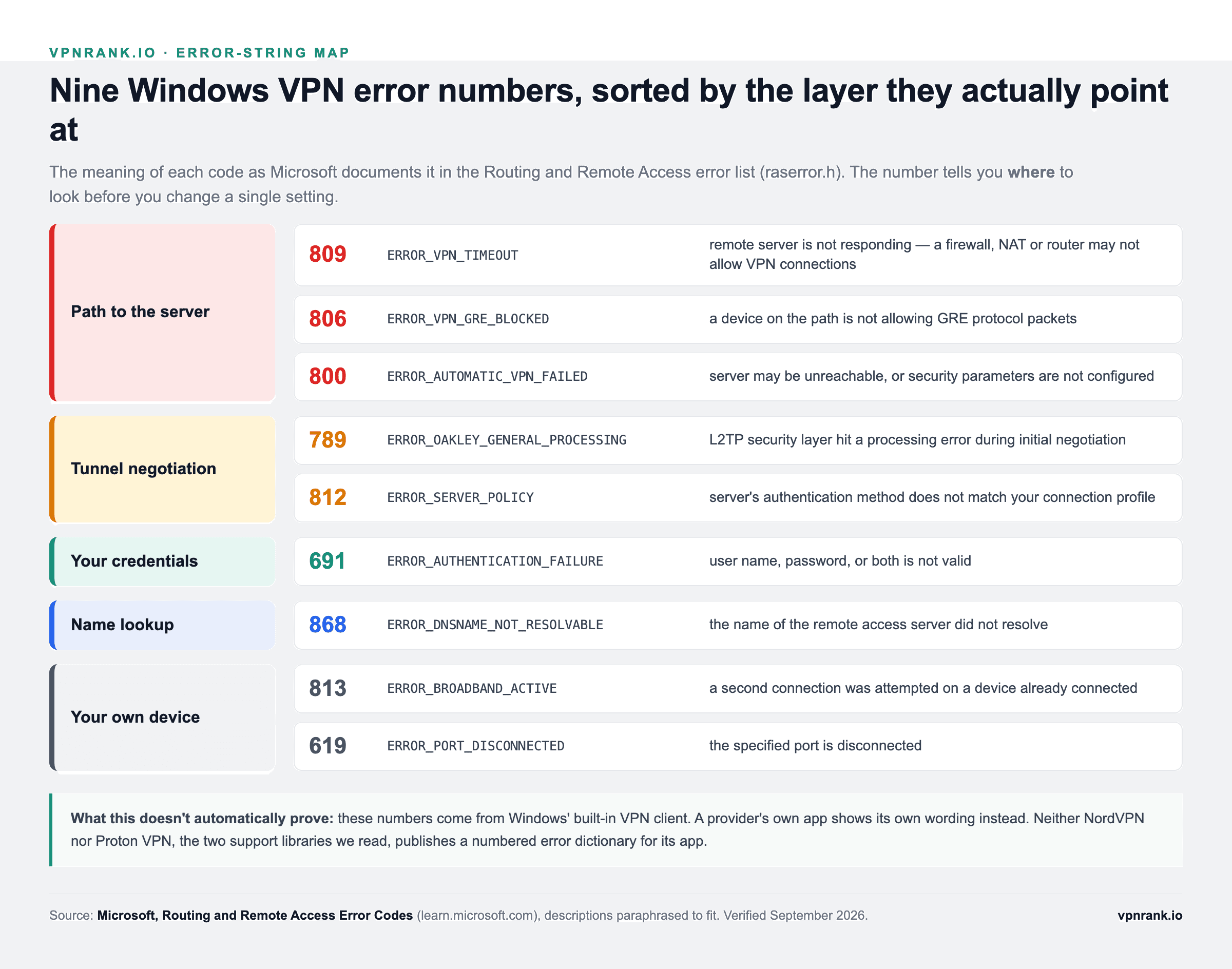
| Code | Microsoft's description (shortened) | Layer | First thing to try | What it doesn't automatically prove |
|---|---|---|---|---|
| 809 | The remote server is not responding; a firewall, NAT or router on the path may not be configured to allow VPN connections | Path to the server | Try the same connection on a phone hotspot. If it works there, change protocol or move to TCP 443 on the original network | That the VPN server is down — the block is usually on your side of the path |
| 806 | The connection started but cannot complete; a device on the path is not allowing GRE protocol packets | Path to the server | Use a different protocol, or your provider's own app, instead of the manual connection | Anything about protocols that don't use GRE |
| 800 | Unable to establish the VPN connection; the server may be unreachable, or security parameters may not be configured | Path or tunnel set-up | Check the server address, then the VPN type set in the connection's properties | Which of the two layers failed — it narrows the search, it doesn't finish it |
| 789 | The L2TP security layer hit a processing error during initial negotiation | Tunnel negotiation | Re-enter the pre-shared key or certificate from your provider's setup page; check the system clock | Anything, if you are not using L2TP/IPsec |
| 812 | A policy on the server blocked the connection; the authentication method may not match your profile | Tunnel negotiation | Match the authentication method in the connection's settings to your provider's instructions | That your password is wrong — the method is what doesn't match |
| 691 | Access denied: the user name, password, or both is not valid | Your credentials | Some providers, Proton VPN among them, issue separate credentials for manual set-ups — use those, not your website login | That your subscription has ended — check the account separately |
| 868 | The name of the remote access server did not resolve | Name lookup | Flush DNS and retype the server address exactly as your provider lists it | That the server is offline; your device just can't find its address |
| 813 | A second connection was attempted on a device or port that is already connected | Your own device | Disconnect the existing connection first, then retry | A server or network problem of any kind |
| 619 | The specified port is disconnected | Your own device or the path | Disable and re-enable the network adapter, then retry | Much on its own — Microsoft's wording is generic, so pair it with the other symptoms |
Descriptions are shortened from Microsoft's Routing and Remote Access error list, verified September 2026. The layer column is our reading of what each description points at, and the first-fix column maps it to the fixes earlier in this guide.
Provider apps use words, not numbers
Provider apps generally don't show these numbers, because they don't run through Windows' built-in client. They show plain wording instead, and that wording is documented in their own support libraries. Proton VPN's help pages describe an AUTH FAILED message on manual OpenVPN connections and give two causes: entering your Proton account password instead of the separate OpenVPN credentials, or going over the number of simultaneous sessions your plan allows (one on the free plan, up to ten on Plus). Its macOS guide covers a No connection to the internet message at sign-in, with a Troubleshoot button that walks through network blocks, Wi-Fi faults, antivirus software and system-wide proxies.
What neither NordVPN nor Proton VPN publishes — the two support libraries we read for this section — is a numbered dictionary of app error codes. NordVPN's Windows guide describes symptoms instead, such as the app sitting on its Connecting status. So if you come across a list of numbered error codes for a VPN app, check that the vendor's own help centre uses the same numbers before you act on it.
Hotel and train Wi-Fi fail before the VPN even gets a chance
Wi-Fi in hotels, trains, airports and cafés usually sits behind a captive portal: a login or terms page you have to click through before the network lets any other traffic out. There is a standard for it. RFC 8910 lets a network announce its portal through DHCP — option 114 for IPv4, which replaced the code 160 used by the earlier RFC 7710, and option 103 for IPv6 — and through router advertisements. Until you complete that page, the network drops everything else, including your VPN's handshake. From inside the VPN app, that looks exactly like a server failure, on every server you try.
The trap is that two good security features make it worse. NordVPN's support library spells out both: with auto-connect on, the app connects the moment you join the Wi-Fi and stops the portal from loading; and the kill switch blocks all non-VPN traffic, which is precisely the traffic a portal needs. The way through is a short sequence:
- 1Turn off auto-connect and, for now, the kill switch.
- 2Join the Wi-Fi with the VPN fully disconnected.
- 3If the login page doesn't appear by itself, open a plain http:// address in your browser — NordVPN suggests http://example.com. An https:// address won't trigger the redirect.
- 4Complete the login and confirm ordinary pages load.
- 5Reconnect the VPN, then switch the kill switch and auto-connect back on.
Once you're through, run our kill switch test so you know protection is back on before you do anything sensitive on that network. Travelling often? Our travel VPN guide covers what else changes on the road.
Each platform breaks in its own place
The nine fixes apply everywhere, but each operating system has one or two failure modes of its own. The table below is limited to problems a provider or platform vendor documents on its own support pages, and each row names its source. Where we could not find a vendor-documented failure for a platform, it is left out rather than filled with a guess.
| Platform | Documented failure | What you see | Documented fix | Source | What it doesn't automatically prove |
|---|---|---|---|---|---|
| Windows, built-in client | Path, negotiation or credential failure | A numbered error such as 809, 789 or 691 | Read the number against the table above | Microsoft RRAS error list | Anything about provider apps, which don't show these numbers |
| Windows, provider app | App cannot complete a connection | NordVPN: the app stays on Connecting, or shows error notifications | Set the protocol to automatic, add the app to your antivirus exclusions, then use the app's built-in network reset | NordVPN support | That other apps name these tools the same way — the order of steps carries over, the menus don't |
| macOS | Sign-in blocked, or the network extension not yet authorised | Proton VPN: No connection to the internet; a system-password prompt from the Network Extension Agent | Choose Allow or Always Allow; turn off system-wide proxies in network settings | Proton VPN support | That the password prompt is an error — it is macOS asking permission |
| Android 13 | Tunnel drops when switching between Wi-Fi and mobile data | The phone may still show the VPN as connected | Proton's workarounds: disable IPv6 in the mobile APN settings, turn off Always-on VPN and Block connections without VPN, or toggle Airplane mode | Proton VPN support | That every Android 13 phone is affected — Proton says some versions are, and only Google can fix it |
| Any platform, manual OpenVPN | Credentials rejected | AUTH FAILED | Use the separate OpenVPN credentials; free up a session slot | Proton VPN support | That other providers use the same credential scheme |
| Any platform, public Wi-Fi | Captive portal not cleared | Every server fails; no login page appears | Disable auto-connect and kill switch, log in over http://, reconnect | RFC 8910; NordVPN support | A VPN fault at all — the network is holding all traffic |
Note what Proton VPN says about the Android 13 case: the phone can report a connection that has already dropped. If you rely on the VPN on the move, check it with our VPN check after switching networks rather than trusting the status icon, and see our full testing guide for the leak checks.
Port 443 works for a reason you can look up
Fix 3 tells you to move to TCP 443. The logic is easiest to see in the port registry itself. IANA, the body that assigns port numbers, lists OpenVPN on 1194, IKE key exchange on UDP 500 and IPsec NAT traversal on 4500. A restrictive network can block any of those without affecting ordinary browsing. It cannot block TCP 443 without breaking every HTTPS website its users visit.
| Protocol | Default port | Where that number comes from | What it doesn't automatically prove |
|---|---|---|---|
| OpenVPN | 1194, UDP or TCP | IANA registry, service name openvpn, assigned 2004 | That OpenVPN must use 1194 — providers can run it on other ports, TCP 443 included |
| IKEv2 / IPsec | UDP 500, plus UDP 4500 when a NAT sits in the path | IANA registry, isakmp and ipsec-nat-t (RFC 3948, RFC 7296) | That allowing 500 is enough — behind a NAT router the traffic moves to 4500 |
| WireGuard | UDP 51820 in the project's own examples | WireGuard documentation; not an IANA assignment | That it has a TCP fallback — WireGuard sends all packets over UDP |
| HTTPS | TCP 443 | Used by every web browser | That a VPN on 443 is invisible — some networks can still identify VPN traffic, which is what obfuscation features address |
Ports and protocols verified against the IANA Service Name and Transport Protocol Port Number Registry and the WireGuard protocol documentation, September 2026. If 443 alone doesn't get you through, the next step is obfuscated servers, and our protocol guide explains the trade-offs between the three.
The VPN connects, but your printer, NAS or Chromecast disappears
This is the opposite problem: the tunnel works, but devices on your own network stop answering. It happens because a full-tunnel VPN sends everything through the encrypted connection, including traffic meant for the printer three metres away, and a kill switch then blocks whatever tries to go around the tunnel. Nothing is broken; the VPN is doing what it was built to do. Every major app has a switch that lets local traffic bypass the tunnel, but each provider names it differently.
| Provider | Setting name | Where to find it | Default |
|---|---|---|---|
| ExpressVPN | Allow access to devices on local network | App settings, under LAN (applies while Network Lock is on) | On |
| NordVPN | Stay invisible on LAN (turn it off) — on Linux, nordvpn set lan-discovery enabled | Settings → Connection and security | Varies by platform |
| Proton VPN | Allow LAN connections | Settings → Connection (reconnect to apply) | Off |
| Private Internet Access | Allow LAN Traffic | Settings → Network | Varies by platform |
Setting names and menu paths checked against each provider's own help pages, September 2026. If the switch is already on and a device still won't show up, three things are worth checking in order:
- 1Discovery versus address. Printers and casting devices are usually found by broadcast discovery, which some apps still block while allowing direct connections. Try reaching the device by its IP address (for example 192.168.1.20) instead of its name.
- 2Split tunnelling. Exclude the printer driver, the NAS app or the casting app from the tunnel, so only that app uses your normal connection. NordVPN's own printer guide suggests this route on Windows.
- 3A clash of address ranges. If the network you're on uses the same private range as the VPN or the remote network you're reaching (both on 192.168.1.x, say), your device can't tell which side a local address belongs to. Changing your router's LAN range to a less common one, such as 192.168.77.x, removes the clash.
One caution: leave LAN access off on hotel, café and airport Wi-Fi. There, the “local network” is every stranger on the same hotspot, which is exactly the traffic the VPN and kill switch are meant to keep away from your device. If you're unsure whether the tunnel is still protecting you after changing these settings, run our VPN check, and read how the kill switch decides what to block.
How to reset a VPN: from the app up to the whole network
“Reset the VPN” can mean four different things, from light to heavy. Try them in this order and stop at the first one that brings the connection back, because the heavier resets also wipe settings you will have to re-enter.
- Reset the app. Sign out, quit the app completely (including its tray or menu-bar icon), sign back in and set the protocol to Automatic. If that fails, uninstall, restart and install the latest version, as in Fix 7: that rebuilds the app's virtual network adapter.
- Reset the network stack (Windows). The netsh winsock reset and netsh int ip reset commands from Fix 6 reset the socket catalog and the TCP/IP stack without removing any apps or saved networks.
- Network reset (Windows 11). Settings > Network & internet > Advanced network settings > Network reset. Microsoft says it removes every network adapter and its settings, reinstalls the adapters with default settings after the restart, and that you may need to reinstall VPN client software afterwards.
- Reset Network Settings (iPhone). Settings > General > Transfer or Reset iPhone > Reset > Reset Network Settings. Apple says this removes previously used networks and any VPN settings that were not installed by a configuration profile or device management (MDM). A VPN installed by a profile is removed separately under Settings > General > VPN & Device Management > Remove Profile.
On a phone or laptop managed by an employer or school, ask IT before the last two steps: settings installed by management survive the reset, and Apple warns that a VPN or filter setting can come back if the software that created it is still installed.
A white or blank screen is one of two different problems
If the VPN app opens to a white or empty window, the app's own interface has failed to load and the connection was never attempted. Check the window isn't simply off-screen or minimised, quit the app fully, install the latest version and restart the device; if the window is still blank, a clean reinstall (Fix 7) replaces the app's cached files. If instead the VPN says Connected and your browser shows a blank white page, the tunnel is up but pages aren't loading through it: flush DNS (Fix 6), try another server, and on hotel or café Wi-Fi disconnect and log in to the captive portal first, as described above.
When it's a work, school or military VPN that won't connect
Most of this guide assumes a consumer VPN app you control. An employer, university or government VPN client is different: the organisation sets the server address, the protocol, the certificates and the sign-in method — often a password plus a one-time code, or a smart card — so switching servers or protocols is usually not available to you. What you can still check yourself: that your internet works with the VPN off, that the system clock is correct (Fix 5), that the smart-card reader or authenticator app is connected and the card or code is current, that no second VPN or security app is running at the same time, and whether the client connects on a different network such as a phone hotspot. Expired certificates, locked accounts and a client version the server no longer accepts can only be fixed by your organisation's help desk.
Still stuck? A quick diagnostic order
If you've landed here mid-troubleshoot, run through the fixes in this priority order — it's roughly how a support technician would work, moving from the fastest, most common causes to the rarest. Each step narrows down where the problem lives.
- 1Restart the app, internet, and device (the 30-second reset).
- 2Switch to a different server.
- 3Change the protocol — try Automatic, then WireGuard, then OpenVPN TCP.
- 4Move to port 443 and enable obfuscation on restrictive networks.
- 5Whitelist the VPN in your firewall and antivirus.
- 6Correct your system clock and timezone.
- 7Flush DNS and reset the network stack.
- 8Update or cleanly reinstall the app.
- 9Test on a different network, then check your account and contact support.
Nine times out of ten the fix is in the first four steps. And if the whole reason you use a VPN is to keep watching your shows while you travel, our best streaming VPN guide and the best VPNs for Netflix pick up where this one leaves off.
Every source behind this guide was re-read in September 2026
- Microsoft — Routing and Remote Access Error Codes
- RFC 8910 — Captive-Portal Identification in DHCP and Router Advertisements
- RFC 5280 — certificate validity (§4.1.2.5) and path validation (§6.1)
- RFC 3948 — UDP Encapsulation of IPsec ESP Packets
- IANA — Service Name and Transport Protocol Port Number Registry
- WireGuard — protocol and quick-start documentation
- NordVPN support — logging in to a captive portal Wi-Fi network and connection problems on Windows
- Proton VPN support — OpenVPN authentication failure, Android 13 connection issues and common macOS issues
- ExpressVPN support — can’t use intranet, printer or shared files on LAN
- NordVPN support — Wi-Fi printer issues on Windows
- Proton VPN support — how to allow LAN connections
- PIA support — I cannot access devices on my local network
- Microsoft Support — Fix Wi-Fi connection issues in Windows (Network reset), read October 2026
- Apple — Reset iPhone settings to their defaults and Apple Support — check for VPN and other third-party security software, read October 2026
Frequently asked questions
Why does my VPN connect but I still have no internet?
This is usually a DNS problem. Your VPN tunnel is up, but your device can't resolve website addresses through it. Flush your DNS cache (ipconfig /flushdns on Windows, or the dscacheutil command on macOS), then reconnect. Switching to a different server or changing your protocol also clears this in many cases.
Which VPN protocol should I use if mine won't connect?
Start with Automatic and let the app decide. If that fails, try WireGuard for speed, then OpenVPN (UDP), then OpenVPN (TCP) on port 443 — TCP is the most stubborn and hardest for firewalls to block. On mobile, IKEv2/IPsec reconnects most smoothly when you switch between Wi-Fi and cellular data.
Can a firewall or antivirus block my VPN?
Yes, and it's one of the most common causes of silent connection failures. Security software can drop VPN traffic before it leaves your device. Temporarily disable it to test; if the VPN connects, re-enable the software and add the VPN app to its allowed-apps list rather than leaving your protection off.
How does my computer's clock affect the VPN?
VPNs verify servers using time-based TLS certificates. If your system clock or timezone is wrong, your device may see a valid certificate as expired and refuse to connect. Enable automatic, network-synced time in your device settings, confirm the timezone is correct, then restart the VPN app to trigger a fresh handshake.
Will reinstalling my VPN app fix connection problems?
Often, yes — especially for adapter errors like "no TAP adapters available." A clean reinstall rebuilds the VPN's virtual network driver from scratch. Uninstall the app, restart your device, then install the latest version fresh (run the installer as administrator on Windows). Update first, though — an update alone frequently solves it.
My VPN works at home but not at work or school. Why?
Corporate, campus, and some public networks block VPNs at the router level. Test on your phone's mobile hotspot to confirm — if it connects there, the network is the block. To bypass it, switch to OpenVPN over TCP port 443 and turn on your provider's obfuscation or stealth mode, which disguises VPN traffic as normal HTTPS.
What does VPN error 809 mean?
Microsoft defines error 809 as the remote server not responding, most likely because a firewall, NAT or router between you and the server is not configured to allow VPN connections. Try the same connection on a phone hotspot: if it works there, the original network is blocking the protocol, so switch protocol or move to TCP port 443.
Why won't my VPN connect on hotel or train Wi-Fi?
Usually because of the captive portal — the login or terms page the network holds all traffic behind. Auto-connect and the kill switch both stop that page from loading. Turn them off, join the Wi-Fi with the VPN disconnected, open a plain http:// address to bring up the login page, sign in, then reconnect and switch both features back on.
Why can't I reach my printer or other LAN devices when the VPN is on?
A full-tunnel VPN sends all traffic through the encrypted connection, including traffic for devices on your home network, and the kill switch blocks anything that tries to bypass it. Turn on your app's local-network option (ExpressVPN: Allow access to devices on local network; Proton VPN: Allow LAN connections; PIA: Allow LAN Traffic; NordVPN: switch off Stay invisible on LAN), then reconnect. Keep it off on public Wi-Fi.
The best VPNs of 2026, ranked
Now you know how — here are the VPNs we recommend, independently tested and ranked for speed, streaming, privacy and value. Any of them works for everything in this guide.

ExpressVPN Ultra fast & secure. Great for privacy, downloads, and everyday browsing on all your devices. 24/7 live chat support.
ExpressVPN Ultra fast & secure. Great for privacy, downloads, and everyday browsing on all your devices. 24/7 live chat support.

IPVanish Fast speeds with unlimited device connections. Strong no-logs privacy and 24/7 live chat support. Great for families.

IPVanish Fast speeds with unlimited device connections. Strong no-logs privacy and 24/7 live chat support. Great for families.

NordVPN Excellent speeds with one of the largest server networks. Strong security features and easy-to-use apps. 24/7 live chat support.
NordVPN Excellent speeds with one of the largest server networks. Strong security features and easy-to-use apps. 24/7 live chat support.

Proton VPN Swiss-based VPN with strong privacy focus. Audited no-logs policy and open-source apps. Great for privacy-conscious users.
Proton VPN Swiss-based VPN with strong privacy focus. Audited no-logs policy and open-source apps. Great for privacy-conscious users.

CyberGhost Fast speeds and strong privacy tools. Simple apps, automatic WiFi protection, and 24/7 live chat support.
CyberGhost Fast speeds and strong privacy tools. Simple apps, automatic WiFi protection, and 24/7 live chat support.

TotalVPN Affordable VPN with strong privacy and reliable speeds. Easy-to-use apps for all major devices. No-logs policy.
TotalVPN Affordable VPN with strong privacy and reliable speeds. Easy-to-use apps for all major devices. No-logs policy.

Private Internet Access High-speed VPN with a large server network and advanced security settings. Ad blocker included and 24/7 live chat support.
Private Internet Access High-speed VPN with a large server network and advanced security settings. Ad blocker included and 24/7 live chat support.

Surfshark Unlimited device connections at a budget-friendly price. Includes ad blocker and strong privacy tools. Great value for money.
Surfshark Unlimited device connections at a budget-friendly price. Includes ad blocker and strong privacy tools. Great value for money.
Rankings are based on our independent testing methodology. Each guide applies the criteria described on that page, including relevant performance, privacy, product features, and value data. We may earn affiliate commissions from links on this page, which helps fund our testing — this does not influence our rankings.